When Should You Replace an Aging Workstation? A Practical Guide for Professional Teams

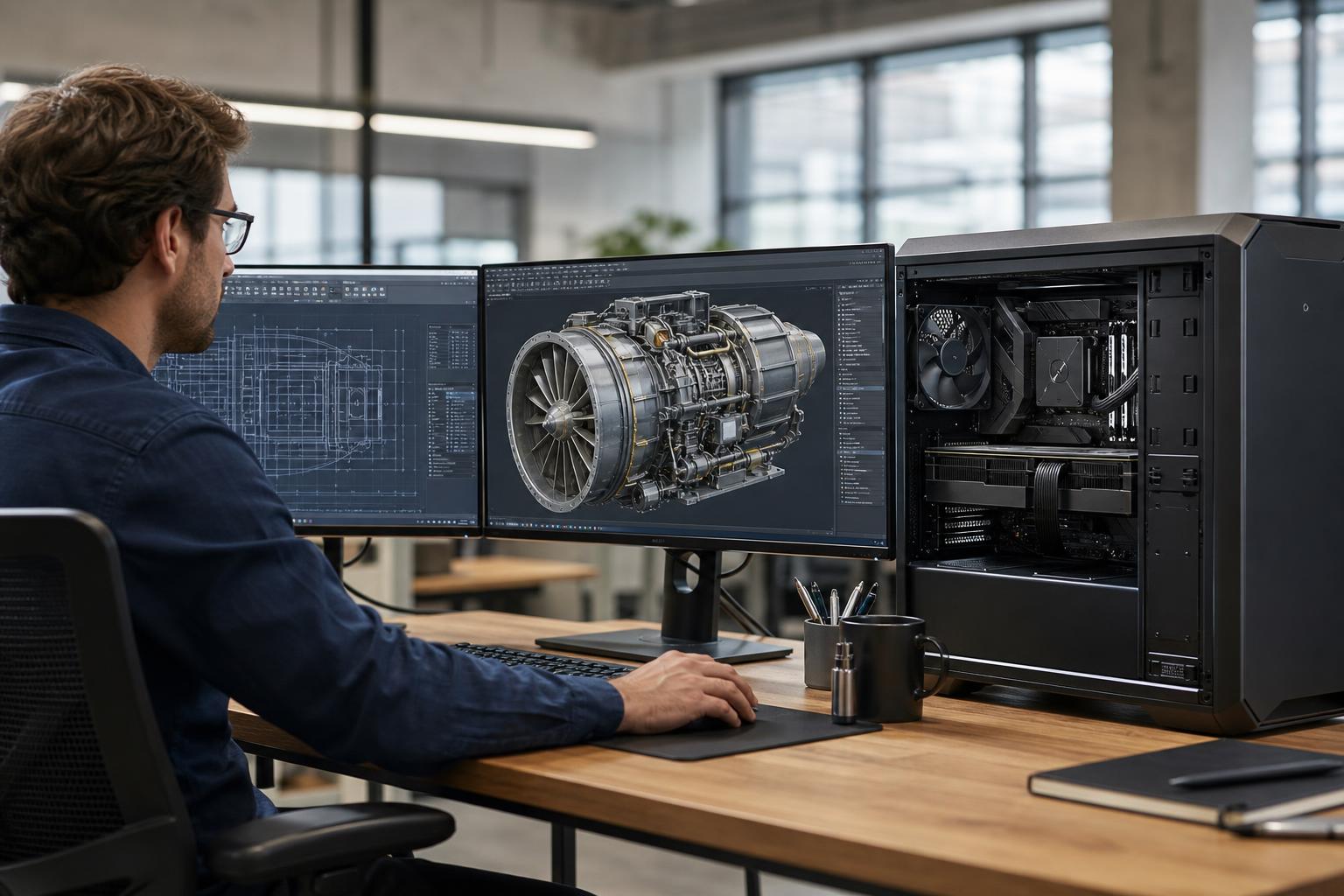
Most professional workstations do not fail all at once. They become frustrating in small, expensive ways: a large model takes longer to open, a point cloud stutters during navigation, a render blocks the machine for half a day, or an editor has to wait for proxies and exports. It is easy to normalize that delay because the computer still technically works.
The better question is not “Is this workstation old?” It is “Is this workstation slowing down the work enough that replacement makes practical sense?” For a professional workstation, age matters less than the application, project size, reliability history, and the specific resource holding the workflow back.
This guide explains how to make that decision without replacing capable systems too early or trying to stretch unsuitable hardware one more year.
A three-year-old workstation can be overdue for replacement if its workload has changed from 2D drafting to large BIM models, reality capture, GPU rendering, or local AI work. Meanwhile, a six-year-old system may remain perfectly useful for office work, light CAD, or a dedicated machine running stable, modest-sized projects.
Review what each employee actually does during a normal week:
This produces a much better purchasing plan than replacing every machine on the same calendar schedule. A Civil 3D technician, a Revit user, a 3D renderer, and a video editor can all need very different hardware even if their current PCs were purchased at the same time.
Insufficient RAM is one of the clearest reasons to upgrade or replace a professional workstation. When physical memory fills up, Windows moves data to storage. Even a fast NVMe SSD is dramatically slower than RAM, so the result is often long pauses, stuttering, slow application switching, and a system that feels generally unresponsive.
Watch for memory use near the system limit during real projects, not just immediately after startup. If a user with 32GB routinely reaches that limit with their CAD software, browser, PDF markups, communication tools, and reference files open, moving to 64GB can be meaningful. Large assemblies, dense point clouds, high-resolution video timelines, multiple virtual machines, and serious data work may justify 128GB, 256GB, or more.
If the existing platform cannot accept enough memory, or the required upgrade is disproportionately costly, replacement is usually the cleaner answer.
CPU requirements are not just about core count. Many design applications still rely heavily on fast individual CPU cores for drawing, modeling, view updates, and general interface responsiveness. In those cases, a modern processor with strong single-thread performance can make day-to-day work feel much quicker than an older high-core-count processor.
Other tasks benefit from more cores: CPU rendering, simulation, encoding, batch processing, compiling, and some photogrammetry stages. If an employee regularly starts a multi-hour calculation, render, or export that monopolizes their computer, a higher-core-count workstation can return useful working time.
Replace the system when the processor is the repeatable constraint. Do not buy a high-core-count CPU simply because it sounds professional if the main application is lightly threaded. It is a costly way to improve a bottleneck that may not exist.
A GPU upgrade can extend the useful life of a workstation, but only if the rest of the platform still suits the job. It is often worthwhile when the current CPU, memory capacity, power supply, and PCIe expansion are adequate.
Replacement becomes more sensible when the system lacks the power delivery, physical room, cooling, or PCIe bandwidth for the needed GPU. It may also be time when GPU memory is consistently exhausted. VRAM matters for large scenes, high-resolution textures, GPU rendering, video effects, visualization, and many AI workloads. When VRAM runs out, applications may fall back to slower system memory, reduce quality, fail a task, or simply refuse to load the project.
Professional GPUs can be the right choice where application-specific drivers, larger VRAM configurations, display connectivity, or specialized deployment requirements matter. But they are not automatically the best value. For many GPU rendering, editing, visualization, and compute workloads, a suitable consumer GPU can provide excellent performance. The software, required VRAM, driver expectations, and support policy should drive that choice.
Storage bottlenecks are easy to overlook because a workstation may have plenty of total disk space while still performing poorly. A nearly full boot drive, a slow hard drive holding active projects, or one SSD handling the operating system, project files, cache, and exports can all create avoidable delays.
For demanding work, a practical layout often separates the operating system and applications from active projects and scratch or cache files. Video editing, simulation, point-cloud processing, and data-heavy workflows can benefit from this separation because several operations can occur at once without fighting over a single drive.
Upgrade storage first when the workstation is otherwise capable and has open M.2 slots or expansion options. Replace the platform when storage expansion is exhausted, unreliable drives are becoming a pattern, or the system is limited to older interfaces that no longer fit the workflow.
Random restarts, application crashes under load, overheating, drive errors, USB problems, or recurring blue screens are not merely IT annoyances. They interrupt concentration and can create real risk around project deadlines.
Not every stability issue requires a new computer. A failing SSD, worn cooling fan, aging power supply, poor thermal compound application, or memory problem can often be diagnosed and repaired. But when a workstation has repeated failures, unavailable replacement parts, limited warranty options, and declining performance at the same time, replacement is generally more responsible than repeated patchwork repairs.
An upgrade makes sense when it directly fixes the proven constraint and leaves a balanced system behind. Adding RAM, installing larger NVMe storage, or fitting a better GPU can be a strong investment in the right machine.
Replacement is usually the better path when several limitations arrive together. For example, a system may need more RAM than its motherboard supports, a stronger GPU than its power supply and case can accommodate, faster storage than its platform handles well, and more CPU performance for growing project sizes. At that point, incremental upgrades can spend a surprising amount of money while preserving the oldest parts of the system.
Also consider expansion needs that did not matter at the original purchase:
A well-designed custom workstation leaves sensible room to grow. That does not mean buying every possible feature upfront. It means choosing a platform that will not force an unnecessary full replacement after one reasonable upgrade.
This tier fits 2D and moderate 3D CAD, general engineering work, GIS projects of manageable size, development, and standard creative workloads. Priorities are a modern high-clock CPU, 32GB to 64GB of RAM, a capable GPU appropriate to the software, and fast NVMe storage. It should feel responsive, quiet enough for an office, and dependable through a full workday.
This is appropriate for larger BIM and CAD models, heavier multitasking, frequent rendering or exports, 4K production, substantial GIS datasets, and larger point-cloud or photogrammetry jobs. Expect 64GB to 128GB of RAM, more GPU power and VRAM, multiple fast storage volumes, stronger cooling, and enough CPU cores to accelerate the application’s longer processing stages.
Very large datasets, dense reality-capture work, high-end rendering, scientific processing, local AI, virtualization, and workloads requiring multiple PCIe devices may need a workstation-class platform with high memory capacity, more PCIe lanes, expanded storage, and carefully planned cooling and power delivery. This is where platforms such as Threadripper can make sense, not as a status symbol but because the workload genuinely needs their expansion and parallel-processing capabilities.
Benchmarks are useful, but they are not the whole buying decision. A workstation that saves a few minutes every time a user opens a model, generates sheets, exports footage, rebuilds a scene, or processes a dataset can make the working day smoother. More importantly, it can reduce the temptation to postpone processing until the end of the day or to run demanding jobs overnight simply because the computer cannot keep up.
That does not mean every workstation needs the most expensive processor and GPU available. Overspending on cores an application cannot use, GPU power beyond the monitor and workflow requirements, or storage capacity that will sit empty is still wasted budget. The goal is a balanced machine that removes the actual delays your staff experiences.
The best time to replace a workstation is before it becomes the weak link on a deadline-sensitive project. Keep a simple record of system age, RAM capacity, storage health, recurring support issues, application changes, and feedback from the person using the machine. This allows a business to prioritize the systems that need attention rather than replacing hardware blindly.
Overclock Computers designs custom workstation PCs around the software you use, the size of your usual projects, your storage and networking needs, and a realistic upgrade plan. If an aging workstation is slowing down production, contact our team with your applications, current specifications, and typical workload. We can help determine whether a targeted upgrade is enough or a properly configured replacement will serve you better.