Best Workstation Specs for Point Cloud Processing in 2026

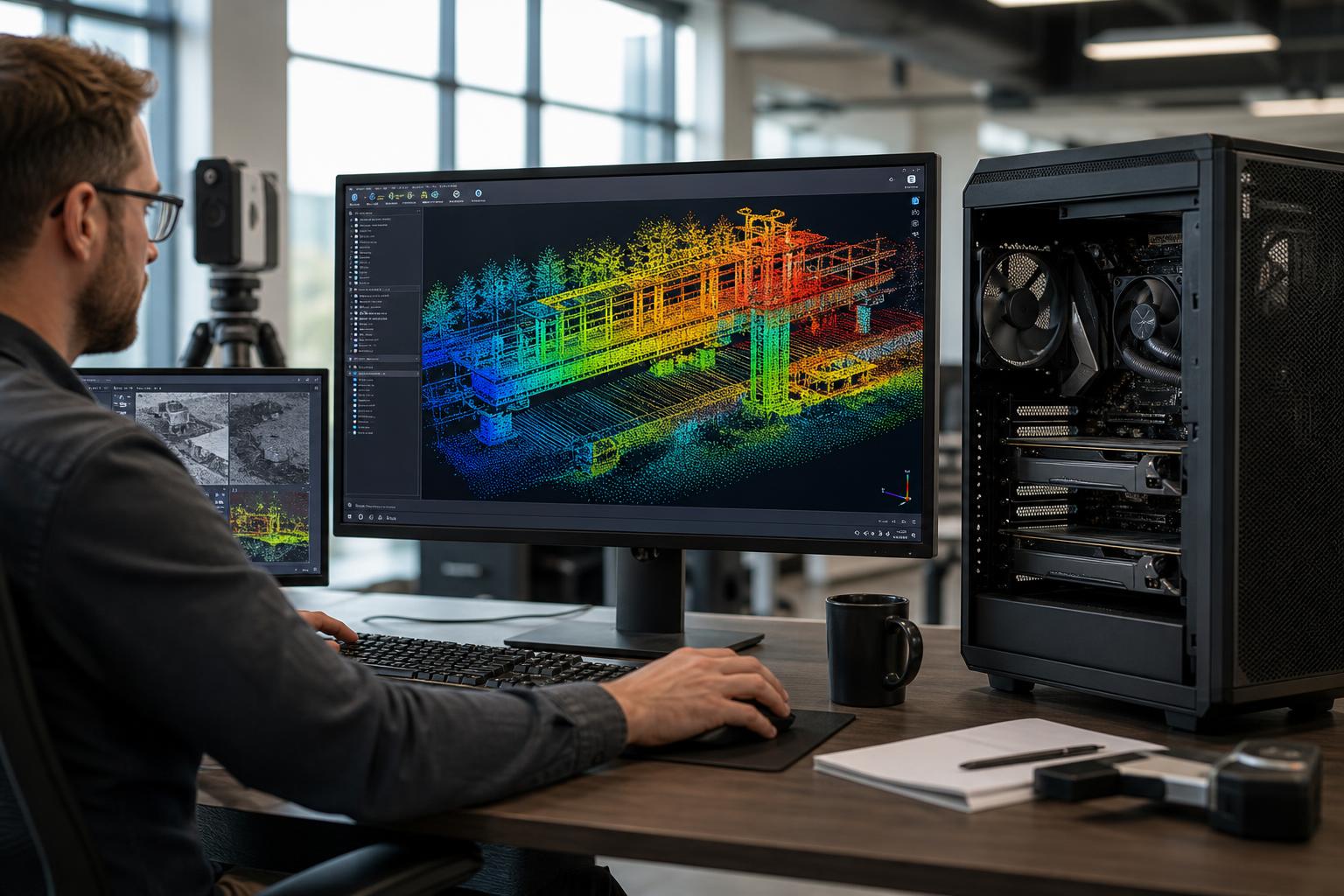
Point-cloud workstations are easy to oversimplify. A large CPU, a powerful GPU, and plenty of RAM sound like the whole answer, but the right balance depends on what happens after the scan is captured.
Registering terrestrial scans, classifying mobile-mapping data, viewing large clouds, producing CAD deliverables, creating meshes, or working with aerial imagery can stress very different parts of a computer. A workstation that feels excellent in a 3D viewer can still be frustratingly slow when it is importing, indexing, exporting, or processing a large project.
The best point cloud workstation is not necessarily the most expensive desktop. It is a system configured around the software your team uses, the size of your normal and largest projects, and the time your staff spends waiting on the machine.
For most LiDAR and reality-capture workflows, four areas determine whether a workstation remains responsive: CPU performance, memory capacity, GPU VRAM, and storage layout. Networking and PCIe expansion can matter just as much for teams moving large project files or connecting specialized hardware.
Many point-cloud applications have mixed CPU behavior. Parts of the workflow, including general interface responsiveness, file preparation, and some modeling tasks, often benefit from strong single-core performance. Other jobs, such as importing, indexing, classification, registration, meshing, or exports, may use multiple cores more effectively.
For a general-purpose point cloud workstation, start with a modern high-performance desktop CPU with strong per-core speed and a sensible core count. This is usually the best fit for survey, CAD, GIS, and visualization users handling small to moderately large projects.
A workstation-class CPU platform makes more sense when the work involves very large datasets, frequent long processing jobs, multiple GPUs, unusually high RAM requirements, or several expansion cards. More cores are valuable when your actual processing software uses them, but a high-core-count processor is not automatically faster in every part of a point-cloud workflow. Buying 64 cores for an application that spends most of its day lightly threaded is an expensive way to make menus open at roughly the same speed.
System memory is often the first true limit in a point cloud workstation. When a project, its indexes, source files, CAD application, browser, and background tools exceed available RAM, Windows begins relying heavily on storage as overflow memory. Even with a fast NVMe SSD, that is much slower than working in RAM.
A practical rule is to size memory around the largest project your team reasonably expects to open, not the average project that happens to fit comfortably today. The software package, point density, number of scans, imagery, derived meshes, and other open applications all affect real memory use.
Do not select 256GB merely because it sounds professional. If the workload never approaches 128GB, that money may deliver more practical benefit in faster storage, a better GPU, or additional project capacity. On the other hand, insufficient RAM can turn a productive workstation into a machine everyone avoids using for the difficult jobs.
A capable GPU is important for navigating dense point clouds smoothly, driving multiple high-resolution displays, handling 3D viewports, and accelerating software that supports GPU compute. VRAM matters because it gives the graphics card room to hold complex scene data without constantly shuffling it through system memory.
For typical CAD-linked point cloud viewing and moderate visualization, a modern GPU with 12GB to 16GB of VRAM is a practical baseline. For large interactive clouds, heavy 3D visualization, complex meshes, GPU-accelerated processing, or multiple 4K displays, 20GB to 32GB or more can be a worthwhile upgrade.
Professional GPUs and consumer GPUs both have a place. A consumer GPU can offer excellent performance per dollar for visualization and many GPU-accelerated workflows. A professional GPU may be the better choice when its larger VRAM options, professional driver path, display requirements, or vendor-validated workflow are specifically valuable. The right question is not “Which card costs more?” It is “Does our software and project size need the memory, drivers, or features this card provides?”
Point-cloud projects are storage hungry. Raw scans, registered data, imagery, derived deliverables, temporary files, backups, and archived projects can add up quickly. A single large SSD may work initially, but separating active work from long-term storage keeps the workstation cleaner and easier to manage.
Fast storage helps with imports, saves, cache-heavy operations, and opening large project files. Capacity matters just as much because NVMe drives perform best when they are not filled to the last few gigabytes. Keep reasonable free space on active project drives.
This tier suits surveyors, CAD technicians, GIS users, and field-to-office professionals working with moderate scan sets and point-cloud references in design applications.
This is often the best-value configuration for users who need a responsive workstation more than a dedicated processing server.
This is the sensible target for teams regularly registering, classifying, modeling, or viewing larger datasets. It also suits users who combine point clouds with Civil 3D, Revit, GIS, rendering, or multiple related applications.
This tier is for organizations managing exceptionally large projects, intensive processing pipelines, high-resolution imagery, major corridor or area datasets, or workflows requiring several PCIe cards and substantial local storage.
This is where platform choice becomes important. More PCIe lanes can allow high-speed storage, networking, capture hardware, and GPUs to coexist without awkward compromises.
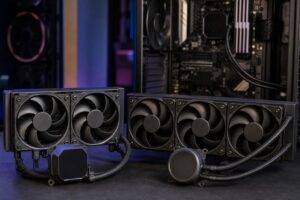
Point-cloud processing is not always a short burst of activity. Registration, exports, classification, meshing, and related tasks can keep a CPU or GPU under load for hours. A workstation needs cooling that can sustain performance without excessive fan noise, heat buildup, or unnecessary throttling.
That means using a quality cooler, a case with real airflow, sensible fan placement, and a power supply with enough capacity and headroom. These are not glamorous line items, but they are the difference between a machine that performs well for a quick demo and one that remains dependable through a long project deadline.
Before configuring a point cloud workstation, collect a few details from the people who will use it:
Those answers prevent the classic workstation mistake: spending heavily on one impressive component while leaving a real bottleneck untouched.
A well-configured point cloud workstation can make dense data easier to navigate, reduce delays during processing and exports, and give technical staff more room to work without constantly closing applications or clearing drives. The right configuration may be a fast mainstream desktop with 128GB of RAM, or it may require a workstation-class platform built for memory, storage, networking, and expansion.
Overclock Computers can help configure a custom workstation around your software, normal and maximum project sizes, storage workflow, expansion needs, upgrade plans, and budget. Contact our team with the applications and datasets you work with, and we can help identify the hardware that will make a meaningful difference.