How to Choose a Motherboard for a Gaming PC or Workstation

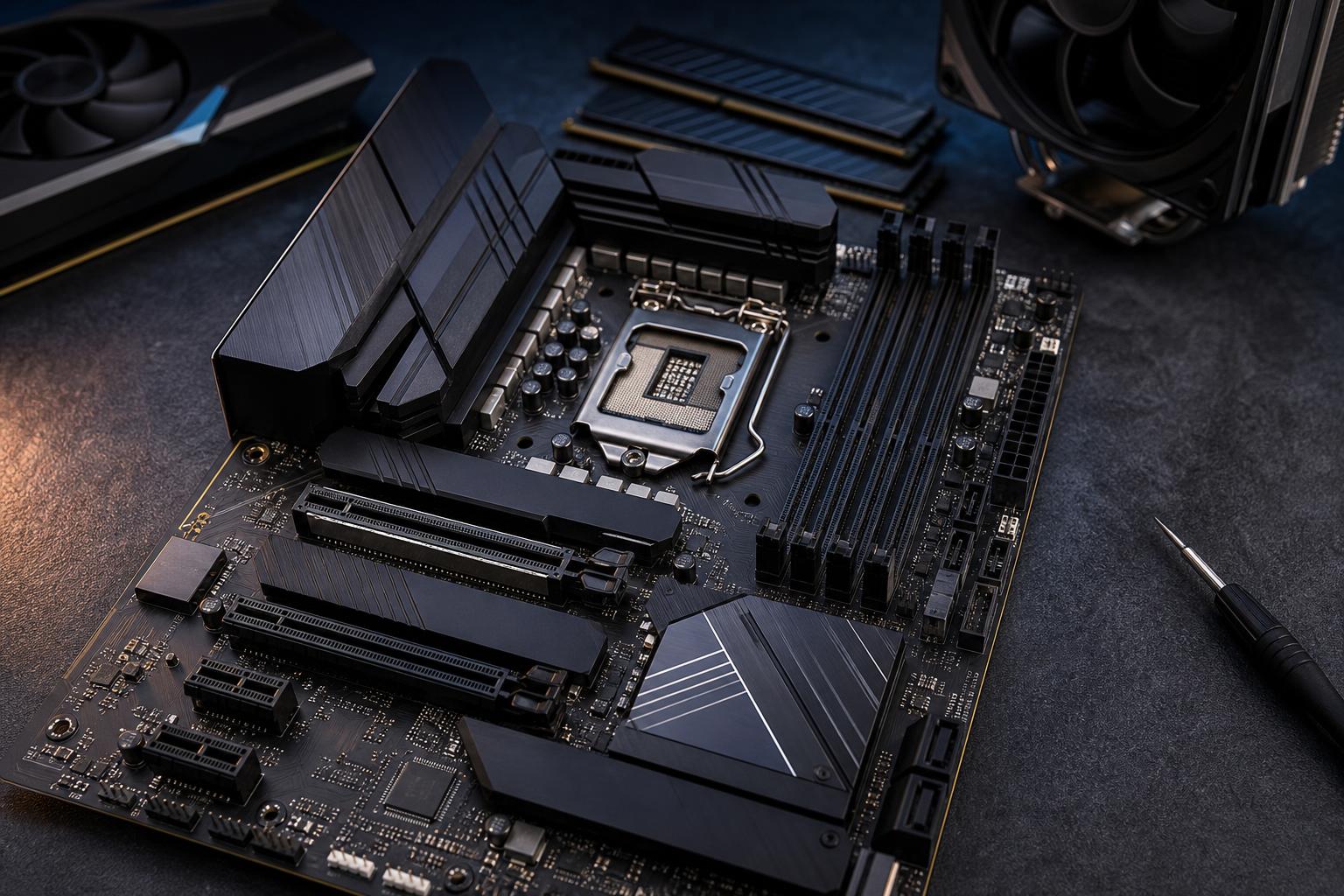
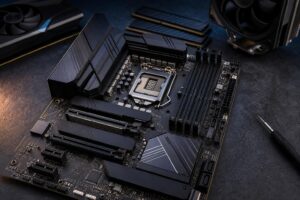
The motherboard is rarely the part that delivers the biggest benchmark number, but it decides what the rest of your PC can do. It determines which CPU fits, how much memory you can install, how many SSDs and expansion cards you can add, what ports are available, and how comfortably the system can be upgraded later.
That makes it an easy component to buy badly. Some shoppers overspend on a feature-packed board with ports they will never use. Others buy the cheapest compatible option, then discover it has limited storage, weak connectivity, an awkward layout, or insufficient power delivery for the processor they chose.
The right motherboard is not automatically the most expensive one. It is the one that supports your CPU properly, fits the case, provides useful expansion, and comes from a well-supported product line.
The first rule is simple: a motherboard must use the correct socket for your processor. AMD and Intel processors are not interchangeable, and even processors from the same manufacturer can require different sockets.
After the socket comes the chipset. The chipset affects available connectivity and expansion, including USB ports, PCIe lanes, NVMe SSD support, and overclocking options on platforms where overclocking is supported. It also separates basic boards from models intended for more demanding systems.
Do not assume that a board supporting a socket will support every CPU released for that socket without preparation. A BIOS update may be required, particularly when pairing an older board with a newer processor. If you are buying parts separately, confirm the board’s CPU support list and the installed BIOS version. A custom builder should handle this compatibility check for you.
A premium chipset does not make the same CPU inherently faster in ordinary gaming. It can enable more features. That distinction matters when deciding where your budget should go.
Motherboards come in several physical sizes. The common choices are ATX, Micro ATX, and Mini-ITX.
ATX boards usually offer the most expansion slots, M.2 sockets, fan headers, USB connections, and room around the CPU socket. They are a particularly good fit for a full-size gaming PC, a workstation with multiple drives, or any build that may gain capture cards, high-speed networking, audio hardware, or other add-in cards.
Micro ATX can be an excellent value choice. Many Micro ATX boards still provide four RAM slots, multiple M.2 slots, and a full-length graphics card slot, while fitting in smaller and often less expensive cases. The tradeoff is fewer PCIe slots and, on budget models, fewer rear USB ports or fan headers.
Mini-ITX is for compact PCs, not necessarily inexpensive PCs. These boards typically have two RAM slots and one PCIe slot, which the graphics card will occupy. They can be excellent for a powerful small-form-factor system, but the tighter layout, more limited expansion, and cooling constraints mean every component choice needs more care.
Do not buy a small board just because it is cheaper. A Micro ATX or Mini-ITX board may be exactly right, but only if it fits the case, supports your storage plans, and leaves enough room for future additions.
For many buyers, this is where a motherboard’s long-term value becomes clear. Count what you need now, then allow a little room for later.
Most new gaming systems should have at least two M.2 slots: one for the operating system and primary games drive, and one for a future storage upgrade. A workstation may need three or four M.2 slots, SATA ports for large-capacity drives, or PCIe slots for specialized storage, networking, audio, capture, or data-acquisition cards.
Also inspect the slot layout rather than merely counting slots. A large graphics card can cover adjacent slots. On some boards, installing an M.2 drive may reduce the number of available SATA ports or share bandwidth with another connector. These are normal design compromises, but they should be understood before parts are ordered.
PCIe 5.0 support can be useful for longevity and certain high-speed storage or expansion needs. It is not a reason by itself to pay a large premium for a typical gaming PC. Current graphics cards generally do not see a meaningful real-world gaming difference between a properly configured PCIe 4.0 x16 connection and PCIe 5.0 x16.
Rear I/O is the collection of ports on the back of the motherboard. It is easy to overlook until the PC is on your desk and you are short one USB port.
Think about the devices you use every day: external SSDs, webcams, microphones, printers, card readers, VR headsets, wired networking, speakers, and USB charging cables. A board with enough rear USB ports is nicer than relying on a stack of hubs.
For creators and professionals, a fast USB-C port can matter more than decorative heatsinks. Check the speed rating, not just the connector shape. USB-C describes the physical connector; it does not guarantee high transfer speeds, display output, or charging capability.
Also confirm that the board has the internal headers your case needs. A case with front-panel USB-C requires the appropriate motherboard header to make that port work. For a system with several case fans, verify there are enough fan headers or budget for a powered fan hub.
Gigabit Ethernet is sufficient for many homes and offices. A 2.5Gb Ethernet port is a worthwhile convenience for new high-performance systems, especially when moving large files to a NAS or another capable PC. Faster networking is only useful if the rest of the network supports it, so do not buy 10Gb networking solely for the number on the specification sheet.
Built-in Wi-Fi is a good idea when a wired connection is not practical. It also provides Bluetooth for wireless controllers, headsets, and peripherals. For a desktop that will always be connected by Ethernet, it is optional rather than essential.
Modern onboard audio is good enough for most gaming, calls, and everyday speaker setups. Spend extra on specialized audio only if you have quality headphones, studio equipment, or a specific recording need that benefits from it.
The voltage-regulator module, commonly called the VRM, supplies power to the CPU. A board with capable power delivery and decent VRM cooling helps a high-performance processor sustain demanding work without running into power or temperature limits.
This matters most for high-core-count CPUs, processors that draw substantial power under long rendering or compilation workloads, and buyers who plan to tune CPU power settings. It matters far less for a modest gaming CPU running at stock settings.
Do not choose based only on advertised phase counts. Manufacturers do not always describe VRM designs in directly comparable ways. Independent board reviews that test VRM temperatures are useful, but the practical shortcut is to choose a reputable midrange or higher board matched to the CPU tier. Pairing a flagship, power-hungry processor with the least expensive board available is false economy.
A few motherboard conveniences genuinely make a build easier to own:
RGB lighting, integrated displays, oversized shrouds, and elaborate cosmetic covers are personal preference. They are not bad features, but they should come after the fundamentals: compatibility, cooling, connectivity, storage, and power delivery.
For most gaming PCs, a well-equipped midrange ATX or Micro ATX board is the smart purchase. Put the savings toward the graphics card, CPU, monitor, or larger SSD. For a workstation, spend more when the board solves a real requirement: added storage, more memory capacity, multiple expansion cards, fast networking, or dependable connectivity for professional peripherals.
If you are planning a new gaming PC or workstation and want the parts to work as a balanced system, Overclock Computers can help configure a motherboard and component set around your actual software, peripherals, storage needs, and upgrade plans.