Best PC for Revit in 2026: Workstation Specs That Make Sense

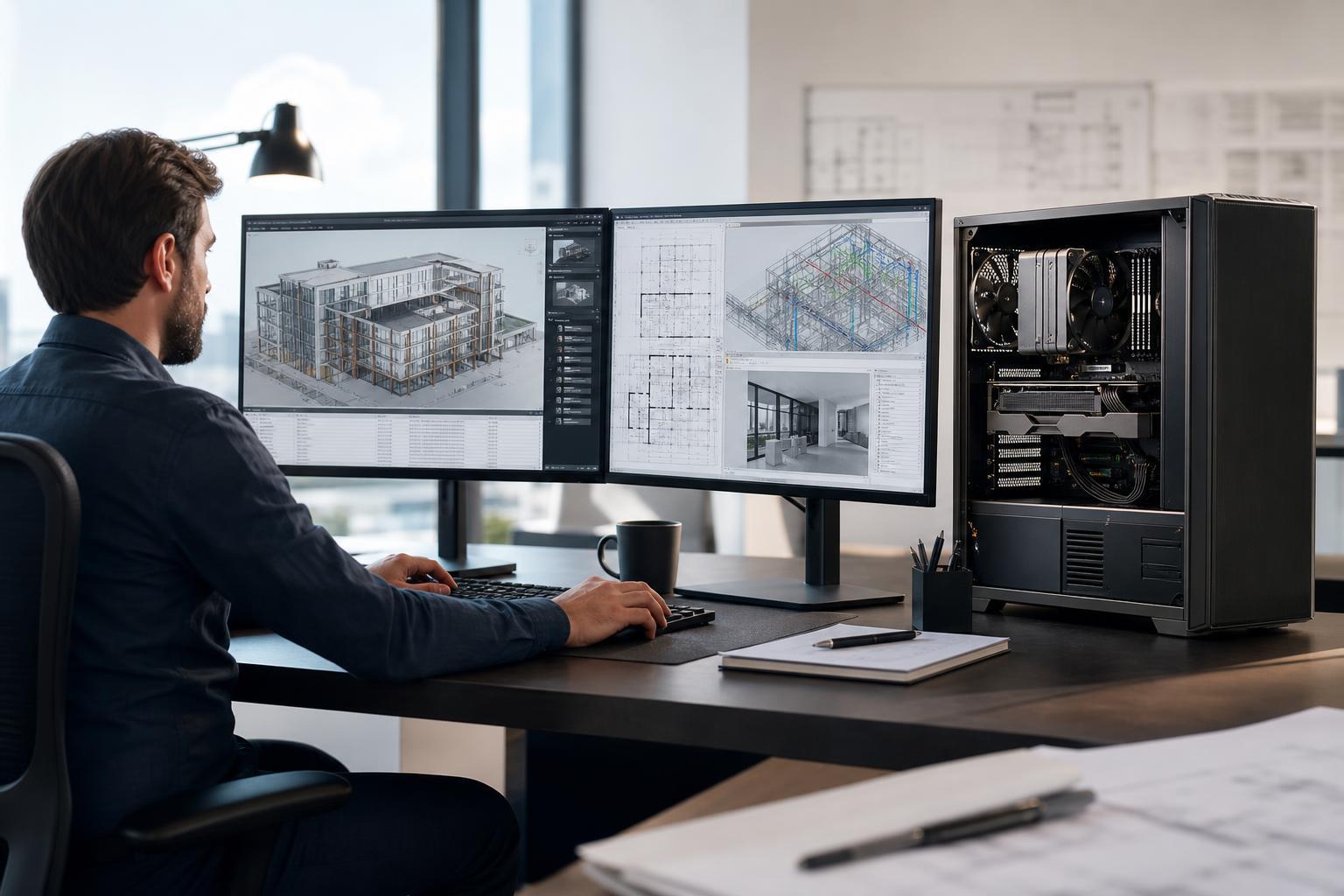
A good Revit workstation is not simply the PC with the most CPU cores or the most expensive graphics card. Revit has a particular hardware profile: everyday modeling, view changes, and much of the interface benefit heavily from fast CPU cores, while larger projects demand plenty of system memory and fast storage. The GPU matters for a responsive viewport, especially on complex models and high-resolution displays, but it is rarely the first place an AEC buyer should overspend.
The best PC for Revit is a balanced professional workstation built around the size of your models, the number of linked files, the applications you keep open alongside Revit, and whether rendering or reality-capture work is part of the job.
Much of Revit’s day-to-day work does not scale perfectly across a huge number of CPU cores. Creating and editing elements, navigating many views, modifying families, and general model interaction tend to benefit most from strong single-threaded performance. In plain English, a processor with fast individual cores will often feel quicker than a much higher-core-count processor that runs each core at a lower speed.
For most Revit users, a modern high-performance desktop processor with strong single-core speed and roughly 8 to 16 cores is the sensible starting point. That provides excellent interactive performance while leaving enough cores for background tasks, exports, linked applications, and moderate rendering.
A high-core-count workstation platform makes more sense when Revit is only one part of the workflow. Examples include users who also run CPU rendering, analysis, point-cloud processing, virtual machines, large batch exports, or several demanding applications at once. Buying a 32-core or 64-core processor solely to make basic Revit modeling faster is usually poor value.
System memory is often the limiting factor in a Revit workstation. The issue is not only the size of the central model. Linked architectural, structural, and MEP models, imported data, detailed families, multiple open views, background applications, and other Autodesk tools can make memory use climb quickly.
When RAM runs short, Windows starts moving data to storage. Even a fast NVMe SSD is dramatically slower than system memory, and the result is the familiar feeling of a powerful PC becoming strangely sluggish. For a professional workstation, buying enough RAM is usually more valuable than chasing small memory-speed differences.
Revit uses the graphics card to help draw and navigate models, but its GPU demands are different from GPU rendering, AI, or high-end real-time visualization. A capable midrange or upper-midrange GPU with sufficient VRAM is usually the right fit for a Revit-focused system.
For a typical Revit workstation driving one or two standard-resolution displays, a modern GPU with 8GB to 12GB of VRAM is often adequate. Move to 16GB or more when working with very complex scenes, multiple high-resolution displays, large point clouds, Twinmotion, Enscape, Lumion, Unreal Engine, GPU rendering, or other visualization tools.
Professional GPUs can be the correct choice in some environments, particularly where a software vendor’s recommended drivers, specialized visualization features, long product lifecycles, or controlled IT standardization are important. They are not automatically faster for every Revit task, however. A high-quality consumer GPU may offer better performance per dollar for a small firm using Revit plus GPU-accelerated visualization or rendering. The correct decision should be based on the full application list, display setup, driver requirements, and VRAM needs.
Revit projects, linked files, local copies, exports, and temporary data create plenty of storage activity. A quality NVMe SSD should be the primary drive in any serious Revit workstation. Avoid configuring a professional machine with a small boot drive that is nearly full after Windows, applications, project files, and local caches are installed.
A practical layout is a 1TB or 2TB NVMe SSD for Windows, applications, active local files, and working data, plus a second SSD or managed network storage for project archives and shared files. Larger firms may also benefit from 10GbE networking when moving substantial projects to and from a properly equipped server or NAS. Fast networking does not replace local SSD capacity, but it can remove a frustrating bottleneck from collaborative workflows.
This configuration suits individual architects, designers, and BIM technicians working on ordinary small-to-medium projects.
This is the sensible baseline for a new professional Revit workstation. It will feel substantially more comfortable than a 32GB entry configuration once linked files and normal multitasking enter the picture.
This tier is for larger models, frequent coordination work, multiple linked disciplines, and workflows that include Navisworks, visualization, or several demanding programs running together.
This is often the sweet spot for senior designers, BIM managers, and power users. The additional memory and storage headroom matter more in daily work than a token upgrade to a much more expensive CPU.
Choose this class of machine when Revit is combined with large point clouds, photogrammetry, GPU rendering, real-time visualization, extensive exports, or CPU-intensive production work.
The key point is that this is not merely a “bigger Revit PC.” It is a workstation for a mixed AEC production workflow. The secondary applications determine where the budget should go.
High-core-count processors are excellent tools for the right jobs, but not every Revit user needs one. Prioritize strong per-core CPU performance and enough memory first. Add more cores when rendering, processing, simulation, or heavy multitasking can make use of them.
A larger graphics card looks impressive on a specification sheet, but it will not solve a memory-starved BIM workflow. For a Revit-first workstation, moving from 32GB to 64GB or 128GB is frequently the more meaningful upgrade.
Cramped storage creates needless maintenance and can complicate caches, local files, and project management. Start with enough fast primary storage, then separate active work from long-term archives where it makes sense.
A workstation is also the displays, input devices, and desk environment used for eight or more hours a day. Dual displays can improve drawing, documentation, and coordination workflows. High resolution is useful, but avoid choosing a display arrangement that makes text, interface elements, or fine model details uncomfortable for the user.
Before purchasing, gather a few details: your Revit version, typical central-model and linked-model sizes, whether point clouds are loaded, the number and resolution of displays, the complete application list, and the tasks that waste the most time today. Also identify where files live and whether networking is part of the slowdown.
That information produces a far better workstation specification than choosing parts from generic “CAD PC” labels. A drafter working in moderate Revit models needs a different machine from a BIM coordinator opening large federated models, and both need something different from a visualization specialist rendering scenes all day.
Overclock Computers builds custom Revit workstations around the software, project sizes, storage workflow, expansion needs, and budget that actually apply to your work. If you are replacing an aging machine or standardizing systems for a team, contact us with your applications and typical projects. We can help specify a balanced professional workstation without spending money on hardware your workflow will not use.