Best Workstation for AutoCAD in 2026: PC Specs That Make Sense

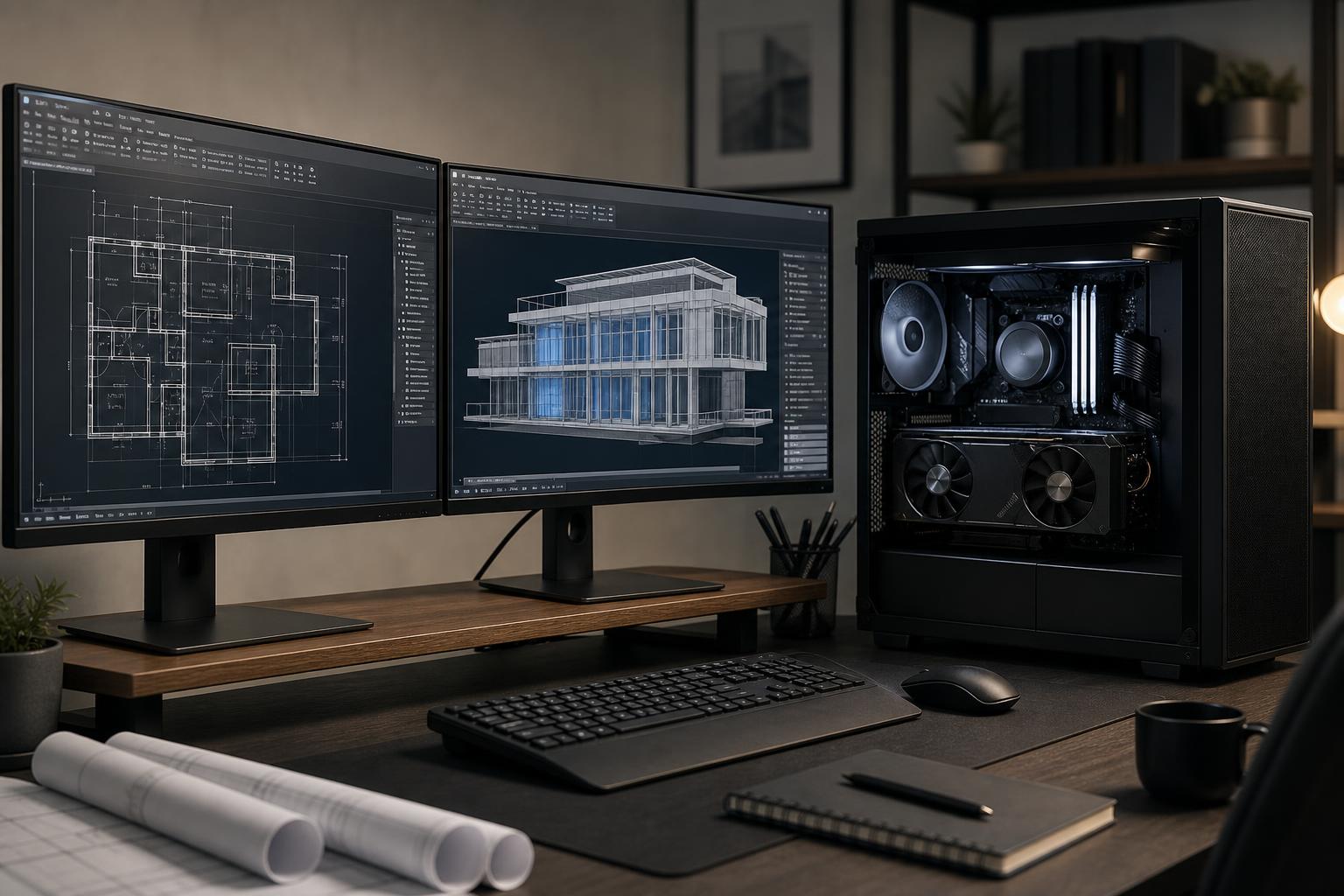
The best workstation for AutoCAD is usually not the one with the most CPU cores or the most expensive graphics card. For most AutoCAD users, a fast modern CPU, 32GB to 64GB of RAM, a capable GPU with the right display connections, and fast NVMe storage will do more for the daily experience than a huge, poorly balanced parts list.
For a solid professional AutoCAD workstation in 2026, we recommend starting with a current high-performance desktop CPU that has strong single-core speed, 32GB of DDR5 memory, a 1TB or larger NVMe SSD, and a midrange graphics card. Step up to 64GB of RAM and a more capable GPU if you work with large 3D models, multiple high-resolution displays, point clouds, rendering, or several design applications at once.
That is the short answer. The right build becomes clearer once you separate ordinary 2D drafting from large, mixed-use design work.
This tier suits people working mainly in 2D drawings: floor plans, layouts, markups, manufacturing drawings, electrical diagrams, and smaller architectural or engineering files. It is also a sensible choice for a business buying several dependable CAD desktops.
We would generally choose 32GB rather than 16GB in a newly purchased work machine. AutoCAD may run comfortably in 16GB on modest files, but Windows, browsers, PDF markups, cloud-sync tools, email, and other project software consume memory too. The cost to start at 32GB is usually justified by fewer slowdowns and more useful service life.
This is the best AutoCAD workstation configuration for many professionals. It fits designers and technical teams who routinely open large Xrefs, work in 3D, use two or three monitors, and move between AutoCAD, PDF tools, spreadsheets, image files, and related applications throughout the day.
This is where spending on a faster CPU is usually worthwhile. AutoCAD has operations that benefit heavily from fast individual CPU cores, so clock-for-clock responsiveness matters. A processor built primarily around a very high core count may be excellent for rendering or simulation, but it is not automatically the best use of money for a drafting-focused machine.
Choose this class when AutoCAD is one part of a wider workload. Common examples include architectural visualization, complex 3D assemblies, large referenced models, point-cloud viewing, GPU rendering, reality-capture work, or regular use of several demanding programs alongside CAD.
Do not buy this tier just because a larger number sounds safer. It earns its cost when your files, applications, or billable time expose the limits of a more conventional configuration.
AutoCAD does use multiple CPU cores for certain tasks, but a meaningful share of common drafting and modeling work is still limited by the speed of one or a few cores. That includes much of the interactive work that determines whether the software feels immediate or sluggish: regenerating views, editing geometry, and navigating drawings.
For an AutoCAD-first workstation, prioritize a current CPU known for strong single-thread performance. Additional cores remain useful for multitasking and for parallel workloads such as rendering, file conversion, analysis, compilation, or other applications running beside AutoCAD. The practical recommendation is simple: buy fast cores first, then buy more cores only when your wider workflow can use them.
A system used for AutoCAD plus rendering may warrant a different CPU choice than a system used only for drawings. Tell your builder which applications run at the same time, not just which application is installed.
For basic 2D drafting, a giant GPU is usually wasted money. A reliable discrete graphics card can still be useful for driving multiple displays, keeping desktop graphics responsive, and providing headroom for 3D viewports, but it does not need to dominate the budget.
GPU needs rise when you use complex 3D models, visual styles, high-resolution monitors, large point clouds, or programs that lean more heavily on GPU acceleration. The amount of video memory, or VRAM, matters in those cases because the card must hold display assets and scene data while maintaining responsive viewports.
Professional graphics cards can make sense where a specific application, driver requirement, or business workflow calls for them. They are not a universal AutoCAD upgrade. A well-selected mainstream GPU can be the more sensible choice for many AutoCAD users, particularly when it offers the display outputs and performance the workstation actually needs.
Memory capacity affects how well a workstation holds up when the real workday begins. An AutoCAD drawing may not use all available RAM by itself, but linked references, browser tabs, PDFs, Teams or similar communication tools, cloud drives, and companion applications add up quickly.
Fast NVMe storage improves boot times, application launches, file opens, saves, cache work, and general responsiveness. Capacity matters just as much. A 1TB drive is a reasonable floor; 2TB is often the more comfortable professional choice once project files, reference data, exports, and local archives begin to accumulate.
For many firms, separating the operating system and applications from active project or cache storage is useful. It can simplify organization and leave room to grow. It is not a substitute for a real backup plan, though. An internal second drive is convenient storage, not protection against accidental deletion, theft, fire, or hardware failure.
CAD workstations often run for full business days, not just a few evening gaming sessions. Quality cooling helps the CPU sustain its intended performance without becoming obnoxiously loud. A well-ventilated case, sensible fan setup, and correctly sized CPU cooler are practical reliability components, not decorative extras.
The same applies to the power supply. Choose a quality unit with enough capacity for the installed CPU and GPU, reasonable overhead for sustained loads, and the proper connectors for future graphics upgrades. More wattage is not automatically better; quality, fit, and headroom matter more than a giant number on the label.
Finally, buy the motherboard and case with your likely upgrades in mind. Extra M.2 storage slots, accessible expansion slots, enough USB ports, appropriate networking, and room for a larger GPU can keep a workstation useful longer. Spending sensibly here is wise. Paying heavily for features you will never connect is not.
The best workstation for AutoCAD is defined by your drawings, companion applications, displays, and future plans—not a generic “CAD PC” label. A 2D drafter should not be pushed into an expensive rendering machine. On the other hand, someone handling large models, rendering, and multiple datasets should not be handed an office desktop with a token GPU and no expansion room.
Overclock Computers can design and build a workstation around the applications you use, the size of your projects, your display setup, budget, and upgrade plans. Bring a list of your software and the kind of files that cause trouble now; that is usually enough to turn a broad specification into a machine that makes practical sense.