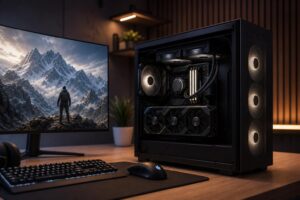
How to Choose a Motherboard for a Gaming PC or Workstation

A motherboard rarely adds frames per second by itself, and it won’t make a CPU render a video faster simply because it costs more. That makes it one of the easiest parts to overspend on—or underspecify in ways that become annoying later.
The right motherboard is the one that supports your chosen processor reliably, fits the case, provides the storage and connections you need, and leaves room for realistic upgrades. For most gaming PCs, that does not mean buying the most expensive board with enough RGB lighting to guide aircraft. For a workstation, it may mean paying more for expansion slots, high-speed networking, and stable power delivery that genuinely support the job.
Here’s how to choose a motherboard without getting lost in a product page full of acronyms.
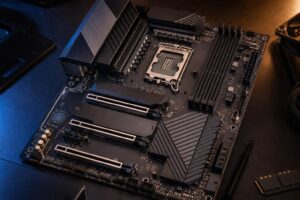
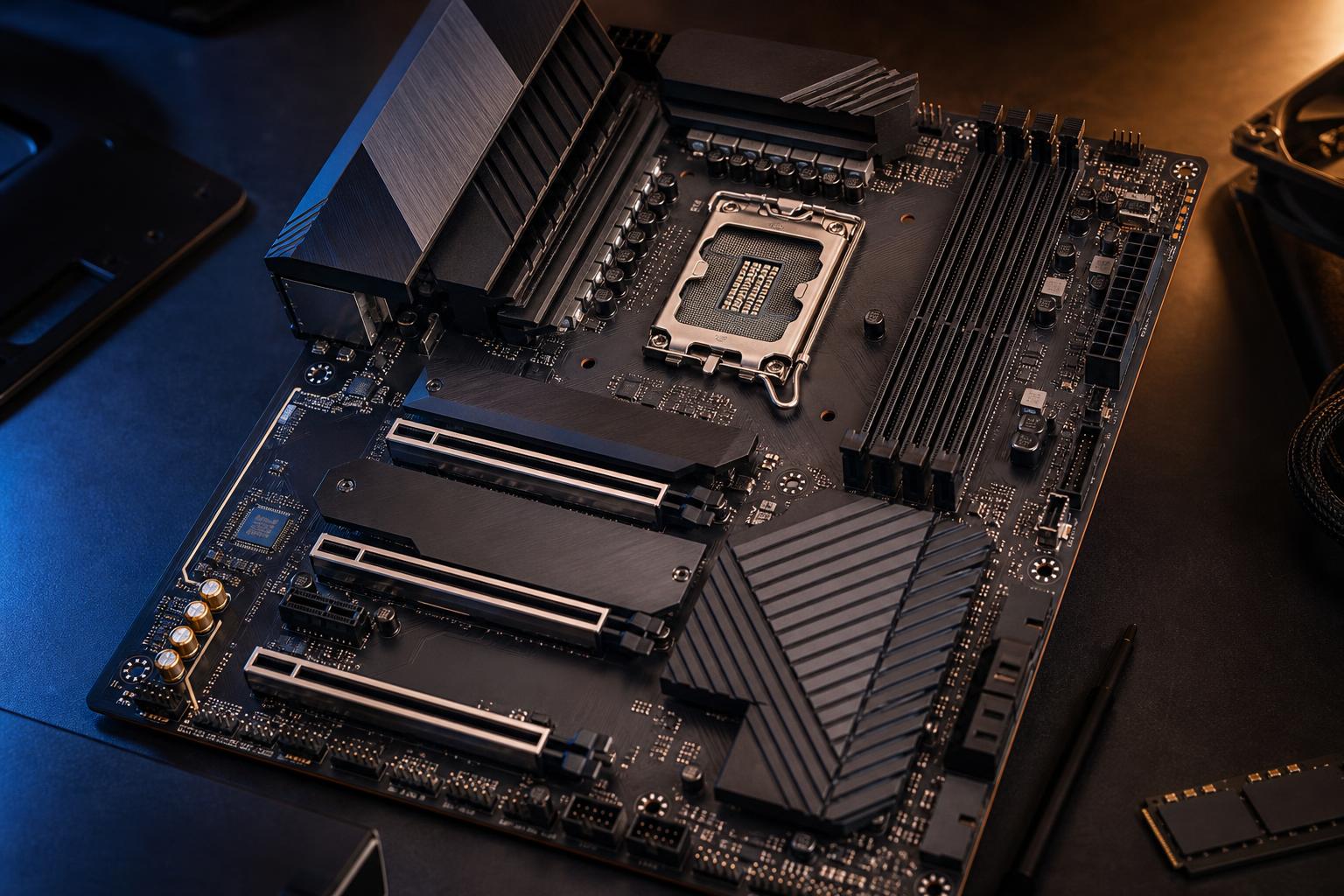
Your motherboard must use the same socket as your CPU. This is the first filter, and it is non-negotiable. A processor physically designed for one socket will not fit another, regardless of brand or price.
Once you have selected an Intel or AMD processor family, narrow your search to boards with the matching socket and a chipset appropriate to that platform. Also check the manufacturer’s CPU support list for the exact processor you intend to install.
This last step matters most when pairing a motherboard that has been on the market for a while with a newer CPU. The board may support it only after a BIOS update. Some boards can update the BIOS without a working CPU installed; others cannot. A system builder can handle this easily, but it is a needless surprise for a first-time builder.
Motherboard size affects case compatibility, expansion capacity, and cable space. The three common desktop sizes are ATX, Micro ATX, and Mini-ITX.
ATX boards usually offer the best balance of features, expansion slots, M.2 SSD slots, fan headers, and rear connections. They are a strong choice for most mid-tower gaming PCs and professional workstations. They also make assembly easier because there is more space around the CPU socket and graphics card.
Micro ATX boards are shorter than ATX boards and commonly cost less. They are a smart fit for mainstream gaming systems, especially when you need one graphics card, a few NVMe drives, and no unusual add-in cards. The tradeoff is fewer PCIe slots and, sometimes, fewer USB ports or fan headers.
Mini-ITX is for small-form-factor systems. These boards can support fast CPUs and powerful GPUs, but space is tight and expansion is limited. You generally get one PCIe slot for the graphics card and fewer storage and memory options. ITX parts can also carry a price premium. Choose this format because you specifically want a compact PC, not because smaller automatically means better.
The chipset helps determine the board’s available connectivity, expansion, and tuning features. Within a CPU platform, lower- and mid-tier chipsets often cover everything a typical gaming computer needs. Higher-tier chipsets tend to add more PCIe lanes, USB ports, M.2 slots, and support for additional add-in hardware.
For a single-GPU gaming PC with one or two NVMe SSDs, a competent midrange board is usually the sweet spot. Put the saved budget toward the graphics card, processor, storage capacity, or a better monitor—parts that are more likely to improve your day-to-day experience.
A higher-end board makes sense when you have a clear reason for it, such as:
Overclocking support is often tied to chipset choice, but it should not be the main reason most buyers spend more. Modern CPUs already manage their own boost behavior aggressively. Good cooling and a balanced component selection usually matter more than chasing a small benchmark gain.
Current desktop platforms use either DDR4 or DDR5 memory. A motherboard supports one or the other, never both. Match the board to the memory standard required by your chosen CPU platform and budget accordingly.
For most new performance-focused systems, DDR5 is the normal choice. Beyond the memory type, check the number of DIMM slots and the board’s supported memory capacity. Four slots offer more flexibility for future capacity upgrades, while compact Mini-ITX boards generally have two.
Be careful with very high advertised memory speeds. Motherboard makers list optimistic maximums achieved with select memory kits and favorable conditions. Memory stability depends on the CPU’s memory controller, the specific RAM kit, BIOS version, and how many modules are installed. For a reliable build, choose a reputable kit listed on the motherboard’s memory compatibility list when possible, rather than assuming the highest number on the box is automatically best.
It is much easier to add storage to a board that has a spare M.2 slot than to rebuild your PC around a storage limitation later.
For a typical gaming PC, look for at least two M.2 slots: one for the operating system and primary games drive, and one for a future expansion drive. A creator workstation may need three or four M.2 slots, especially if it uses separate drives for applications, active project files, cache, and long-term storage.
Also look at SATA ports if you plan to reuse or add 2.5-inch SSDs or large hard drives. They are still useful for bulk storage and archives.
There is a less obvious detail worth checking: some motherboards share bandwidth between M.2 slots, SATA ports, and PCIe expansion slots. Installing an SSD in a particular M.2 slot may disable one or more SATA ports or reduce bandwidth available to another slot. This is not necessarily a problem, but the manual should confirm the layout before you buy components around it.
Rear I/O is easy to overlook until the day you run out of USB ports. Review the rear-panel image and specifications for the exact board—not just the product family.
Useful features to prioritize include:
For many desktop owners, wired Ethernet remains the simplest and most reliable connection. Built-in Wi-Fi is still worthwhile for placement flexibility and Bluetooth accessories, but do not assume it is included. Some versions of the same board are sold with and without Wi-Fi.
The voltage-regulator module, usually shortened to VRM, converts power from the power supply into the low-voltage power the CPU needs. A well-designed VRM with adequate heatsinks helps the processor maintain performance during long rendering jobs, code compilation, simulation work, or all-core workloads.
You do not need to memorize phase counts or marketing labels. Instead, match the board class to the CPU class. A quality mainstream board is generally fine for a midrange gaming CPU. For a top-tier processor that will run hard for hours, select a board with substantial VRM heatsinks and credible independent testing or detailed technical reviews. This is particularly important in a workstation where stability matters more than a pretty spec sheet.
“Future-proof” is often used as an excuse to overspend. No motherboard can guarantee compatibility with every future CPU, GPU, storage standard, or connection type. Platform changes eventually happen.
A better approach is to buy reasonable headroom for the upgrades you can genuinely see yourself making in the next few years. Two or more M.2 slots, spare memory slots, a capable power delivery design, and the right case size are useful headroom. Paying a large premium for expansion slots or ports you will never populate is not.
Choose a reliable ATX or Micro ATX board with the correct CPU socket, DDR5 support where applicable, two M.2 slots, 2.5GbE or solid gigabit Ethernet, enough USB ports, and decent VRM cooling. Integrated Wi-Fi is worth the modest extra cost if you may need it. There is rarely a performance reason to jump to a flagship board.
Prioritize extra USB connectivity, Wi-Fi and Bluetooth, multiple M.2 slots, good fan-header placement, and strong enough power delivery for the selected CPU. If you are adding a capture card, confirm that the board has an accessible PCIe slot after the graphics card is installed; large GPUs can block adjacent slots.
Start with the software and peripherals. Large projects and specialized workflows may justify more NVMe capacity, multiple PCIe slots, high-speed networking, USB-C connectivity, and stronger sustained-load power delivery. A workstation board should solve a defined connectivity or expansion requirement, not merely look more professional in a photo.
When choosing a motherboard, begin with the CPU socket and case size, then verify memory, storage, expansion, and connectivity. Spend more only where it supports a real workload or future upgrade. A balanced midrange board is often the correct answer for a gaming PC; a carefully selected higher-end board earns its cost when a workstation needs more storage, networking, or PCIe hardware.
If you are planning a new gaming PC or workstation and want the parts to work together cleanly from the start, contact Overclock Computers. We can help configure a system around the applications, games, peripherals, and upgrade plans that actually matter to you.