How Much Storage Do You Need for a Gaming PC or Workstation?

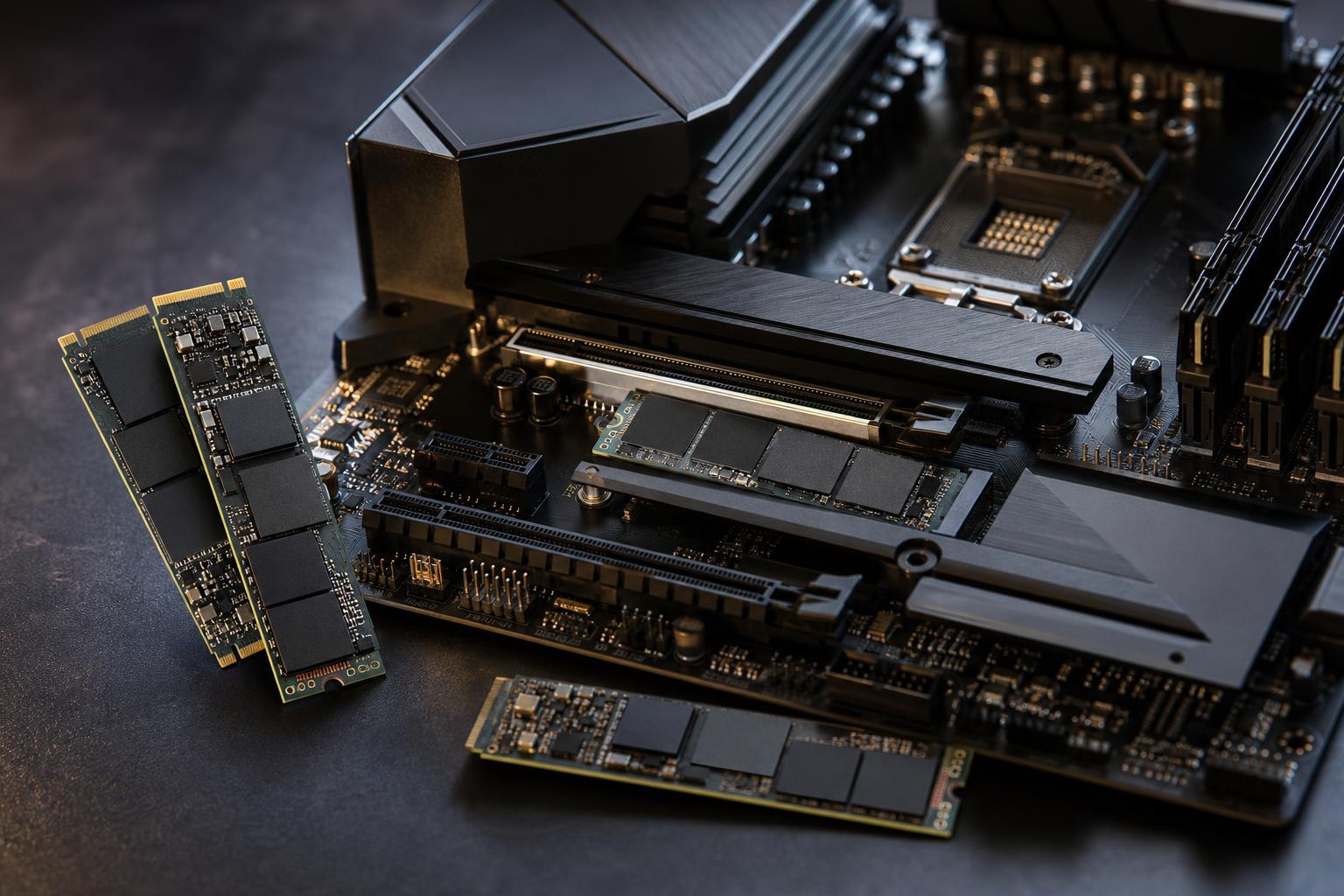
Storage is one of the easiest PC components to underestimate. A new computer with a fast 1TB NVMe SSD feels generous on day one, then a few large games, project folders, backups, and application updates quietly consume most of it.
When deciding how much storage you need for a gaming PC or workstation, capacity matters first. Drive speed, interface generation, and benchmark numbers are secondary if the drive is constantly full. A sensible storage plan gives you room to install what you use, preserve healthy free space, and add capacity later without turning cable management into an archaeological dig.
For most new performance PCs, we recommend starting with at least a 2TB NVMe SSD. It is the practical sweet spot for a modern gaming system and a good baseline for many professional machines.
A workstation may need more than one drive rather than one enormous drive. Separating the operating system, active projects, cache files, and archive storage can make day-to-day management easier and, in some workloads, improve performance.
Windows, applications, recovery files, and updates take meaningful space before you install a single game. A drive sold as 1TB also appears as roughly 931GB in Windows because storage manufacturers and operating systems measure capacity differently.
More importantly, SSDs should not be packed to the brim. Keeping roughly 15% to 20% free is a sensible target. This gives Windows room for temporary files and updates, while allowing the SSD controller to manage data efficiently. A nearly full drive will still work, but it is harder to maintain and can slow down during large writes.
In practical terms, treat a 2TB drive as about 1.6TB of comfortably usable long-term space, not a full 2TB bucket you should fill without thought.
Modern games are large, and the trend is not improving. Many major releases occupy 100GB or more once updates and optional high-resolution texture packs are included. A 1TB drive can hold Windows, common apps, and several large games, but it often forces people to uninstall and re-download titles regularly.
Choose 1TB if you usually play a small rotation of games, have reliable fast internet, and are happy to uninstall titles you have finished. It can also work when paired with a second SSD later. We would not choose it as the only drive in a higher-end gaming PC unless budget pressure is real.
A 2TB NVMe drive is enough for Windows, launchers, everyday software, and a healthy collection of large games. It reduces storage housekeeping and usually offers better value per gigabyte than 1TB models. For most gaming PC buyers, this is where we would put the money before chasing an ultra-fast SSD with a smaller capacity.
Buy 4TB if you keep dozens of current games installed, use game captures heavily, download large mod packs, or simply do not want to think about storage for years. It is also a good fit for a shared household PC where several people keep separate libraries.
For gaming, a larger quality PCIe 4.0 NVMe SSD is generally a better purchase than a smaller PCIe 5.0 drive. Game load-time differences between good modern NVMe drives are usually modest, while running out of space is immediately annoying.
Professional storage needs are driven less by the operating system and more by the size, quantity, and location of working files. One large project can outweigh an entire game library.
A 2TB primary SSD is a reasonable floor for light 1080p or 4K editing, but 4TB is more comfortable for regular work. High-bitrate footage, proxies, render files, exports, and application caches can grow quickly. Editors working with multicamera footage, RAW formats, 6K or 8K media should plan for separate fast project and cache storage, plus a larger archive or backup destination.
Many CAD users can work comfortably with 2TB, especially when completed projects are archived elsewhere. However, complex assemblies, texture libraries, simulations, point clouds, photogrammetry, and rendering assets change the equation. A 4TB primary or secondary project drive is often worthwhile because it lets active jobs stay local and fast.
Development tools are not always storage-hungry, but containers, local databases, source builds, package caches, virtual machines, and datasets can be. A developer who runs several VMs or works with data locally should start at 2TB and seriously consider 4TB. Fast storage helps build and load times, but capacity prevents the far more common problem: having to delete useful environments to make room.
Local models, training data, checkpoints, Python environments, and output files can consume terabytes surprisingly quickly. Start with 4TB if local AI is a serious use case, not an experiment you expect to try once. Depending on the workflow, a dedicated high-capacity project drive can be more useful than spending the same amount on a marginally faster boot drive.
Both approaches can be right. The best choice depends on how you work, not on a blanket rule that every PC needs multiple drives.
A single 2TB or 4TB NVMe SSD keeps the build simple. There is one volume to manage, no question about where a new application should be installed, and fewer components to buy. For gaming PCs and many general enthusiast systems, this is our preferred approach.
Multiple drives make sense when you have distinct categories of data with different performance or capacity needs. A practical workstation layout might look like this:
Separating active work from the operating system can make an OS reinstall less disruptive. It also helps prevent temporary files and project data from crowding the system drive. For demanding editing and data workflows, separate cache or scratch storage may improve consistency when the software is reading source media and writing temporary files at the same time.
Do not confuse a second internal drive with a backup, though. If the PC is stolen, damaged, infected by ransomware, or suffers a power event, both drives can be lost. Important work needs a separate backup plan, ideally with at least one copy outside the PC.
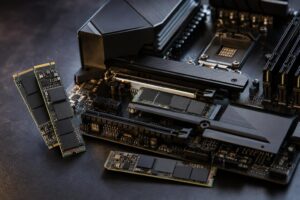
For the operating system, games, active projects, and applications, use an SSD. NVMe SSDs are now the natural choice in most new performance PCs because they are compact, fast, and widely supported.
Hard drives still have a place when very large capacity matters more than speed. They are useful for local archives, raw footage that is not being actively edited, and secondary backups. They are not a great home for modern games or active workstation projects, where long load times and slower file operations become noticeable.
External SSDs are convenient for transfer, portable projects, and secondary backups. Their real speed depends on the USB or USB4 connection at both ends, so do not assume every external drive will perform like an internal NVMe SSD. They are useful tools, but a primary workstation should not depend on one external drive as its only storage plan.
Once capacity is right, look for a reputable NVMe drive with appropriate endurance, warranty coverage, and a compatible motherboard slot. PCIe 4.0 drives remain excellent for nearly every gaming and professional PC. PCIe 5.0 can make sense for certain heavy sequential-transfer workloads, but it often costs more, runs warmer, and provides little noticeable benefit in ordinary gaming.
For a system drive, avoid buying solely on the lowest price. Very inexpensive drives may use slower NAND, have limited sustained write performance, or offer lower endurance. That does not make them useless, but the drive holding your operating system and current projects deserves a sensible quality standard.
For a new gaming PC, choose a quality 2TB PCIe 4.0 NVMe SSD unless you know your game library is small. Move to 4TB when you keep many games installed or want a system that stays comfortable for longer.
For a professional workstation, begin with 2TB only if your projects are modest and backed up elsewhere. For regular video, 3D, data, virtual machine, or local AI work, a 4TB primary drive or a two-drive layout is usually the better long-term decision.
At Overclock Computers, we plan storage around the files you actually use, the applications you run, and how you expect the system to grow. If you are configuring a new gaming PC or workstation, contact us to discuss a storage layout that is fast, practical, and not full before the computer has settled in.