Best PC for Adobe Premiere Pro: Workstation Specs That Make Sense

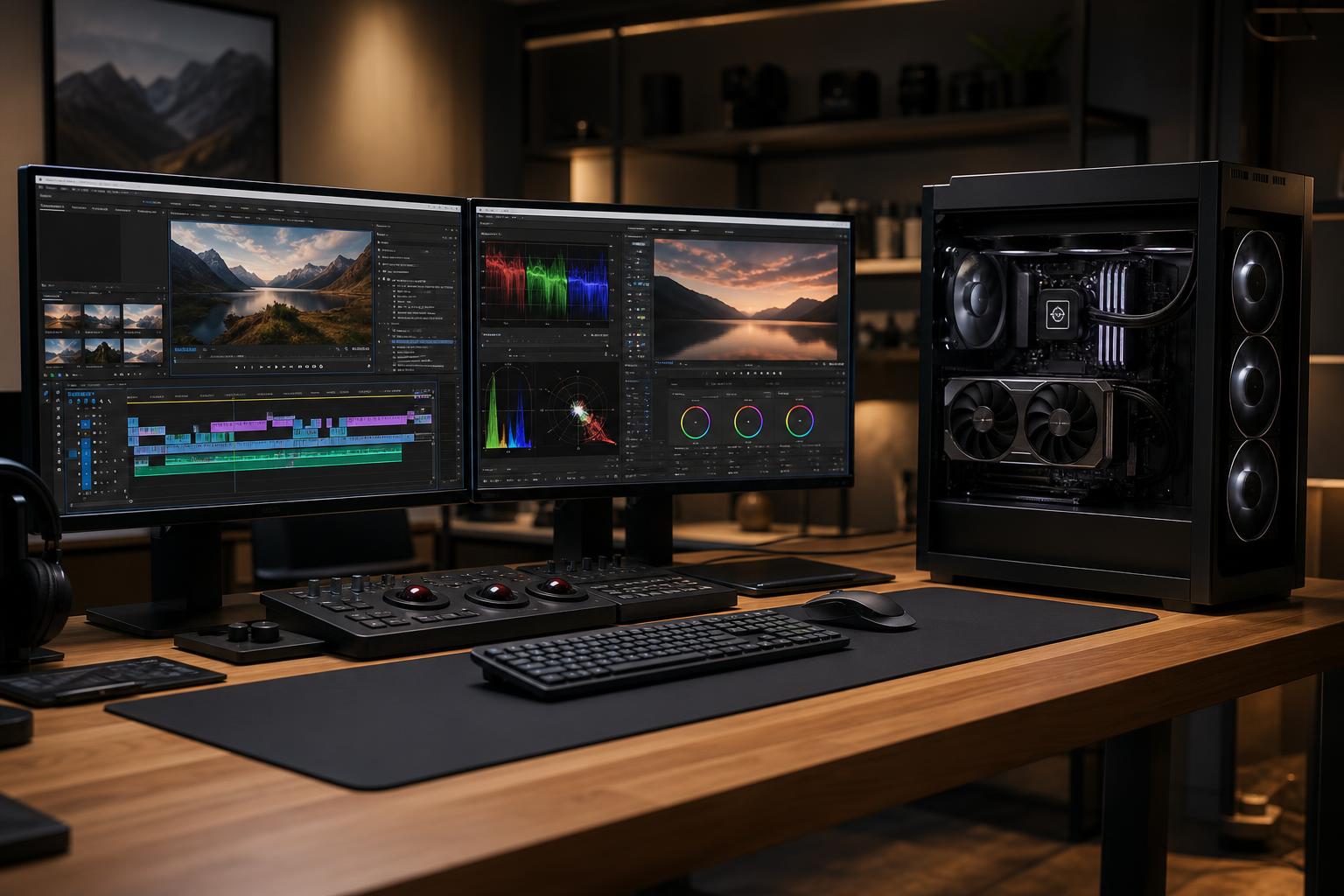
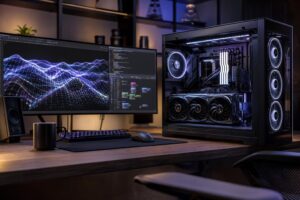
If you’re buying a PC for Adobe Premiere Pro, prioritize a strong modern CPU, an NVIDIA GPU with enough VRAM for your footage and effects, 32GB to 64GB of RAM, and multiple fast SSDs. For most serious 4K editors, the sensible target is a balanced performance workstation rather than the most expensive CPU and graphics card available.
Premiere Pro can use nearly every major component in a computer, but not in equal measure. A PC that is excellent for 3D GPU rendering can be poorly balanced for editing if it skimps on RAM, storage, or processor performance. Conversely, an expensive many-core CPU won’t fix choppy playback caused by slow media storage or heavily compressed camera files.
For paid editing work, regular 4K projects, or complex timelines, we recommend a workstation with a high-performance modern CPU, an NVIDIA graphics card with at least 12GB of VRAM, 64GB of RAM, and separate NVMe SSDs for Windows and active project media.
Those are starting points, not a reason to buy the biggest number in every category. Your camera codecs, project length, number of simultaneous streams, graphics work, and delivery schedule determine where spending more will pay off.
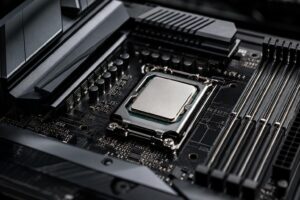
The CPU handles timeline responsiveness, decoding many video formats, exports, audio processing, and a wide range of effects. Premiere generally benefits from both fast individual cores and a sensible number of total cores. Fast cores keep the interface and lightly threaded tasks responsive; additional cores help with exports and demanding workloads.
For a dedicated editing PC, don’t settle for an entry-level processor simply because the system has a powerful graphics card. That pairing looks impressive on a parts list but often feels uneven in real work. An 8-core-class CPU is a reasonable floor for a professional-minded Premiere system. Moving to a higher-performance 12- or 16-core-class processor makes sense for frequent exports, multicam editing, and editors who run Premiere, After Effects, Photoshop, and background applications at the same time.
Beyond that point, returns can diminish for ordinary editing. Spend on more CPU cores when your actual workload involves long exports, CPU-heavy codecs, transcoding, or several professional applications open at once. For straightforward single-camera 4K edits, extra money may improve the experience more when put toward RAM, storage, or a better GPU.
Premiere Pro uses GPU acceleration for many effects, color operations, scaling, playback tasks, and encoding workflows. The GPU matters more as projects become more visually complex. Lumetri Color corrections, noise reduction, layered effects, high-resolution footage, and graphics-heavy timelines can all make a modest GPU feel small very quickly.
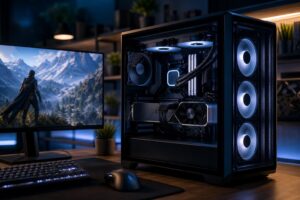
An NVIDIA GPU is often the practical default for an Adobe Premiere Pro workstation because NVIDIA’s CUDA acceleration is widely used in creative software workflows, and NVIDIA’s hardware video engines can be useful with common delivery formats. That doesn’t mean every editor needs a flagship card. A well-chosen mid-to-high-tier GPU is enough for many 4K timelines.
VRAM deserves special attention. It is the graphics card’s working memory, and running short on it can limit high-resolution, effect-heavy projects. Aim for 12GB as a comfortable starting point for a new serious 4K editing workstation. Choose 16GB or more for 6K and 8K media, demanding effects, large compositions, or a workflow that regularly includes After Effects, 3D tools, and AI-assisted features.
Don’t buy a premium GPU only for basic cuts, simple titles, and occasional 1080p exports. That money is better spent on a larger monitor, dependable backup storage, or faster project drives.
Premiere, browser tabs, media management tools, audio applications, Photoshop, and After Effects all compete for system memory. When RAM fills up, Windows has to rely more heavily on storage as temporary memory. Even fast SSDs are far slower than RAM, and the result is a less responsive workstation.
For a new workstation expected to earn its keep for several years, 64GB is usually the right place to begin. It avoids a common false economy: buying 32GB now, then discovering that the machine feels cramped as project complexity grows.
Storage layout is one of the biggest differences between a generic desktop and a properly configured editing workstation. A single large SSD works, but separate drives reduce contention when Premiere is reading source footage, writing previews, and accessing the operating system at the same time.
A practical layout for many editors looks like this:
Fast NVMe drives improve the everyday feel of editing, but capacity matters just as much. A tiny cache drive that is constantly full creates its own problems. Buy enough working space for active projects, then keep completed work protected elsewhere. RAID and redundant storage can improve availability, but neither replaces a real backup.
This tier suits creators who edit regularly but don’t spend every day in long multicam or effects-heavy sessions. Choose a modern 8-core-class CPU, a CUDA-capable NVIDIA GPU with 8GB to 12GB of VRAM, 32GB of RAM, and at least a 1TB system SSD plus a 1TB to 2TB project SSD.
This is a capable configuration for YouTube productions, interviews, social content, and many 4K projects. It is not the ideal choice for large After Effects compositions or demanding high-resolution RAW work.
This is where we would direct most clients buying a primary Adobe Premiere Pro workstation. Use a high-performance 12- to 16-core-class CPU, an NVIDIA GPU with 12GB to 16GB VRAM, 64GB of RAM, and separate NVMe drives for the operating system, projects, and cache.
The important advantage is balance. You gain faster exports and better effects performance without sacrificing the storage capacity and memory that make real editing sessions smoother. It is also a much better base for occasional After Effects work, streaming review sessions, or running other business applications alongside Premiere.
Step up to this tier when you routinely work with 6K or 8K footage, large multicam timelines, RAW formats, heavy color and effects work, or demanding work shared across an editing team. A high-end CPU, 16GB or more of GPU VRAM, 96GB to 128GB of RAM, multiple high-capacity NVMe drives, and robust archive or network storage are appropriate here.
This is also the right category to discuss connectivity before ordering. Fast external storage, card readers, multiple displays, 10Gb networking, and expansion requirements should be planned into the motherboard and case selection. Adding them later is possible, but it is cleaner and often less expensive to design for them upfront.
Sometimes the best upgrade is not hardware. Highly compressed formats such as H.264 and H.265 can be demanding to decode, especially with high-resolution or high-frame-rate media. Proxies create smaller, edit-friendly versions of the footage, allowing smoother playback while preserving the original files for final export.
A powerful workstation reduces the need for proxies, but it does not make every difficult codec effortless. If your team receives a mix of mirrorless-camera footage, screen recordings, drone clips, and client-supplied media, a proxy workflow is still smart. It makes performance more predictable and keeps editors focused on the cut rather than the playback bar.
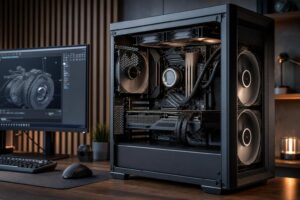
A good editing PC also needs quality cooling, a correctly sized power supply, and a case with useful airflow. Long exports are sustained workloads, not a two-minute game benchmark. Poor cooling can lead to excess fan noise and reduced sustained performance.
Likewise, avoid paying heavily for a decorative motherboard packed with gaming features you will never use. Spend that portion of the budget on RAM, storage, a quieter cooler, or the ports and networking your workflow genuinely needs. A dependable power supply and non-proprietary components matter because an editing workstation should be serviceable and upgradeable, not disposable.
The best PC for Adobe Premiere Pro is the one designed around the media and projects you edit every week. Before choosing components, identify your typical resolution and codec, the number of camera angles, whether you use proxies, how much After Effects work is involved, your active-project storage needs, and the displays and external drives you connect.
Overclock Computers can help translate those answers into a balanced custom workstation. We can configure a system around your budget, footage, Adobe workflow, storage requirements, desk setup, and future upgrade plans, so you are paying for performance you will actually use.