PC Thermal Throttling Explained: Why Computers Slow Down Under Load

A powerful PC is supposed to get to work when a game, render, compile, or simulation becomes demanding. If performance starts strong and then drops after several minutes, heat may be the reason. This behavior is called PC thermal throttling, and it is one of the most misunderstood causes of inconsistent performance.
Thermal throttling is not automatically a sign that a computer is defective. Modern CPUs and GPUs are designed to protect themselves by reducing speed or power when they approach a temperature, power, or voltage limit. That safety behavior prevents damage. The real question is whether it happens often enough to affect the work you paid the computer to do.
A properly configured gaming PC or workstation should sustain its intended performance through a long gaming session or extended professional workload. It does not need to run ice-cold, but it should not turn into a slower computer the moment the load lasts longer than a benchmark screenshot.
Processors generate heat as they use electrical power. More work, higher clock speeds, and higher voltage generally mean more heat. The CPU cooler and case airflow must move that heat away quickly enough to keep the chip within its operating limits.
When a CPU or GPU reaches a defined limit, it can respond in several ways:
That is thermal throttling in practical terms: the component deliberately gives up some performance to control temperature. It is a protective feature, not the component “failing.”
There is one wrinkle: temperature is not the only limit. A processor may run below its maximum safe temperature yet lower its clock speed because it has reached a configured power limit, current limit, or voltage reliability limit. Monitoring software may report this as a limit or throttling condition, but the correct fix is different. Raising a power limit on a CPU that is already hot, for example, is usually an excellent way to create more heat and very little useful performance.
The symptoms depend on the workload. In games, you may see frame rates decline after 15 to 30 minutes, uneven frame times, louder fans, or occasional stutters during a long session. A GPU may be perfectly adequate for the game, but its sustained boost clock can fall as heat builds inside the case.
For professional use, the signs are often clearer. A video export that begins quickly may take longer than expected. A CPU render, code compilation, simulation, or photogrammetry task may show lower sustained clock speeds than it did at the start. This matters because professional workloads often run for hours, not just the 60 seconds used in a typical review benchmark.
Laptop users encounter this particularly often because there is limited room for cooling hardware. Desktop systems have much more flexibility, but a high-end CPU and graphics card can still overwhelm a small case, restrictive front panel, poor fan layout, or undersized cooler.
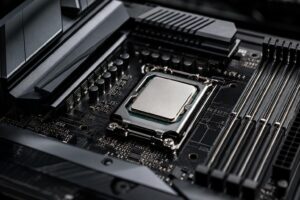
There is no single “good temperature” for every part. Current CPUs are designed to boost aggressively and may target high temperatures during heavy all-core work, especially when motherboard settings allow generous power limits. Many modern GPUs also operate safely at temperatures that would have worried PC builders a decade ago.
Instead of fixating on one number, look at the full picture:
For many desktop CPUs, brief temperature spikes during short bursts of work are normal. Sustained operation near the CPU’s thermal ceiling during a long production workload may also be within manufacturer specifications, but it leaves little thermal headroom and often produces unnecessary noise. A balanced build aims for stable performance without treating fan noise as an acceptable tax.
Cooling needs scale with sustained power draw, not with the physical size of the processor. A compact cooler can be entirely suitable for a lower-power CPU, but it may struggle when paired with a processor allowed to consume well over 200 watts in an all-core workload.
Installation matters just as much. Uneven mounting pressure, a forgotten protective film on a cold plate, too little or too much thermal paste, or a loose bracket can severely reduce heat transfer. With liquid coolers, a failed pump or trapped air can cause abrupt temperature spikes.
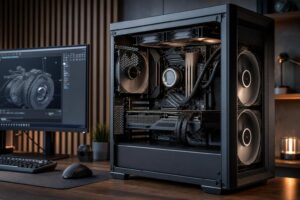
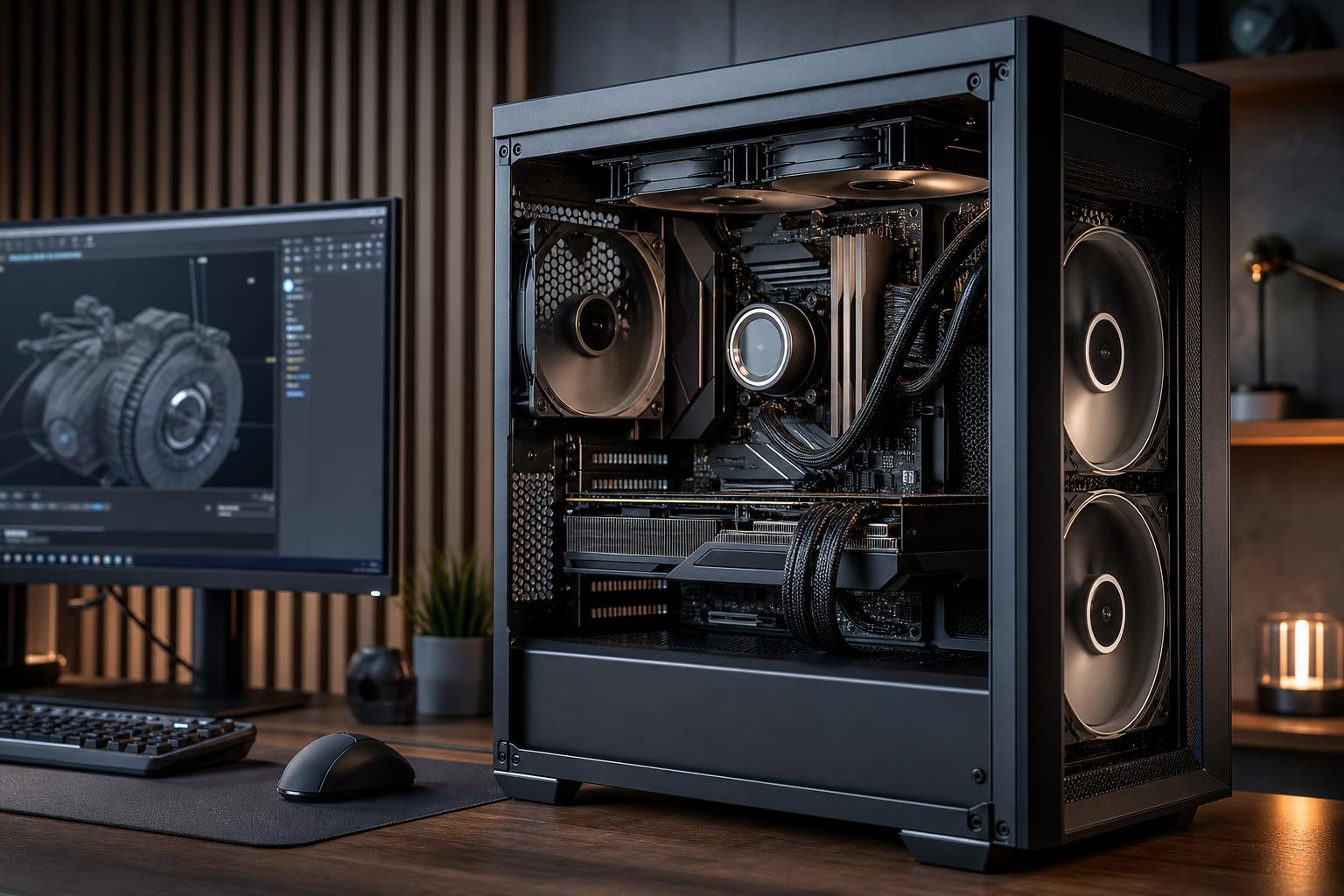
A CPU cooler cannot do much with hot air. If the graphics card dumps heat into a case with limited intake, both the GPU and CPU may run warmer than expected. Solid glass panels are not inherently bad, but a case needs a sensible path for cool air to enter and warm air to leave.
For most performance desktops, we prefer a straightforward airflow pattern: filtered front or bottom intake fans, plus rear and top exhaust where the case supports it. More fans are not always better. A few quality fans placed correctly usually beat a crowded collection of cheap, noisy fans fighting one another.
Some motherboards apply enhanced boost settings by default. These settings can increase CPU power limits beyond baseline specifications to win short benchmark contests. The result may be a tiny gain in burst performance but substantially more heat, noise, and power use.
For a workstation that renders all day, sensible power limits often make more sense than chasing the last one or two percent of benchmark performance. The best configuration is the one that can sustain useful speed quietly and reliably.
Dust on intake filters, heatsinks, and radiator fins acts like insulation. It does not take a carpet of dust to matter; a clogged front filter alone can noticeably reduce airflow. Fans wear out, thermal paste can dry over time, and all-in-one liquid coolers do not last forever. If a system that once ran well has become hot and loud, compare current behavior with its earlier performance rather than assuming that is simply how it operates now.
Use reputable monitoring software that can record sensor data while you run the exact task that exposes the problem. Watch CPU package temperature, CPU clocks, power draw, GPU temperature, GPU hotspot temperature where available, GPU clocks, fan speeds, and any reported thermal-limit flags.
Test for long enough to reproduce real behavior. Five minutes of a synthetic stress test can reveal an installation problem, but a 30-minute game session or a representative render is more useful for judging sustained performance.
Then make one change at a time. Remove a clogged filter, verify fan directions, adjust a fan curve, or temporarily run with the side panel removed as a diagnostic test. If temperatures improve dramatically with the panel off, case airflow is likely the issue. Do not treat an open case as the permanent solution; it bypasses filtration and is a poor substitute for proper airflow.
Start with the basics: clean filters and heatsinks, confirm that every fan and pump is operating, check cooler mounting, and make sure intake fans actually bring air into the case. These steps cost little and solve more problems than people expect.
Next, address the actual bottleneck. A CPU that overheats under an all-core render may need a larger air cooler, a well-chosen liquid cooler, or sensible power tuning. A GPU that becomes hot only when the case is closed likely needs better case airflow, not an expensive processor replacement.
Replacing thermal paste can help when a cooler has been removed, is poorly installed, or the system is several years old and temperatures have gradually worsened. It is not magic paste-in-a-tube. On a recently built system with a fundamentally undersized cooler or restricted case, a repaste alone will not transform the result.
Undervolting can also be useful, particularly for GPUs. A careful undervolt can often retain nearly the same performance with less heat and noise. It should be tested thoroughly for stability, though. An unstable “cool” system is still unstable.
Cooling is part of performance planning. A balanced computer matches the CPU, GPU, cooler, case, fans, motherboard power settings, and power supply to the way it will actually be used. That does not mean every gaming PC needs a huge liquid cooler, nor does every workstation need the most expensive case available. It means the cooling solution should make sense for the heat the hardware produces over time.
If you are planning a high-performance PC and want it configured for long gaming sessions, rendering, engineering work, or other sustained loads, contact Overclock Computers. We can help match the hardware, cooling, and airflow to the work you actually need the system to do.