CPU Upgrade vs. GPU Upgrade: Which Should You Buy First?

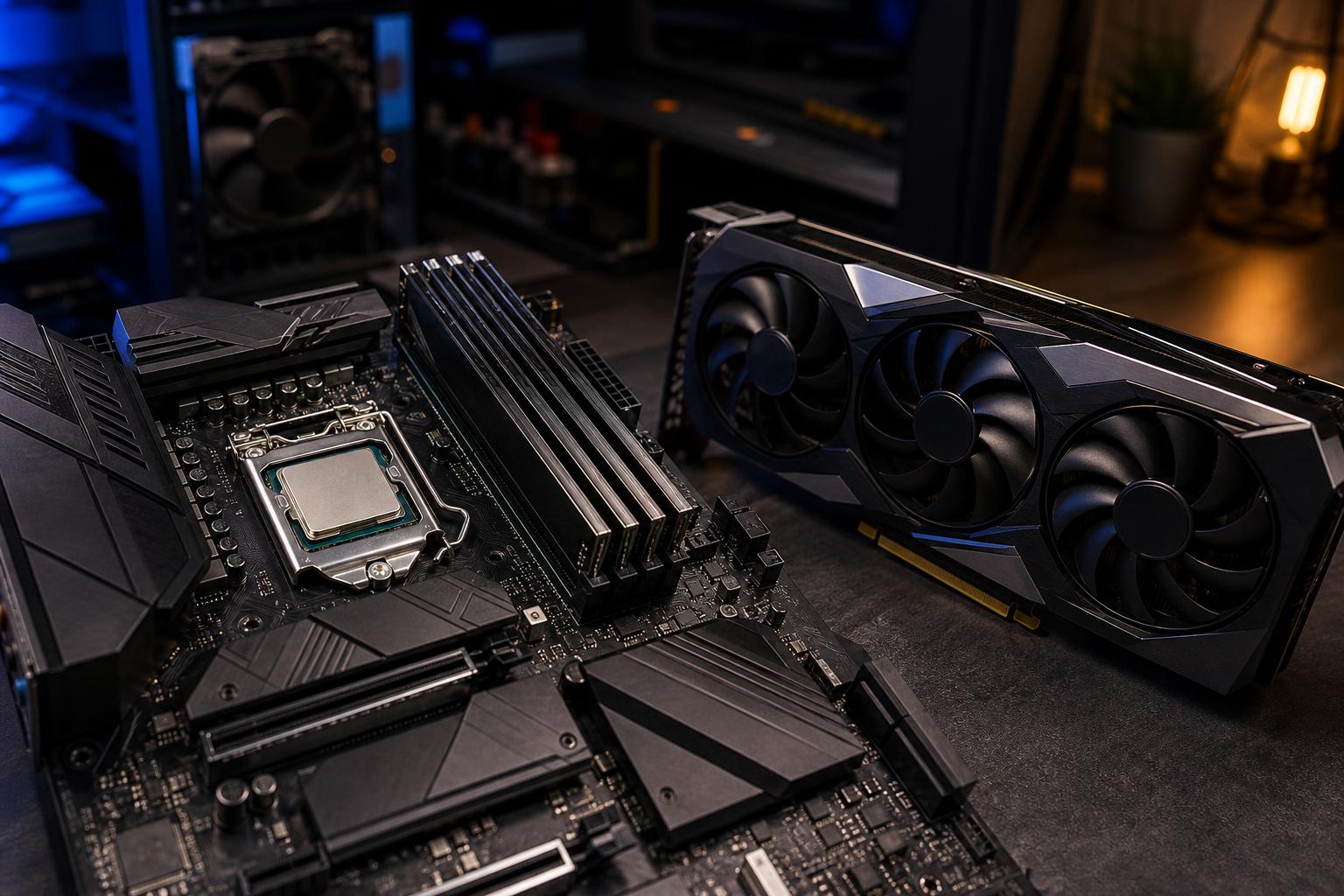
A faster graphics card is usually the most noticeable upgrade for gaming, but it is not automatically the right first purchase. A processor upgrade can make a bigger difference in high-refresh-rate games, simulation titles, CPU-heavy creative work, and general system responsiveness. The correct choice comes down to what you do with the PC, the resolution you use, and which component is actually holding the system back.
Before buying parts, identify the limit. Throwing a powerful new GPU into an older platform can work well in some systems. In others, it can leave performance on the table—or turn a straightforward upgrade into a chain reaction involving a new motherboard, RAM, cooler, and power supply.
For most people focused mainly on gaming, the GPU should be the first priority. It has the largest effect on visual settings, ray tracing performance, and frame rates at 1440p and 4K.
A graphics card upgrade is usually the better move when:
At higher resolutions, the GPU has to draw far more pixels every second. A 4K image contains four times as many pixels as 1080p, so graphics performance becomes the main constraint in most modern games. Even a processor that is a few generations old can often support a meaningful GPU upgrade at 4K, provided it is not an unusually low-end model.
A CPU upgrade matters most when the processor cannot prepare game data, physics, AI, draw calls, or application tasks quickly enough to keep the graphics card busy. This is commonly called a CPU bottleneck, though it is better to think of it as a workload limit than a permanent label attached to a PC.
Upgrade the CPU first when:
The CPU is especially important for smoothness. Average frames per second are useful, but they do not tell the whole story. A processor that struggles can cause inconsistent frame delivery: the game may report a respectable average frame rate while still feeling choppy during busy scenes. A stronger modern CPU, particularly one with solid single-threaded performance and enough cores for the workload, can improve those low frame rates substantially.
At 1080p, a powerful graphics card can finish each frame quickly. That places more pressure on the CPU to feed it work. If your goal is 200-plus fps in esports games, a CPU upgrade can be more valuable than moving from one high-end GPU to a slightly faster one.
This does not mean every 1080p gaming PC needs an expensive processor. For a 60Hz or 75Hz display, a midrange CPU and GPU are often plenty. The case for a faster CPU grows as your target frame rate rises.
1440p is where both parts often matter. It is demanding enough for the GPU to become important, yet many buyers pair it with 144Hz or higher monitors that can expose CPU limitations. A balanced build is the sensible route here: avoid coupling a flagship GPU with an entry-level or much older processor unless you know the games you play are strongly GPU-limited.
At 4K, the GPU is normally the limiting component. If you want a major improvement in image quality or frame rate, spending more on the graphics card generally delivers the better return. CPU upgrades still help in certain simulation, strategy, and multiplayer games, but they are less likely to be the primary answer.
You do not need a lab full of benchmarks to make a smart decision. Use a hardware monitoring overlay while playing the games or running the applications you care about. Look at GPU utilization, CPU utilization by individual core if available, temperatures, clock speeds, memory use, and frame times.
Do not judge the entire system from one game. A GPU-heavy single-player title and a large multiplayer match can stress the same PC in completely different ways.
Professional applications vary widely. Some workloads are heavily GPU-accelerated, some lean on CPU clock speed, and others use every CPU core and all the RAM they can get.
GPU rendering, real-time visualization, 3D viewport work, many video effects, color work, AI image generation, and machine-learning tasks can benefit greatly from a stronger GPU. VRAM capacity is often as important as raw speed. If a project cannot fit comfortably in GPU memory, performance may fall sharply or the workflow may become impractical.
CPU rendering, compiling large code projects, some CAD operations, engineering analysis, data processing, and running multiple virtual machines often reward a faster processor or more cores. But check the specific application. Some CAD programs, for example, respond more to strong single-core speed than an enormous core count.
Also consider the rest of the system. More RAM may solve a workstation slowdown that neither a CPU nor GPU upgrade can fix. Fast NVMe storage helps with large project files, caches, and scratch disks, but it will not replace the processing power needed for rendering or simulation.
A graphics card upgrade is often self-contained: confirm physical clearance, power supply capacity, required power connectors, and cooling airflow. A CPU upgrade can be much more involved.
If your existing motherboard supports the new processor with a BIOS update, the upgrade may be excellent value. If it does not, you may need a new motherboard. A platform change can also require DDR5 memory, a new CPU cooler mounting kit, or a fresh operating system installation in some cases. None of those are reasons to avoid upgrading, but they belong in the budget.
Power supply quality matters too. A new GPU can create substantial short-duration power spikes, so do not size a power supply only by adding advertised wattage numbers. Use a reputable unit with appropriate capacity, the correct native connectors, and enough headroom for the components you are installing.
If gaming is your main goal, put the largest share of the budget toward the GPU, then select a CPU that can support your target resolution and refresh rate. Do not overspend on a processor when the saved money would move you up a meaningful graphics-card tier.
If you are chasing very high frame rates at 1080p or 1440p, invest more heavily in the CPU and choose fast, stable memory to match. If you are building for 4K gaming, GPU rendering, or AI work, prioritize GPU performance and VRAM. For a mixed-use computer, start with the application that is most valuable to you or most expensive in lost time.
The best upgrade is not necessarily the fastest individual part. It is the part that removes the limitation you feel every day while fitting the rest of the system properly.
Choose a GPU upgrade first for higher-resolution gaming, better visual settings, ray tracing, GPU rendering, and workloads limited by VRAM. Choose a CPU upgrade first for high-refresh gaming, CPU-heavy titles, stutter caused by weak frame times, compiling, simulation, and processor-focused professional tasks.
If you are unsure, bring the games, applications, monitor resolution, and current component list to Overclock Computers. We can help identify the real bottleneck and plan an upgrade—or a complete custom system—that makes practical use of your budget.