Best PC for Blender Rendering: Workstation Specs That Make Sense

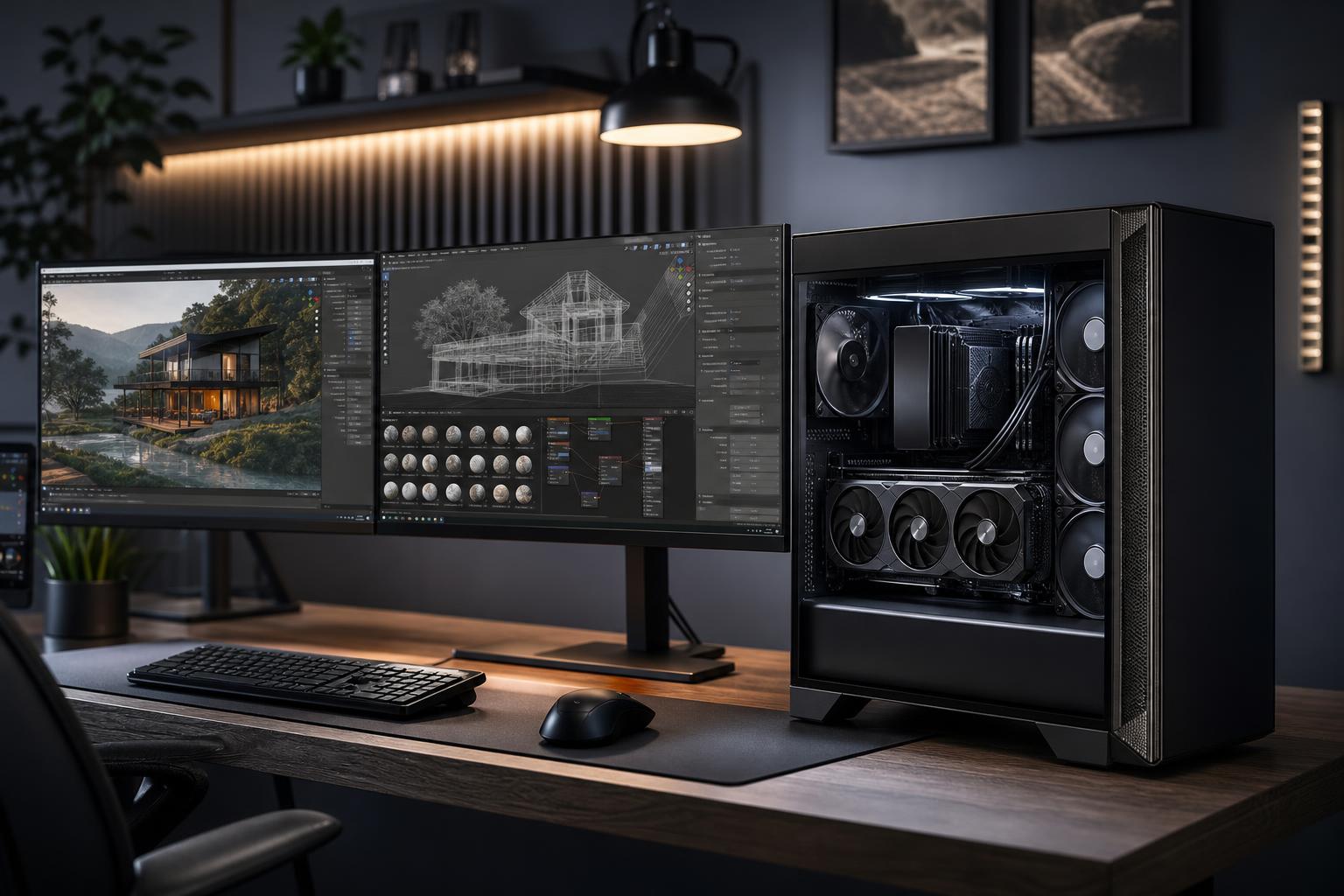
If Blender is a serious part of your work, the best PC is usually a GPU-focused workstation with enough VRAM for your scenes, a capable multi-core CPU, 64GB or more of memory, and fast NVMe storage. The exact balance changes with your renderer and project size, but one principle holds: don’t buy a generic “high-end PC” with an expensive gaming graphics card and hope the rest sorts itself out.
For most Blender users rendering in Cycles, put the largest sensible share of the budget into the GPU and its VRAM. For CPU rendering, simulation-heavy work, large scenes, or a workflow that includes other CPU-intensive applications, spend more on processor cores and system memory. A well-built Blender workstation should also run quietly and reliably under long renders. That means proper cooling, airflow, and power delivery are part of the performance decision, not cosmetic extras.
For most freelancers, students moving into paid work, and small studios, we’d start with a recent high-performance CPU, an NVIDIA GPU with at least 16GB of VRAM where the budget allows, 64GB of RAM, and 2TB of NVMe storage. This is the practical sweet spot for modeling, animation, Cycles GPU rendering, moderate simulations, texture work, and everyday creative applications.
If you are learning Blender, creating smaller scenes, or primarily modeling rather than rendering complex final frames, a modern midrange CPU, a capable GPU with 12GB of VRAM or more, 32GB of RAM, and a 1TB NVMe SSD is a sensible floor. It can do real work, but large texture sets, dense geometry, fluid simulations, and high-resolution renders will expose its limits sooner.
For architectural visualization, product animation, VFX, large environments, extensive simulations, or commercial rendering work, prioritize the most capable GPU and VRAM capacity that fit the budget. Pair it with a high-core-count CPU if you use CPU rendering, physics simulations, compiling, or other heavily threaded work. Start at 128GB of RAM for genuinely large scenes and plan storage around active projects, caches, textures, and backups.
For Cycles GPU rendering, the graphics card usually has the largest effect on render throughput. Blender’s GPU rendering support and features should be checked against the version of Blender and renderer you plan to use, but NVIDIA GPUs are commonly chosen for Cycles workflows because of their broad CUDA and OptiX support. That does not mean every Blender user must buy one; it means software support should be part of the purchasing decision, not an afterthought.
VRAM is just as important as raw GPU speed. It stores data the GPU needs to render, including geometry, textures, acceleration structures, and other scene resources. When a scene exceeds available VRAM, performance can drop sharply, rendering may fall back to a less desirable path, or the scene may not render as expected. More VRAM does not make every small scene faster, but it gives you room for larger and more detailed projects.
Don’t choose a GPU solely by its gaming reputation. A card that produces excellent frame rates can still be the wrong Blender purchase if its VRAM capacity is too restrictive for the projects you need to deliver. Conversely, buying the largest available VRAM pool is unnecessary if you work on simple assets and spend most of your time in the viewport.
The CPU remains important even in a GPU-rendering workstation. Blender uses it for general application responsiveness, modifiers, scene preparation, some simulation workloads, background tasks, file compression, and CPU rendering. It also matters when Blender shares the system with Adobe applications, CAD tools, game engines, or development software.
For most GPU-rendered Blender systems, a modern high-clock-speed processor with a healthy core count is the right choice. This keeps modeling and viewport tasks responsive without diverting too much money from the GPU. Spending heavily on an extreme core-count processor while pairing it with a modest graphics card is usually backwards for a Cycles GPU workflow.
A higher-core-count CPU makes more sense when you render on the CPU, run substantial fluid, smoke, cloth, or particle simulations, use CPU-based render engines, or need to process several demanding jobs at once. More cores can reduce long processing times, but they also create more heat and require stronger cooling.
System RAM holds the active scene, application data, simulation data, textures, and everything else running on the workstation. When RAM runs short, Windows begins leaning on the storage drive as temporary memory. Even a fast SSD is dramatically slower than RAM, and the result is sluggish interaction, long saves, or failed operations.
Memory capacity matters more than chasing tiny differences in RAM speed. Buy enough capacity first, then choose a stable, sensible memory configuration supported by the platform. Four memory sticks are not automatically better than two; in many systems, two larger modules are easier to run reliably and leave room for a future upgrade.
Blender files themselves may be manageable, but associated texture libraries, simulation caches, source footage, render outputs, and versioned project folders add up quickly. A 1TB drive can fill faster than expected once you begin keeping active projects locally.
For a Blender workstation, we generally recommend a 2TB NVMe SSD as the main drive. It provides room for the operating system, applications, active projects, and scratch space without constant housekeeping. Users working with animation, high-resolution textures, video, or large caches should consider a second NVMe SSD dedicated to active project data and caches.
Fast storage improves loading, saving, cache access, and general responsiveness. It does not replace RAM, and it will not speed up GPU rendering in the same way a better GPU will. Also, an active-project drive is not a backup. Keep important work backed up to separate local storage, network storage, or a cloud service with version history.
Blender rendering can load a GPU and CPU for hours. A system that looks fine during a quick benchmark can become loud, hot, or unstable during an overnight job if cooling and power components were chosen carelessly.
Use a case with an unobstructed airflow path, quality intake and exhaust fans, and a CPU cooler matched to the processor’s sustained heat output. GPU clearance matters too, especially with physically large high-end cards. A premium workstation does not need to sound like a shop vacuum; careful fan selection and airflow tuning can make a noticeable difference.
The power supply should be from a reputable platform, sized with appropriate headroom for the installed CPU and GPU, and equipped with the correct native connectors. Buying an absurdly oversized unit provides little benefit, but using a marginal power supply in a workstation built for sustained loads is false economy.
Spend more on GPU performance and VRAM if Cycles rendering is central to your work. Spend more on RAM if your current projects regularly approach your installed capacity. Spend more on storage if caches and media are constantly forcing you to delete active work.
You can usually save money on exotic motherboards, decorative RGB accessories, and extreme processor tiers that do not match your actual workflow. A good motherboard should have the connectivity, M.2 slots, memory support, expansion capacity, and reliable power delivery you need. Beyond that, expensive board features rarely improve Blender render times.
If you use Blender alongside video editing, local AI tools, Unreal Engine, CAD, or professional capture workflows, mention that before buying. Those applications can change the ideal GPU, VRAM, storage, networking, and expansion plan.
Mass-market systems can be a reasonable value when their configuration happens to fit your needs. The problem is that creative workloads often need an unusual balance: more VRAM rather than a more expensive CPU, 64GB or 128GB of RAM rather than a large boot drive, or additional NVMe capacity instead of flashy extras.
A thoughtfully configured custom system lets you put the budget into the parts that affect your work, while using standard, upgradeable components and cooling designed for sustained loads. It also avoids the common trap of buying a “creator PC” label without checking the actual GPU memory, RAM capacity, storage layout, and airflow behind it.
The best PC for Blender rendering is not automatically the most expensive one. It is the workstation that fits your renderer, scene complexity, output resolution, simulation work, and expected project growth without wasting budget on parts you will not notice.
Overclock Computers can help design a Blender workstation around your budget, the type of scenes you build, your preferred renderer, and the other software you use. Bring us a few details about your current projects and where your existing PC slows down, and we can recommend a balanced system with a sensible upgrade path.