Best PC for Revit: Workstation Specs That Make Sense

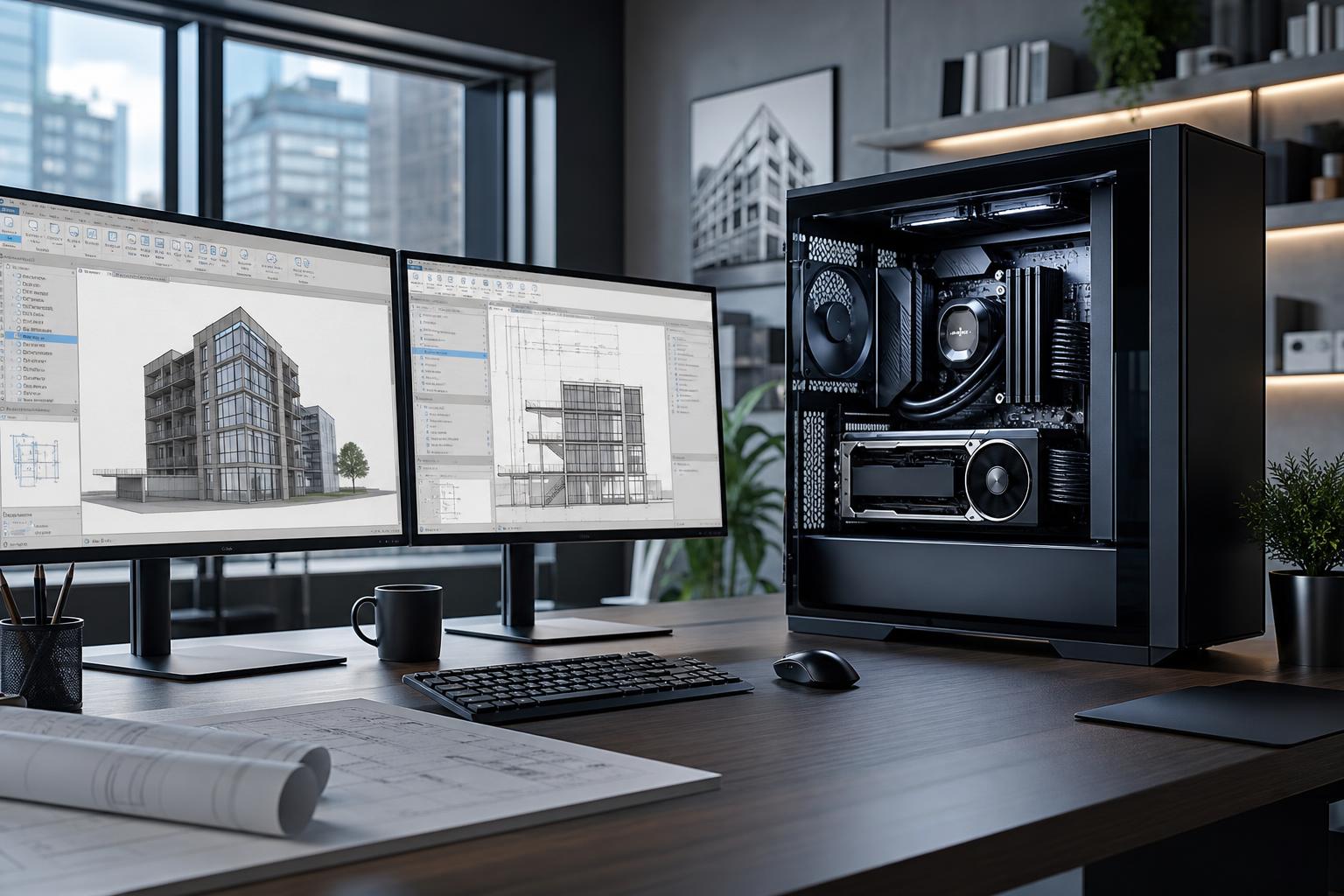
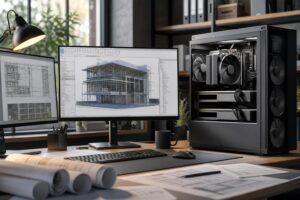
A good Revit workstation is not simply the PC with the most cores or the most expensive graphics card. For most architects, designers, and BIM professionals, the best PC for Revit has a fast CPU, enough memory for the largest models you open, a capable GPU for smooth 3D views, and fast, reliable storage.
If you want one practical starting point, choose a modern high-clock-speed CPU, 64GB of RAM, a dedicated GPU with 12GB or more of VRAM, and at least a 1TB NVMe SSD. That is the sensible performance tier for many serious Revit users. Move to 128GB of RAM, more CPU cores, more GPU memory, and additional storage when your projects include large linked models, point clouds, rendering, or several demanding applications running at once.
Revit is often limited by one fast CPU core during everyday work. Opening views, editing elements, navigating models, and many modeling operations do not automatically spread evenly across a large number of CPU cores. This is why a processor with strong single-core performance usually feels more responsive than a cheaper workstation CPU with a huge core count but lower clock speeds.
That does not mean core count is irrelevant. Revit can use multiple cores for certain tasks, including some calculations, exports, printing, and rendering workflows. Other software commonly used beside Revit, such as rendering tools, point-cloud applications, video tools, and engineering analysis software, may also benefit substantially from more cores. The key is balance: buy the fastest CPU for active design work first, then add cores when your workflow can use them.
This tier suits individual users, smaller architectural models, interior design work, and projects without massive linked files or heavy rendering demands.
For this kind of system, do not overspend on a flagship GPU. Revit benefits from a decent graphics card, but basic 3D viewport work usually does not justify putting most of the budget into graphics hardware. Spend enough to keep navigation smooth, then prioritize CPU speed and memory capacity.
This is the best fit for many full-time Revit users working on larger commercial, institutional, or multi-discipline projects. It is also a strong choice for users who frequently keep Revit, PDF markups, a web browser, Teams, spreadsheets, and other project tools open together.
For most buyers researching the best PC for Revit, this is the tier to target. It has enough headroom to remain comfortable as models and project demands grow, without paying workstation-tax for hardware that your applications may not use.
Choose this tier when project files are genuinely large, when several linked models are routine, or when Revit shares the machine with demanding workloads such as reality capture, point-cloud processing, rendering, visualization, simulation, or 4K video work.
This is not the right answer for every Revit user. It becomes worthwhile when lost time from swapping memory, waiting on large files, or running multiple production applications is a regular part of the workday.
Memory capacity is one of the most common places where a workstation can be underspecified. A PC may open a model with 32GB of RAM and still become sluggish once linked models, PDFs, browser tabs, cloud-sync software, and other applications consume the remaining memory. When physical RAM fills up, Windows starts relying more heavily on storage as temporary memory. Even a fast SSD is much slower than RAM, and the result is stuttering and delays.
For light work, 32GB can be workable. For professional Revit use, we usually favor 64GB. Choose 128GB when you routinely handle large projects, point clouds, substantial linked models, or several memory-hungry applications at once. More than 128GB should be based on observed project requirements, not a vague hope that more is always better.
A dedicated GPU improves 3D navigation, shaded and realistic views, high-resolution displays, and work in companion visualization applications. It also helps keep the system responsive when Revit is not the only demanding program on the machine.
However, graphics card selection should follow your real workflow. A user primarily producing construction documents and navigating moderate models does not need the same GPU as someone creating real-time walkthroughs, working with large point clouds, or rendering on the GPU. More VRAM becomes especially valuable when scenes, textures, displays, or GPU-accelerated applications become larger.
Do not assume a professional-branded GPU is automatically necessary. Those cards can make sense where a specific application, driver requirement, support policy, or workflow calls for them. For many Revit workstations, a well-chosen mainstream dedicated GPU offers excellent practical value. The right choice depends on the full software stack, not the logo on the card.
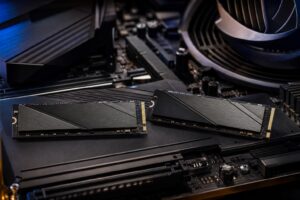
Use an NVMe SSD as the primary drive. It improves boot times, application loading, temporary files, caches, and day-to-day responsiveness. A 1TB drive is the minimum we would consider for a professional workstation; 2TB is often more comfortable once applications, local project copies, render outputs, and cloud-sync folders start accumulating.
For larger workflows, separate drives are useful. Keeping Windows and applications separate from active project data and scratch files can make management easier and leaves room for each area to grow. Local storage is not a replacement for a backup plan, though. Project files should still be protected through your organization’s backup and versioning process.
Spend more on a fast CPU, adequate RAM, a quality power supply, good cooling, and a case with unobstructed airflow. These choices affect responsiveness, stability, noise, and the ability to sustain performance through long workdays.
You can usually spend less on decorative lighting, extreme motherboard features you will never use, and an oversized GPU for a document-heavy Revit workflow. A very expensive motherboard does not make Revit model faster. What matters is that it has the connectivity, storage slots, memory support, and expansion you need, along with solid power delivery and dependable components.
Mass-market systems are commonly built around easy-to-market headline parts: a big GPU name, a large SSD number, or a high core count. The less visible details can be where compromises hide—limited cooling, a low-end power supply, poor airflow, restricted storage expansion, or a memory configuration that is barely sufficient.
A thoughtfully configured custom workstation lets you direct the budget to the bottleneck in your work. That may mean 128GB of RAM rather than unnecessary graphics power, a higher-clocked CPU rather than an excessive core count, or multiple SSDs rather than cosmetic extras. It also means using standard, upgradeable components instead of proprietary parts that complicate future repairs.
For most professional Revit users, start with a fast modern CPU, 64GB of RAM, a 12GB-or-better dedicated GPU, and a 1TB or 2TB NVMe SSD. Step up to 128GB of memory and a more capable GPU when large linked models, point clouds, rendering, or visualization are part of the daily workload. Build around the largest project you expect to work on, not merely the smallest file your current PC can open.
Overclock Computers can help configure a Revit workstation around your model sizes, linked files, rendering tools, budget, office connectivity, and future expansion plans. Bring us the applications you use and the kind of projects you handle, and we can help identify where additional spending will make a real difference—and where it will not.