Gaming PC vs Workstation: What’s the Actual Difference?

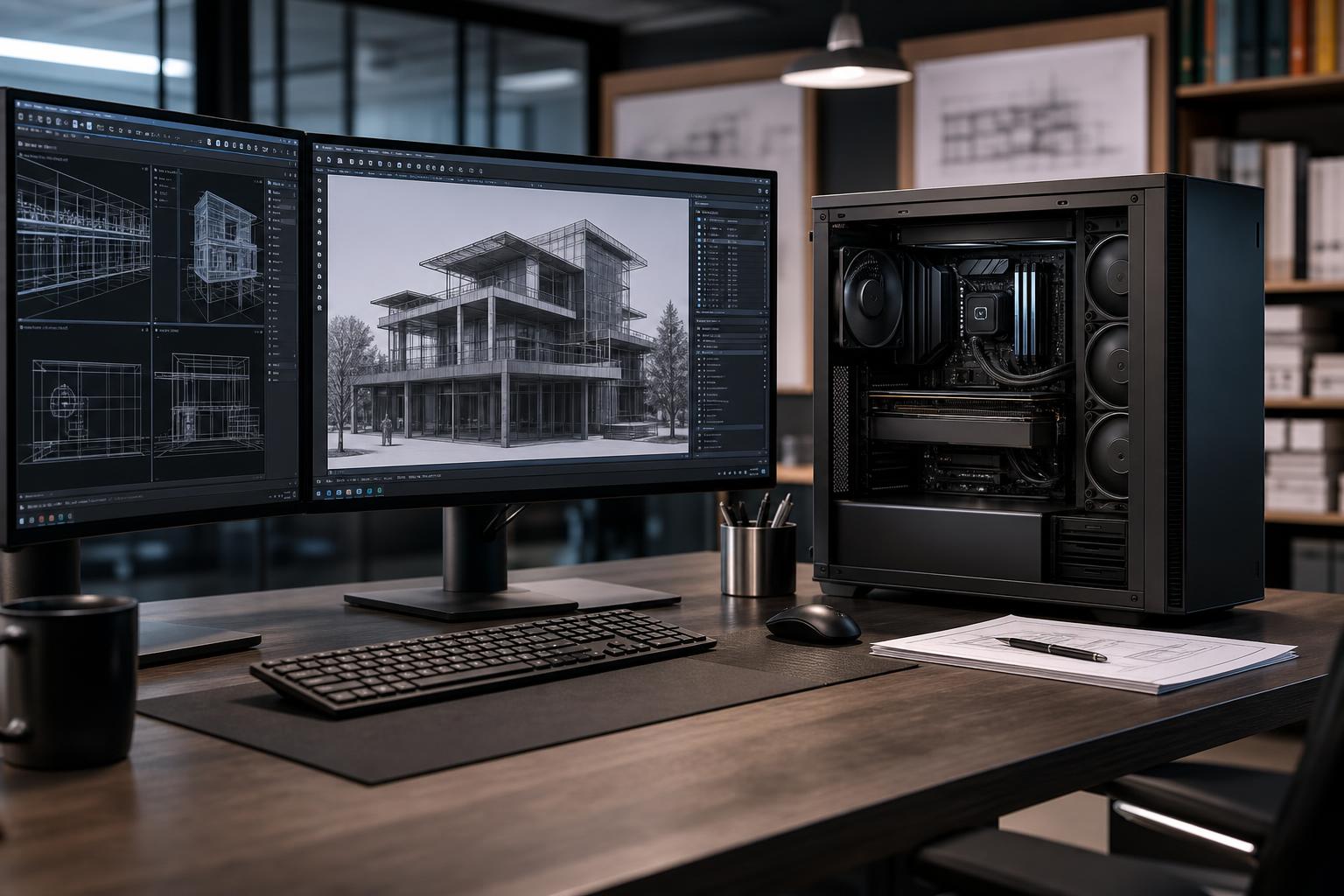
A powerful gaming PC and a professional workstation often use many of the same parts: modern CPUs, NVIDIA or AMD GPUs, NVMe SSDs, and plenty of memory. That overlap can make the choice confusing, especially when a gaming system appears to offer a faster graphics card for less money.
The real difference is not a badge on the case. A workstation is a computer designed around the software, project sizes, uptime expectations, expansion needs, and sustained workloads of a professional user. In some cases, that means workstation-class hardware. In others, it means carefully choosing consumer hardware because it offers the better value for the application.
For a professional workstation, the right question is not “What is the most expensive PC?” It is “What part of my workflow is wasting time, limiting project size, or making the system unreliable?”
A gaming PC is usually optimized for a single goal: delivering high frame rates in games. That generally favors a fast graphics card, a strong mainstream CPU, moderate-to-high memory capacity, and quick storage. It may run demanding workloads, but it is not necessarily built around them.
A workstation is optimized for useful work over long sessions. This can include CAD modeling, Civil 3D drawings, GIS analysis, 3D rendering, video editing, simulation, compilation, local AI, photogrammetry, or point-cloud processing. These applications do not all use hardware in the same way.
A well-designed workstation may need:
Those are practical differences, not prestige features. An architect working in moderately sized drawings may get excellent results from a fast mainstream system. A reality-capture specialist processing large image sets may need a very different machine with high memory capacity, substantial storage, and a GPU selected around the software’s acceleration requirements.
CPU selection is one of the most common workstation mistakes. More cores are not automatically better.
Interactive CAD work often benefits heavily from strong single-threaded performance. Tasks such as navigating models, regenerating views, and working in many design applications can feel more responsive on a CPU with fast individual cores than on a processor with far more, slower cores. That makes a high-end mainstream Ryzen or Core processor a sensible choice for many AutoCAD, Civil 3D, and general design workflows.
High core counts become valuable when your work genuinely scales across them. CPU rendering, video encoding, simulation, compiling large software projects, data processing, and running several demanding jobs at once can benefit from additional cores. Workstation platforms such as AMD Threadripper also provide advantages beyond core count, including more PCIe lanes and support for larger memory configurations.
Buying a high-core-count platform solely for email, office software, and ordinary CAD drawings is usually money poorly spent. Buying one for a system that must process large datasets, drive multiple expansion devices, and run compute-heavy jobs can be entirely reasonable.
The GPU decision deserves more nuance than “professional is better” or “gaming cards are cheaper.” Both can be the correct choice.
Modern consumer GPUs can offer excellent compute performance and generous performance per dollar for GPU rendering, video editing, 3D work, and some AI workloads. For many independent creators, visualization specialists, and professionals using software that does not require a specific professional driver ecosystem, a consumer GPU is often the sensible recommendation.
Professional GPUs may offer features that matter in managed or specialized environments, including larger VRAM configurations, professional driver options, enterprise support arrangements, and capabilities intended for particular visualization and display workflows. Their value is strongest when the required VRAM, application workflow, driver validation process, or organizational support policy justifies the premium.
Do not buy a professional GPU just because you use CAD. First identify what your application needs. Many CAD workflows are primarily CPU-limited during modeling and only need a capable, stable GPU for smooth viewport performance. On the other hand, GPU rendering, large visual scenes, AI inference or training, and high-resolution video work can become limited by GPU compute performance or VRAM.
When a scene, model, video effect, point-cloud visualization, or AI workload exceeds available GPU memory, performance can fall sharply or the workload may not run as intended. More VRAM does not make every task faster, but it provides room for larger workloads. It is worth prioritizing when you know your files or models are already pressing against current GPU memory limits.
For professional systems, insufficient RAM is more damaging than slightly slower RAM. When memory fills up, Windows begins relying more heavily on storage as virtual memory. Even a fast NVMe drive is dramatically slower than RAM, and the result is usually stuttering, long waits, and poor multitasking.
32GB can be adequate for basic design work and smaller projects. For many professional users, 64GB is the more comfortable starting point because it allows the main application, project files, browsers, communication tools, and supporting utilities to coexist without constant pressure. Large point clouds, photogrammetry projects, extensive After Effects compositions, complex simulations, virtual machines, and large datasets may require 128GB or 256GB.
Choose capacity from your actual peak workload. If your current system slows down only when opening the largest project while several other applications are running, more RAM may be more valuable than a marginal CPU upgrade.
Workstation storage should be planned around the movement of real project data. A single large SSD is simple, but it is not always ideal.
A practical arrangement often includes a fast NVMe drive for Windows and applications, a separate high-performance NVMe drive for active projects and cache or scratch files, and larger SSD or hard-drive storage for completed projects and local archives. Video editing, photogrammetry, point-cloud processing, and 3D workflows can create substantial temporary files. Keeping those writes away from the operating system drive helps maintain a more responsive machine and makes storage management easier.
Capacity matters too. A nearly full SSD has less room for project files, caches, updates, and working overhead. For organizations working from shared storage, 10GbE networking can be more useful than another ultra-fast local drive, provided the server or NAS and network infrastructure can support it.
A workstation that looks fast for a short benchmark can behave differently after an hour of rendering or processing. CPU and GPU cooling must be sized for sustained power draw, not just a brief burst. Poor thermals can cause clocks to drop, fan noise to become distracting, and component temperatures to remain unnecessarily high.
Quality power supplies, sensible airflow, compatible memory, and clean cable management are not cosmetic details. They contribute to stable operation and make future service or upgrades less painful. For a business, avoiding a failed deadline because a system is unstable matters far more than winning a small benchmark comparison.
Best for CAD, architecture, GIS, software development, general content work, and modest 3D workloads. Prioritize a fast mainstream CPU, 64GB of RAM where project size warrants it, a capable GPU with adequate VRAM, and at least two NVMe drives if active project data is substantial.
Best for heavier 3D work, 4K video production, larger engineering projects, data analysis, advanced visualization, and regular GPU-accelerated work. This tier often benefits from 64GB to 128GB of RAM, a more powerful GPU, dedicated cache or scratch storage, and possibly 10GbE networking.
Best for large point clouds, photogrammetry, simulation, CPU rendering, local AI, multi-GPU compute, or workflows requiring high memory capacity and several expansion devices. A workstation-class CPU platform can be justified here because its PCIe lanes, memory support, and core-count options address real constraints that mainstream platforms may not.
Before comparing parts, write down your primary applications, typical and largest project sizes, current pain points, required peripherals, storage location, and expected upgrade timeline. If you use several applications, identify which one is the bottleneck. A workstation for Revit plus occasional rendering should not be configured the same way as a workstation for GPU rendering all day, even if both belong to an architecture firm.
The best custom workstation PC is balanced around that information. It spends where performance affects billable work and avoids expensive hardware that sits mostly idle.
Overclock Computers can help configure a professional workstation around your specific software, datasets, storage needs, expansion requirements, and budget. Bring the applications you use and a clear picture of your largest projects; that is enough to start building a system that makes practical sense now and remains useful as your work grows.