What Makes a PC Workstation Reliable? Parts and Design Choices That Matter

A workstation doesn’t need to look different from a gaming PC to be reliable. It does, however, need to be designed differently. The goal isn’t simply to produce the highest benchmark score for a given budget. It’s to keep the system responsive, stable, cool, and recoverable while it handles the work that pays the bills.
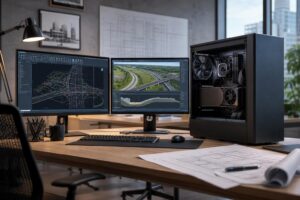
For an architect opening large models, an editor working against a deadline, or an engineer running a long simulation, a crash or corrupted project can cost far more than a slightly slower render. That changes where it makes sense to spend money.
Workstation reliability comes from a balanced set of choices: appropriate hardware, quality power and cooling, enough memory and storage headroom, sensible software configuration, and a plan for protecting data. No single part can promise perfection. A well-designed system reduces the common reasons computers become unstable or frustrating to use.
“Workstation” is a useful description, but it isn’t a component list. A PC for Adobe Premiere Pro, a CAD workstation, a software development machine, and a local AI system may all need very different priorities.
A reliable machine is one that has enough headroom for its normal workload. Hardware run at the edge of its memory, storage, thermal, or power limits is more likely to become slow, unstable, or difficult to work with.
Modern CPUs and GPUs are designed to boost aggressively when there is thermal and electrical headroom. That is useful, but a workstation should be selected around what it can sustain, not the highest number it briefly reaches in a review chart.
A high-core-count processor paired with a small cooler and restrictive case may perform well for a short test, then reduce clock speed during a long render. The same applies to GPUs. A graphics card that recirculates hot air inside a cramped enclosure can become louder and slower over a full workday.
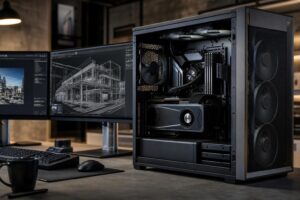
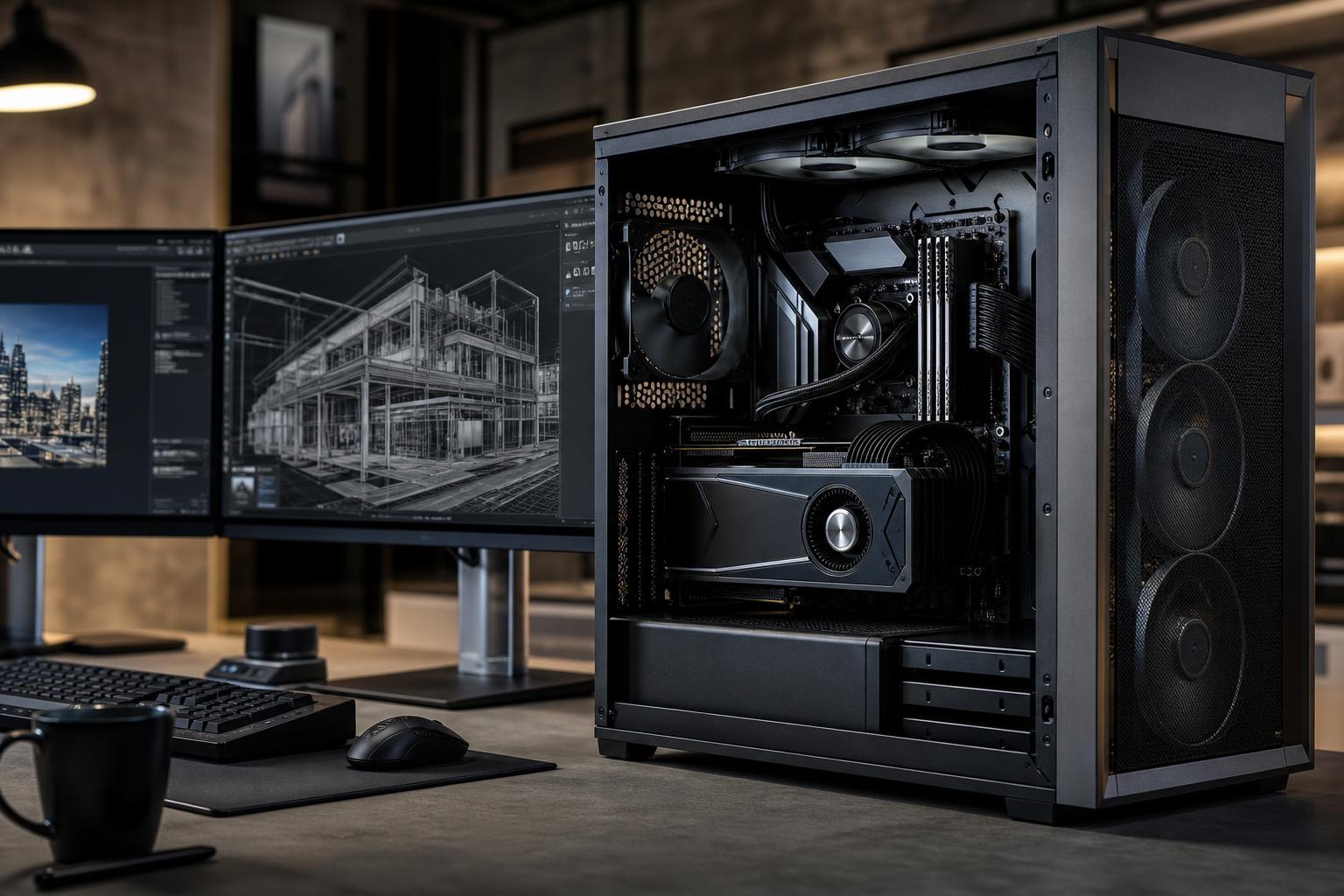
For systems that regularly perform long renders, simulations, compiles, or exports, we favor a case with clear airflow paths, correctly sized CPU cooling, and enough case fans to move heat out rather than merely stir it around. Air cooling is often an excellent choice because it is simple and durable. A quality liquid cooler can also make sense for high-wattage CPUs, provided the case supports it properly and the cooler is selected for sustained loads rather than appearance.
Quiet operation is part of usability, too. A workstation doesn’t have to be silent, but it shouldn’t sound like it is preparing for takeoff every time you export a video. Good airflow lets fans run at lower, steadier speeds.
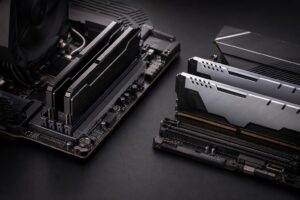
Insufficient RAM is one of the most common causes of a “fast” professional PC feeling slow. When memory fills up, Windows begins leaning more heavily on the SSD as temporary memory. Even a fast NVMe drive is dramatically slower than RAM, and applications may pause or become unresponsive.
Buy memory for the heaviest realistic day, not the lightest day. If your normal project uses 28GB and you also keep email, a browser, reference files, and background utilities open, 32GB is technically enough but leaves little room to breathe. Moving to 64GB is usually the practical choice. Larger datasets, virtual machines, high-resolution video, complex scenes, and point clouds can justify 128GB or more.
Error-correcting code, or ECC, memory can detect and correct certain single-bit memory errors. It is valuable in systems where long-running calculations, scientific or engineering data, virtual machines, business-critical services, or datasets must remain dependable over long periods.
ECC is not magic armor. It cannot prevent every kind of crash, software bug, storage problem, or power event. It also requires compatible CPU and motherboard support. For many individual creative and CAD workstations, standard high-quality memory is entirely reasonable. For work where silent data errors carry a meaningful cost, or where the computer runs critical tasks continuously, an ECC-capable platform deserves serious consideration.
Regardless of memory type, use a sensible, validated configuration. Extremely aggressive memory overclocks can look impressive in enthusiast forums, but reliability-focused systems should prioritize stable settings. A few percentage points of theoretical memory performance are not worth intermittent application crashes.
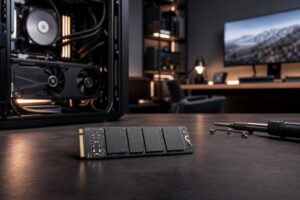
A single large SSD is convenient, but separating active work from the operating system and archive data can make a workstation easier to maintain and recover. The best layout depends on the workload, but a common practical arrangement is:
This is especially helpful for video editing, 3D content creation, and other workflows that generate large cache or temporary files. It keeps a full cache from crowding the operating system drive and makes cleanup less risky.
Most importantly, RAID is not a backup. Mirroring can help keep a system running after one drive fails, but it does not protect against accidental deletion, ransomware, file corruption, theft, fire, or a mistake that synchronizes to both drives. Keep separate backups, ideally including an offline or offsite copy, and test that important files can actually be restored.
The power supply is easy to ignore because it does not add frames per second or shorten a render on its own. It still has a large influence on long-term stability. A quality unit provides clean, consistent power and has the capacity to handle CPU and GPU load changes without being constantly pushed to its limit.
We generally prefer a reputable, appropriately rated power supply with headroom rather than selecting the smallest wattage that appears to work on a calculator. That doesn’t mean every PC needs an oversized unit. It means allowing room for sustained load, normal component aging, future storage or GPU upgrades, and the brief power spikes modern graphics cards can produce.
For valuable work, a properly sized uninterruptible power supply can also be worthwhile. A UPS gives you time to save work during a short outage and can help a system ride through minor power interruptions. It is not a substitute for backups, and its battery capacity must be sized for the actual load.
Gaming GPUs are often excellent for many professional tasks, particularly GPU rendering, video work, and AI workloads. In those cases, VRAM capacity, compute performance, software support, and price usually matter more than the label on the box.
Professional GPUs can make more sense when an application vendor specifically certifies their drivers, when technical support requires certified hardware, or when features such as very large VRAM capacities and specialized display capabilities are needed. The right answer should follow the application’s requirements, not an assumption that “professional” automatically means faster.
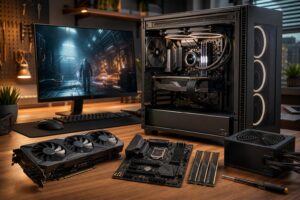
Before trusting a new workstation with production work, it should be updated carefully and tested under realistic load. That includes checking memory stability, CPU and GPU temperatures, storage health, application behavior, and sleep/wake operation if the system will use it. Building the machine is only part of the job; verifying that its parts work well together is what turns a collection of components into a dependable tool.
The right workstation isn’t necessarily the one with the most expensive parts. It is the one designed to do your work consistently, without wasting budget on specifications that won’t improve your day. If you are planning a professional PC and want help matching the hardware to your software, datasets, and upgrade plans, contact Overclock Computers for a configuration built around the work you actually do.