What Is a PC Bottleneck? How to Build a Balanced Gaming PC or Workstation

“Bottleneck” is one of the most overused words in PC shopping. It’s often treated as though one online calculator can declare a processor and graphics card either compatible or doomed. Real computers are not that simple.
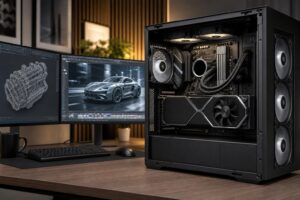
A PC bottleneck is simply the component, setting, or part of a workload that limits performance at a particular moment. Every computer has one. The goal is not to eliminate bottlenecks forever; that is impossible. The goal is to make sure the limiting factor is appropriate for the work you care about and that no major component is wasting the potential of the others.
For a gaming system, that usually means putting enough budget toward the graphics card for the monitor you own. For a workstation, it means understanding whether your applications need more CPU cores, more GPU memory, more system RAM, faster storage, or some combination of those things.
A component does not become a bottleneck in every game or application just because it is slower than another part. The limit changes with the software, resolution, graphics settings, project size, and even what is happening on screen.
Take a modern gaming PC. At 4K with high visual settings, the graphics card is usually doing the hard work. A powerful GPU running near full utilization is normal and desirable. Moving from a strong midrange CPU to the fastest gaming CPU may improve a few frame rates, but it often will not transform the experience because the GPU remains the limit.
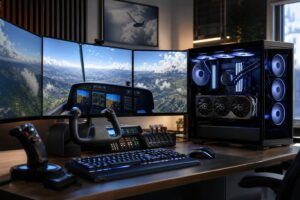
At 1080p with a 240Hz or 360Hz monitor, the same computer can become CPU-limited. The GPU may have plenty of headroom, but the processor has to prepare game logic, draw calls, physics, AI, and frames quickly enough to keep the graphics card busy. This is why competitive gaming often justifies a stronger CPU than a 60Hz 4K single-player setup.
Workstations behave the same way. A CPU renderer benefits from cores. GPU rendering depends heavily on the graphics card and its available VRAM. Large assemblies or point-cloud projects may run into system memory capacity before either the CPU or GPU is fully occupied. There is no universal “best” part without first defining the job.
A GPU bottleneck is the usual limit in visually demanding games, especially at 1440p ultrawide and 4K. You will typically see GPU utilization close to full load while CPU utilization is lower overall. Frame rate rises meaningfully if you lower resolution, reduce ray tracing, use an upscaling mode, or lower GPU-heavy settings.
This is not a problem by itself. If you bought a gaming PC for attractive 4K graphics, the graphics card should be the busiest part. It becomes a purchasing problem only when the GPU is too modest for the display and visual settings you expect to use.
CPU limitations are common in simulation games, strategy titles, large multiplayer matches, heavily modded games, and esports titles running at very high frame rates. They can also show up as poor one-percent lows: the brief frame-time spikes that make a game feel less smooth even when the average FPS looks fine.
A CPU limit is not always obvious in overall CPU usage. A game may lean heavily on a few fast cores while other cores are relatively quiet, so total utilization can look moderate. If lowering graphics settings does little to increase frame rate, while reducing simulation complexity or resolution helps only modestly, the processor may be the constraint.
System RAM is working space. When a computer runs short, it must move data to the storage drive far more often. Even a fast NVMe SSD is much slower than RAM for this purpose.
Symptoms include hitching in games, slow switching between applications, timeline lag in editing software, browser tabs reloading, or a workstation becoming unresponsive with large files open. Adding memory can make a dramatic difference when capacity is genuinely exhausted. Adding more RAM when you have plenty free will not increase frame rates just because the number on the box is larger.
VRAM is the graphics card’s local memory. Games use it for textures, geometry, frame buffers, and other visual data. Creative and technical software may use it for scenes, models, image data, and AI models.
When VRAM is insufficient, performance can drop sharply as data is moved through the system. In games, you may need to reduce texture settings, resolution, ray tracing, or other memory-heavy options. In professional GPU rendering and local AI work, a project or model may simply not fit. This is why VRAM capacity deserves more attention than a small benchmark lead when selecting a GPU for serious content creation, 3D work, or AI tasks.
Storage rarely limits average gaming frame rate, but it affects how a PC feels. A nearly full drive, a slow older drive, or inadequate project storage can mean long load times, sluggish cache performance, and a painful workflow when moving large media files.
For video editing, photogrammetry, 3D assets, software builds, and large datasets, storage planning matters beyond the operating system drive. A fast primary NVMe drive is a good baseline, but separate space for active projects, cache files, and archives may be more valuable than chasing the highest possible benchmark number from a single drive.
Start with the monitor, not a parts list. Its resolution and refresh rate tell you where performance matters.
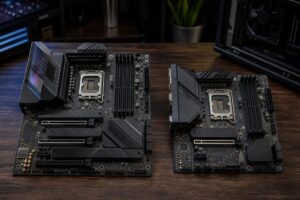
Do not spend your entire budget on the GPU and then cut corners on the power supply, cooling, case airflow, or memory capacity. Those parts do not usually add benchmark points, but they support stable boost behavior, manageable noise, and reliable long-term operation. A powerful graphics card in a badly ventilated case is not a balanced build; it is an expensive space heater with RGB.
For a workstation, list the actual applications and the largest typical files or projects. Then identify the task that consumes the most billable time. That is where extra budget has the best chance of paying off.
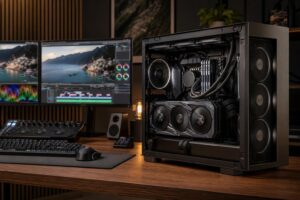
Also consider the whole workflow. If an editor spends most of the day encoding video, hardware media engines and GPU acceleration matter. If they spend more time organizing footage, editing multicamera timelines, and working from shared storage, RAM capacity, fast local scratch space, and network planning may matter just as much.
Online bottleneck calculators can be entertaining, but they cannot know your game settings, monitor, software version, project complexity, background tasks, or preferred workload. A percentage score may create false confidence or unnecessary worry.
Better evidence comes from trusted benchmarks using the applications you run, performance tests at your intended resolution, and hardware monitoring on your current PC. Look for patterns, not one isolated number. Is the GPU consistently fully loaded? Is RAM capacity close to full during problem projects? Does a game improve when graphics settings are lowered? Those answers are useful.
Buy the component that speeds up the task you perform most often, then support it with the memory, cooling, power delivery, and storage it needs to do that job properly. A balanced PC does not mean every component costs the same amount. It means no critical part is so undersized that it regularly prevents the system from doing what you bought it to do.
If you are unsure where your own system or planned build is likely to be limited, bring Overclock Computers your monitor details, the games or applications you use, and a realistic budget. We can help translate that information into a configuration that puts performance where you will actually notice it.