Single vs. Dual-Channel RAM: Why Two Memory Sticks Usually Perform Better

RAM capacity gets most of the attention when configuring a PC, and rightly so. A computer with too little memory can slow down badly, crash applications, or fall back on much slower SSD storage. But the way that memory is installed matters too.
For most modern desktops, two matched RAM sticks running in dual-channel mode are the sensible choice. Compared with one stick of the same total capacity, dual-channel memory gives the CPU more bandwidth to move data. The difference can be modest in some programs and very noticeable in others, especially games that are limited by CPU performance and systems using integrated graphics.
There are exceptions, but they are specific. Here is what dual-channel RAM actually does, when it matters, and how to choose a memory layout without creating an upgrade headache later.
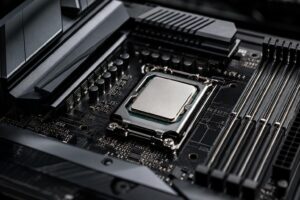
A memory channel is a connection between the CPU’s memory controller and the installed RAM. Most mainstream desktop platforms have two memory channels. With a single memory stick installed, the system generally uses one channel. Install two compatible sticks in the correct paired slots, and the system can access both channels at once.
Think of it as opening a second lane on a highway. It does not make every trip twice as fast, because the CPU, GPU, storage, and software still affect the journey. It does give the processor more room to transfer data when memory bandwidth is the limiting factor.
For example, one 32GB DDR5 memory module may provide the same capacity as two 16GB modules, but the two-stick setup can use both channels. This is why a 32GB kit containing two 16GB sticks is normally preferable to a single 32GB stick in a new gaming PC or general-purpose workstation.
There is no honest universal percentage. Software uses memory differently, and the rest of the computer has to be considered. In a game where the graphics card is already working flat out at 4K with maximum settings, adding memory bandwidth may make little difference to average frame rate. The GPU is the limit.
Dual-channel RAM matters more when the CPU is working hard to feed a powerful GPU. That often includes high-refresh-rate gaming at 1080p or 1440p, simulation games, large multiplayer matches, strategy games, and certain esports titles. Better memory bandwidth can also improve minimum frame rates and frame-time consistency, which can matter more than a slightly higher average FPS.
It can help in tasks that move large amounts of data through memory, including some rendering, compression, code compilation, scientific workloads, and video production work. Still, capacity remains the first priority. A dual-channel 32GB setup is not better than a single 64GB stick if your project genuinely needs more than 32GB. Running out of RAM is far more damaging than giving up some bandwidth.
If a PC uses integrated graphics rather than a separate graphics card, dual-channel memory is especially important. An integrated GPU uses system RAM as video memory, so it depends directly on RAM bandwidth. One stick can leave a surprising amount of graphics performance on the table.
For a compact office PC, a budget gaming system built around integrated graphics, or a laptop where memory configuration is selectable, use two memory modules when possible. This is one of the highest-value configuration choices available on an integrated-graphics machine.
On a typical motherboard with four RAM slots, it is tempting to fill all four. It looks tidy, and more sticks must be better, right? Not necessarily.
For most DDR5 gaming PCs and mainstream workstations, two sticks are the sweet spot. A two-stick kit leaves room for a future capacity upgrade and is usually easier for the CPU’s memory controller to run at the kit’s advertised speed.
Running four DDR5 sticks can work well, particularly at standard memory speeds. However, it puts more electrical load on the memory controller. Depending on the CPU, motherboard, memory capacity, and kit, a system may need to run the RAM at a lower speed or use more conservative settings to remain stable. This is not a defect; high-speed memory is an overclocked operating mode on many platforms, even when the kit is sold with an EXPO or XMP profile.
Our usual recommendation is straightforward:
There are good reasons to use four modules, such as a platform with insufficient high-capacity two-stick options or a workstation that needs a great deal of RAM. It simply should be a deliberate configuration, not an assumption that every empty slot needs filling.
For the best chance of stable dual-channel operation, buy a matched memory kit. A kit is tested by its manufacturer to operate together at its rated capacity, speed, timings, and voltage.
Two separately purchased sticks with the same brand name and product number may work perfectly, but they are not guaranteed to use identical memory chips or internal settings. Mixing different capacities, speeds, or timing ratings can cause the system to run at the slower module’s settings. In less cooperative cases, it can lead to boot problems, application crashes, or memory errors that are painfully difficult to diagnose.
If you are upgrading an existing PC, matching the current kit as closely as possible is preferable to grabbing a random discounted module. If the system needs a major capacity increase, replacing the old RAM with one properly matched two-stick kit is often the cleaner answer.
Do not install two sticks side by side unless the motherboard manual specifically says to. On most four-slot desktop motherboards, the preferred slots for two modules are A2 and B2: commonly the second and fourth slots away from the CPU socket.
Motherboard labeling and layouts vary, so the manual is the final authority. Using the wrong pair may leave the system in single-channel mode or make memory profile stability worse. It is a small detail with a real impact.
After assembly, enable the appropriate memory profile in the BIOS. Intel systems commonly use XMP, while AMD DDR5 systems often use EXPO, although board support can overlap. Without this step, RAM may run at a safe default speed rather than the performance setting you paid for. Then verify the configured speed in BIOS or a reputable system-monitoring utility, and run a memory stability test if the system is newly built or has been upgraded.
DDR5 modules have an internal design that splits each physical stick into two smaller subchannels. This improves efficiency in certain operations, but it does not turn one DDR5 module into the equivalent of a conventional two-module dual-channel configuration.
A mainstream DDR5 platform still benefits from populating both CPU memory channels with two matched sticks. In plain English: DDR5 is smarter than DDR4 in several ways, but the practical buying advice remains the same. For most new desktop builds, choose a two-stick kit.
There are a few reasonable cases. A buyer may start with one large module because capacity is urgently needed now and a second matching module will be added soon. Some small systems have only one memory slot. A workstation may also be following a particular platform’s memory population rules, especially on high-end desktop or server-class hardware with more than two channels.
For a mainstream gaming desktop, though, one stick is usually a false economy. Saving a little money on the initial configuration can reduce performance immediately, and finding a truly compatible match later is less certain than it sounds.
Start with the capacity your real workload needs, then buy that capacity as a two-stick matched kit. For the majority of performance PCs, that means 32GB as 2 x 16GB or 64GB as 2 x 32GB. Install the sticks in the motherboard’s recommended paired slots, enable the memory profile, and leave two slots open if your motherboard has four.
That approach delivers strong performance, reliable setup, and a sensible upgrade path. RAM configuration is not the flashiest part of a custom PC, but getting it right prevents the slightly absurd situation of owning excellent hardware that is waiting on one memory stick.
If you are planning a new gaming PC or workstation and are unsure whether 32GB, 64GB, or more makes sense, contact Overclock Computers. We can configure the memory, CPU, graphics, storage, and cooling around the applications and games you actually use.