New PC Setup Checklist: What to Do First With a Gaming PC or Workstation

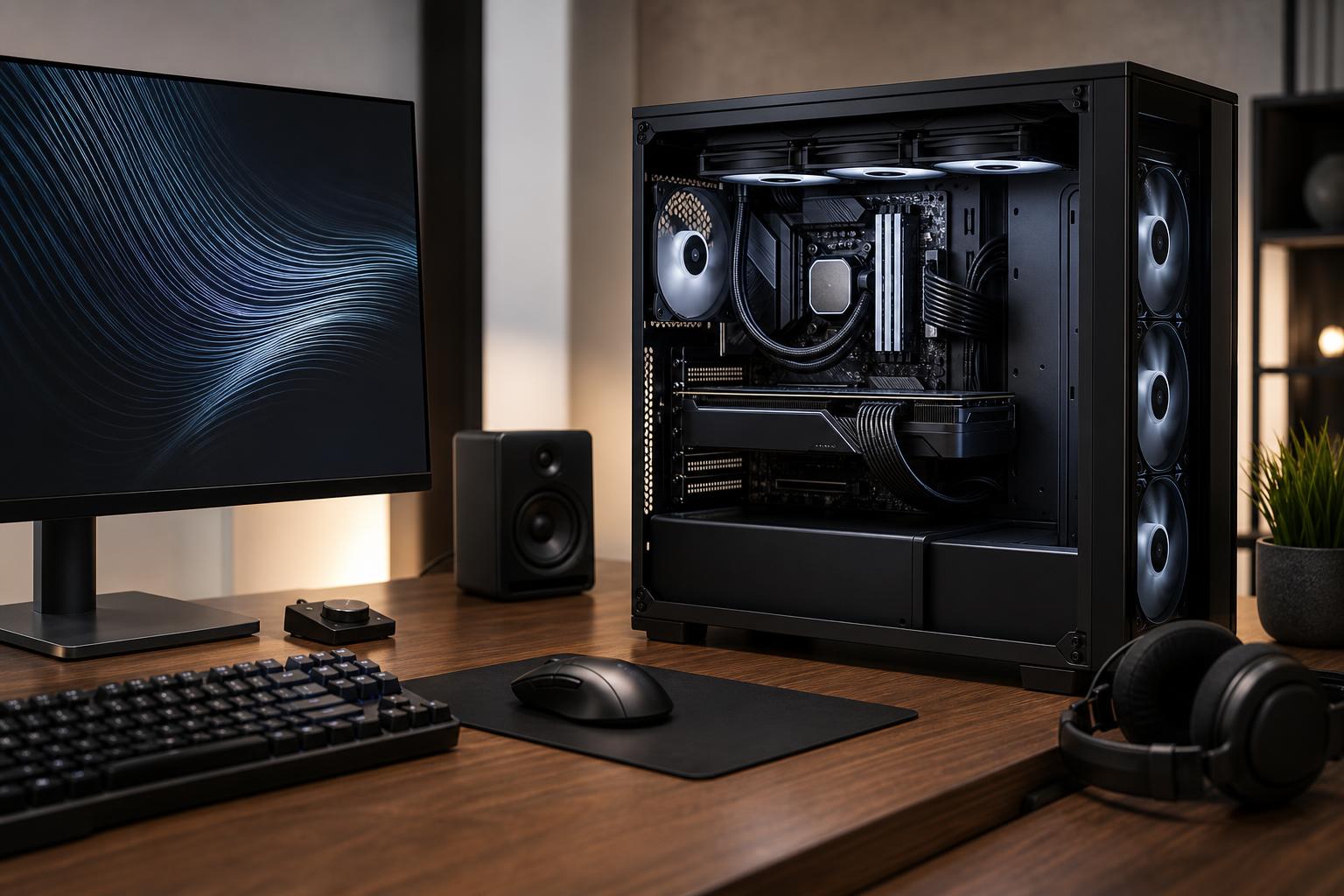
A new custom PC should feel exciting, not like a homework assignment. Still, spending an hour or two on a proper setup makes a real difference. You’ll get the performance you paid for, avoid a few common connection mistakes, and have a known-good baseline if something changes later.
This new PC setup checklist applies to gaming systems and professional workstations alike. The software you install will differ, but the fundamentals—correct display connections, current drivers, sensible updates, backups, and basic testing—are the same.
Place the computer on a solid surface with room for ventilation. Avoid enclosing it in a cabinet, pushing the rear exhaust against a wall, or setting a carpet-bound tower directly on thick carpet. A little clearance around the front, top, and rear helps the cooling system do its job without sounding like it is preparing for takeoff.
Before turning it on, connect the essentials:
For a desktop with a dedicated graphics card, connect your monitor to the graphics card ports, which are usually lower on the back of the case. Do not use the motherboard video ports near the USB and network connections unless your system specifically needs integrated graphics. This is one of the most common reasons a powerful new PC appears to perform like a much less powerful one.
If your monitor supports DisplayPort, it is usually the best straightforward choice for a high-refresh-rate gaming display. HDMI can also be excellent, particularly for TVs and newer monitors, but the exact refresh rate and resolution supported depend on both the monitor and the cable. Use a cable rated for the display mode you intend to run.
Finish the initial operating system setup, connect to your network, and sign in with the account you intend to use day to day. For a work computer, follow your organization’s account, encryption, VPN, and device-management requirements from the start.
Ethernet is worth using during initial setup when practical. It tends to be more reliable than Wi-Fi, especially while downloading large games, creative applications, or several updates at once. Once everything is current, Wi-Fi is perfectly reasonable for many homes and offices.
Open Windows Update and install the available updates. Restart when prompted, then return and check again. Windows updates often arrive in stages, so the first round may enable another round.
Prioritize security and reliability updates. Optional driver updates from Windows Update are more situational. For core graphics drivers, it is generally better to install the current driver directly from the GPU manufacturer. For motherboard chipset, networking, and audio drivers, use the system or motherboard manufacturer’s official support resources when a specific driver is needed.
Avoid third-party “driver updater” utilities. They frequently add clutter, recommend the wrong driver, or solve a problem that never existed. A stable PC does not need constant driver archaeology.
Your graphics driver is essential for gaming performance, GPU-accelerated creative apps, and proper multi-monitor behavior. Install the current driver package for your AMD, NVIDIA, or Intel graphics hardware from the manufacturer’s official site.
After installation, confirm that Windows is actually using your monitor at its intended refresh rate. In Windows display settings, open the advanced display options and select the correct refresh rate. A 165Hz or 240Hz monitor can still run at 60Hz if this step is skipped. The image will work, but scrolling and games will not feel nearly as smooth as they should.
Also check that the resolution is native to the display. For example, a 2560 x 1440 monitor should normally be set to 2560 x 1440, and a 4K display to 3840 x 2160.
Enable variable refresh rate support if your monitor and GPU support it. This may be labeled G-SYNC Compatible, FreeSync, Adaptive-Sync, or VRR depending on the hardware. It can reduce tearing and make frame-rate changes look smoother. In games, use sensible graphics settings before chasing maximum numbers. A stable frame rate with good image quality is usually more enjoyable than wildly fluctuating performance with every setting set to “Ultra.”
Install the driver branch that matches your application needs. Some professional applications benefit from workstation-oriented or creator-focused driver releases, particularly where stability and certification matter more than day-one game support. If your software vendor publishes a recommended driver version, that guidance deserves more weight than general internet advice.
Start with the programs you use regularly: your browser, office software, password manager, communication tools, creative applications, development tools, or games. Install professional applications from the publisher, your organization’s portal, or another trusted source.
Be selective with motherboard and peripheral software. RGB, fan-control, audio, mouse, keyboard, and monitoring utilities can be useful, but several overlapping hardware-control programs can conflict with each other. Install the tool that provides a feature you will actually use. You do not need three different applications trying to manage the same fans.
For a gaming PC, install your game launchers and one reliable hardware-monitoring tool if you want to keep an eye on temperatures. For a workstation, install the actual tools that affect your workflow: cloud sync, backup software, project-management tools, render engines, plugins, and required fonts or asset libraries.
A fast PC is not a backup plan. Drives can fail, files can be overwritten, and ransomware does not care how expensive the graphics card was.
For important personal or business data, keep at least three copies: the working copy on the PC, a local backup, and an off-site or cloud-based copy. The backup drive should not remain the only other copy connected to the computer all the time. For professional work, make sure the process is automatic and tested. A backup that has never been restored is an assumption, not a backup.
Windows device encryption or BitLocker can also be a sensible choice for systems containing sensitive information, especially laptops or PCs used outside a controlled office. Save the recovery key somewhere secure that is separate from the PC.
You do not need to run extreme stress tests on day one. A few normal checks are enough to confirm that everything is behaving sensibly.
Temperature numbers vary by processor, graphics card, cooler, case airflow, room temperature, and workload. What matters most is that performance remains consistent and the system is stable. Modern CPUs and GPUs are designed to use available thermal headroom intelligently, so a brief high temperature reading is not automatically a problem. Persistent throttling, crashes, or fans running at full speed during light work are reasons to investigate.
It is also smart to record a basic benchmark score or a few game frame rates after setup. Save a screenshot with your settings. If performance seems different six months later, you will have a useful point of comparison instead of relying on memory.
BIOS updates can improve compatibility, security, memory support, and stability. They can also be unnecessary on a system that is already working correctly. Update the BIOS when there is a clear reason: a documented fix for an issue you have, support for a new CPU, a meaningful security advisory, or guidance from your system builder or motherboard manufacturer.
Likewise, do not feel obligated to manually overclock a new PC. Modern processors already boost aggressively within their power and thermal limits. Manual tuning can be worthwhile for experienced users with a specific goal, but stability matters more than a small benchmark gain. A reliable workstation or gaming PC that performs consistently is the better machine.
Most PCs need less maintenance than people think. Keep Windows, graphics drivers, and key applications reasonably current. Clean dust filters and visible intake areas every few months, more often if you have pets, smoke, or a dusty room. Do not use a household vacuum inside the PC; compressed air or an electric air duster used carefully is the safer choice.
Pay attention to changes rather than chasing perfection. New crashes, louder fans, rising temperatures, storage warnings, or sudden performance drops are worth addressing. If the PC is working well, resist the temptation to change ten settings because a forum thread told you to. Computers are remarkably good at punishing unnecessary tinkering.
The first-day checklist is not about turning a computer into a science project. It is about making sure the display, drivers, software, backups, and cooling are working in your favor from the beginning. That foundation pays off in smoother gaming, fewer workflow interruptions, and easier troubleshooting later.
If you are planning a new gaming PC or workstation and want help matching the configuration to the software, display, and workloads you actually use, contact Overclock Computers. We can help design a balanced system without spending money on parts that will not improve your real-world experience.