How to Read a Gaming PC Spec Sheet Before You Buy

Many PC listings lead with the same three items: processor, graphics card, and RAM capacity. Those are important, but they don’t tell you everything about the computer you’re buying.
Two systems can list the same CPU, GPU, and 32GB of memory yet feel very different to own. One may run cool and quiet, use a quality power supply, include a fast and roomy SSD, and leave sensible room for upgrades. The other may save money with a restrictive case, minimal cooling, a vague power supply, and parts that are difficult to identify or replace.
Learning how to read a gaming PC spec sheet helps you compare systems on more than the biggest numbers. It also applies to creator PCs and workstations, where storage, memory, cooling, and expansion can matter as much as raw frame rates.
The CPU and graphics card have the largest effect on gaming performance, so start here. Do not stop at a product family name, though.
“AMD Ryzen 7” or “Intel Core Ultra 7” is not a complete specification. CPUs in the same family can have very different core counts, cache, power limits, and gaming performance. Look for the full model number. The same rule applies to graphics cards: an exact GPU model tells you far more than “RTX graphics” or “Radeon graphics.”
For gaming, the GPU should generally receive the largest share of the budget. A high-end processor paired with a modest graphics card is rarely the smart choice for a 1440p or 4K gaming machine. At those resolutions, the GPU usually sets the frame rate.
For CPU-heavy uses such as simulation games, large code builds, video exports, CAD, or CPU rendering, processor choice deserves more weight. The right balance comes from the software you actually use, not from chasing the highest number in every category.
Desktop and laptop components with similar names do not deliver the same performance. Neither do all versions of a desktop GPU. Board partners may use different coolers and power limits, although the GPU chip itself remains the main performance factor.
A reputable listing should clearly state whether it is a desktop system and name the exact CPU and GPU. If the listing makes you work unusually hard to identify the key parts, treat that as useful information.
For a new performance PC, 32GB of RAM is the practical starting point for most gamers. It gives modern games, background applications, browsers, voice chat, and game launchers enough breathing room. It is also a comfortable baseline for light content creation and development.
Choose 64GB when you regularly edit substantial video projects, work with large Photoshop files, use virtual machines, build complex 3D scenes, process engineering data, or simply know that your current system runs short on memory. More than 64GB is usually a professional-workstation decision, not a gaming upgrade.
Then check how the memory is installed. A two-stick kit is usually preferable to a single stick because it enables dual-channel memory bandwidth. A system advertised as “32GB RAM” could mean one 32GB module or two 16GB modules. Those are not equal configurations.
Memory speed and timings matter, particularly on DDR5 platforms, but capacity and a stable two-stick configuration should come first. Extremely aggressive memory settings are not worth sacrificing stability for a small benchmark win.
A 1TB NVMe SSD is a sensible minimum for many gaming PCs in 2026. Modern games are large, and a drive that is nearly full tends to become an annoying juggling act. For a system expected to hold a sizable game library, 2TB is often the better starting point.
Workstations may need separate drives: one for the operating system and applications, another for active projects, and often additional local or network storage for archives and backups. The correct layout depends on the workflow, but one small drive is seldom enough for video, 3D, point-cloud, or photography work.
Also look past the phrase “NVMe SSD.” It confirms the drive type, not its capacity, endurance, controller quality, or sustained performance. A quality PCIe Gen 4 NVMe SSD is already very fast for gaming and most professional work. A Gen 5 label alone does not make a computer noticeably better in everyday use.
The power supply is one of the most commonly hidden parts in low-detail PC listings. You may see “750W PSU” without a brand, model, efficiency rating, or warranty information. Wattage alone is not a quality rating.
A well-built system needs a power supply from a proven manufacturer and product line, with enough capacity for the installed hardware and sensible headroom for short power spikes and future upgrades. It should include the proper native connectors for the graphics card rather than relying on an untidy collection of adapters. A cheap power supply can undermine an otherwise capable PC, so this is not a place to accept mystery hardware.
The motherboard deserves similar attention. It determines the number of memory slots, M.2 SSD slots, USB ports, networking options, PCIe expansion, and often the practical upgrade path. It does not need to be the most expensive board available, but it should be named.
For most gaming systems, a solid mainstream motherboard with the features you will use is ideal. Paying extra for elaborate overclocking features, extra expansion slots, or premium networking you will never touch is wasted budget. For a workstation, verify that the board supports the required storage, add-in cards, networking, and memory capacity before ordering.
Cooling choices affect CPU boost behavior, fan noise, component temperatures, and long-term comfort at the desk. A powerful processor in a cramped case with a tiny cooler may technically work, but it can run louder than it should or reduce performance during long all-core workloads.
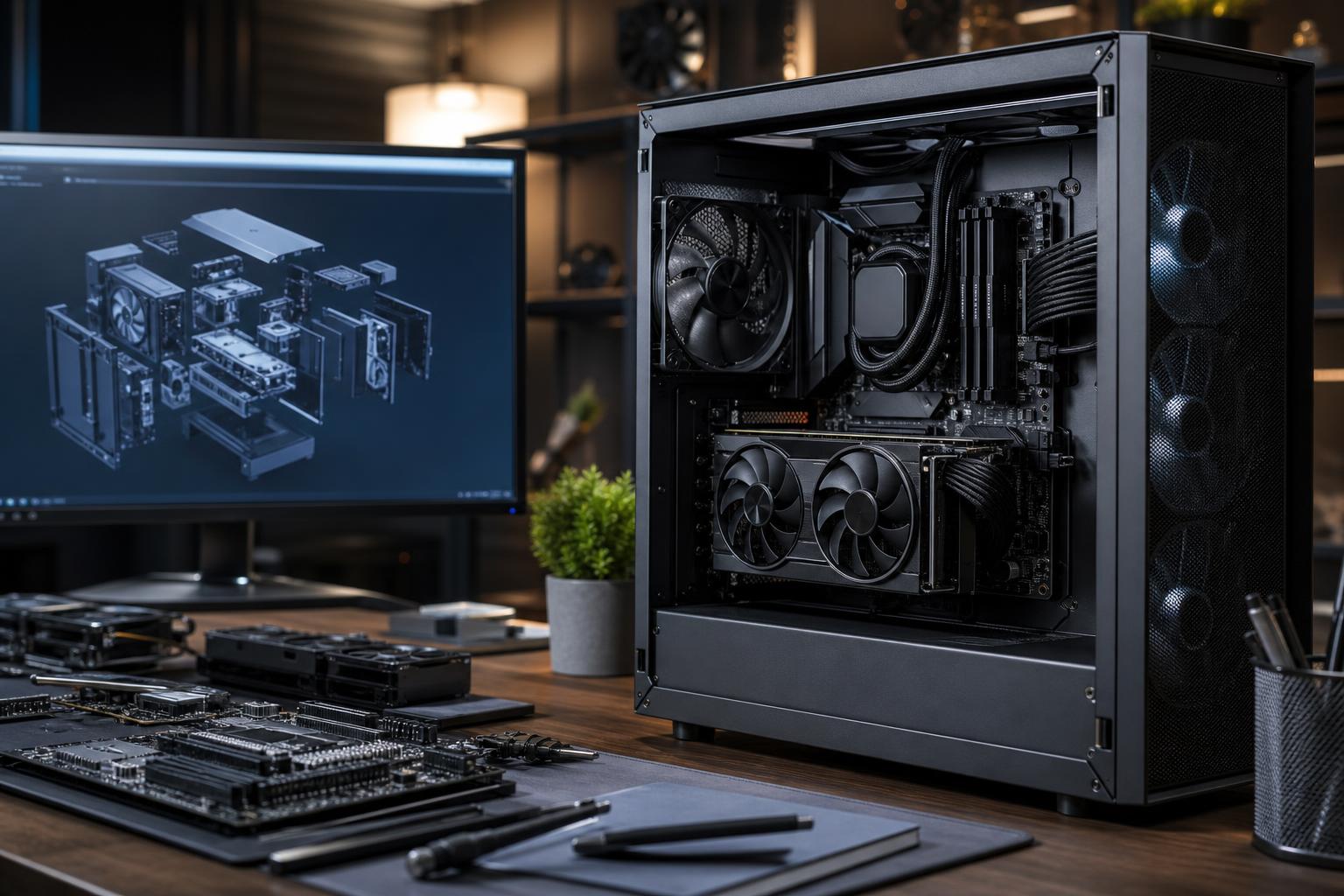
For many gaming CPUs, a good tower air cooler is reliable, effective, and easier to maintain than liquid cooling. A properly selected all-in-one liquid cooler makes sense for hotter CPUs, compact builds, or buyers who want its appearance and understand that a pump is another moving part. Neither option is automatically superior; the CPU’s heat output, case airflow, and noise target decide the answer.
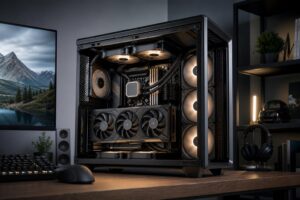
Check that the case has a sensible airflow path and enough included fans. A glass-front case with minimal ventilation can look tidy in a product photo while making the fans work much harder. Mesh intake panels, filtered openings, and room for intake and exhaust fans are usually better signs than a long list of RGB features.
A transparent spec sheet names the major components rather than using broad placeholders. Before buying, try to confirm these details:
Not every component must be premium. That is not the goal. The goal is for the builder to make sensible choices and stand behind them. Saving money on a motherboard feature you will never use is smart. Saving money by concealing the power supply or using inadequate cooling is a different story.
When comparing two PCs, list the parts that are actually specified and note the missing details. Then consider the cost of correcting weaknesses after purchase. Adding storage is easy. Replacing a noisy case, inadequate cooler, or questionable power supply is more expensive and far less enjoyable.
Be especially careful with upgrades that sound easy on paper. A graphics card upgrade may require a larger power supply, more physical clearance in the case, or better airflow. Adding RAM may be simple, but mixing a new kit with an old one can reduce memory speed or create stability problems. A balanced system avoids forcing immediate corrective upgrades.
A good PC spec sheet should give you confidence, not leave you guessing. If you are choosing between configurations or have a demanding mix of games and professional software, Overclock Computers can help translate your workload into a balanced custom system with the parts clearly explained before it is built.