How to Choose a PC Monitor for Gaming, Work, and Content Creation

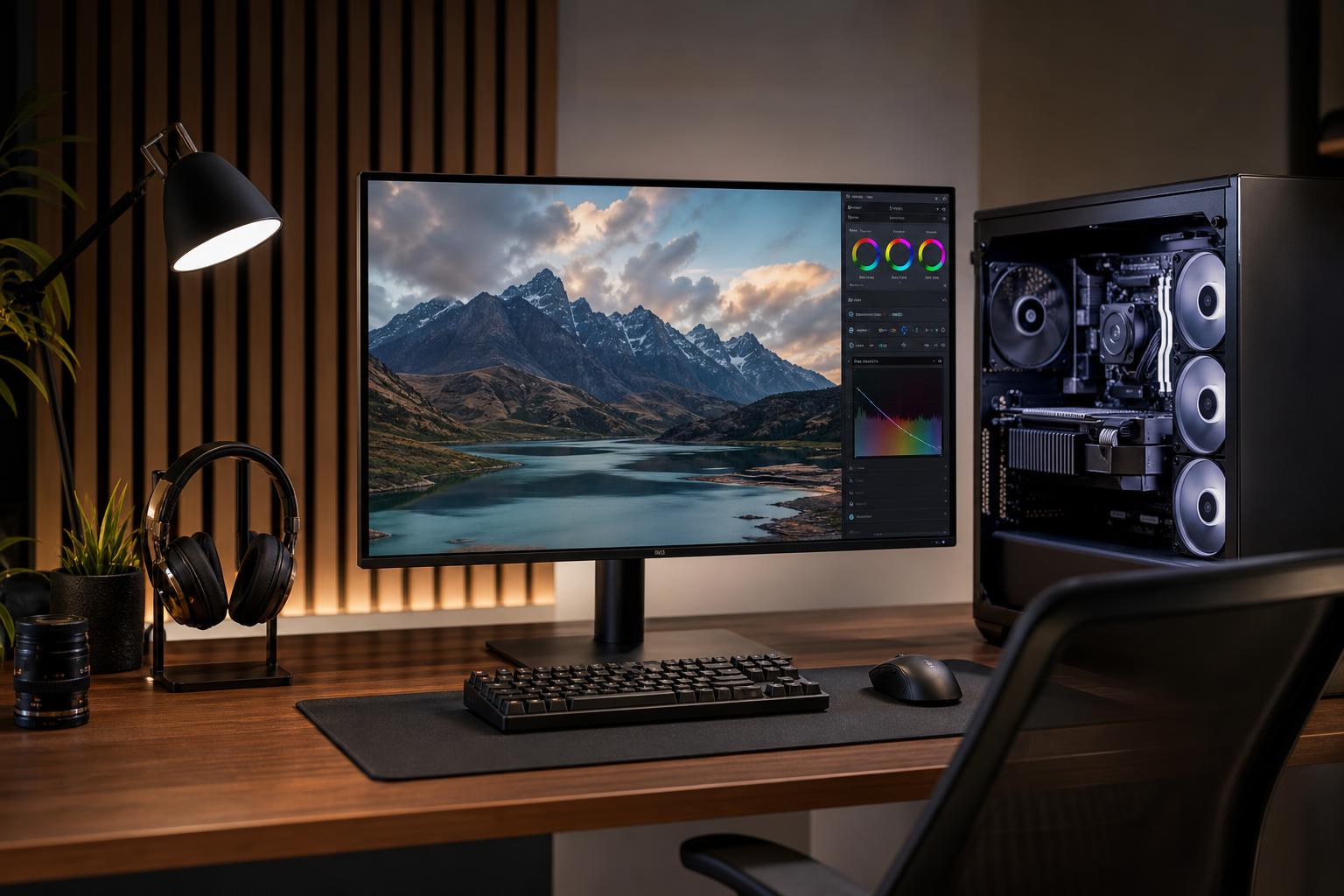
A monitor is the part of your computer you look at all day, yet it is often chosen as an afterthought. That is backwards. A fast graphics card is wasted on a poor display, and even an excellent workstation can feel unpleasant when paired with a cramped, blurry, or badly calibrated monitor.
The right choice comes down to four main questions: what you do on the PC, how much desk space you have, what your graphics card can realistically drive, and which screen characteristics you will notice every day. Resolution and refresh rate matter, but they are not the whole story.
Before comparing specifications, decide which activity deserves priority. A monitor can be good at several things, but no single model is perfect for competitive gaming, color-critical editing, office work, and cinematic HDR at every price point.
It is fine to own two monitors with different strengths. For example, many creators use a high-refresh gaming display beside a more color-focused 4K monitor. Trying to make one display do everything can be expensive.
Screen size without resolution tells you very little. The important relationship is pixel density: how tightly the pixels are packed. Higher pixel density makes text, interface elements, and detailed images look sharper. It can also make text uncomfortably small if the display is too high resolution for its size and viewing distance.
A 24-inch 1080p monitor remains a sensible choice for esports titles and players who value high frame rates over visual detail. It is compact, affordable, and easy for a modest GPU to drive. For general productivity, though, 1080p provides limited workspace and less crisp text than modern higher-resolution options.
For most desktop users, 27 inches is the most flexible size. At 1440p, it delivers a noticeably sharper image than 1080p without demanding the graphics horsepower of 4K. There is enough space for documents, timelines, and multiple application windows without making everything tiny.
A 27-inch 4K screen is extremely sharp and excellent for detailed creative work, but Windows display scaling is commonly needed to keep text comfortable. That is not a problem; it just means you will not always gain as much usable desktop space as the raw pixel count suggests.
A 32-inch 4K monitor is excellent for productivity, detailed design work, and immersive single-player games. It offers a comfortable pixel density and plenty of room for multiple windows. Make sure your desk is deep enough, though. Sitting too close to a large screen means more eye and head movement, which gets tiring during long work sessions.
An ultrawide can replace a dual-monitor setup with one clean, uninterrupted workspace. It is particularly pleasant for editing timelines, large spreadsheets, coding, simulation titles, and multitasking. The tradeoff is price, desk width, and game support. Most modern games handle ultrawide well, but some menus, cutscenes, and older games do not.
For work, a 34-inch 3440-by-1440 ultrawide is a sensible middle ground. Super-ultrawide models are powerful multitasking tools, but they are not a universal upgrade. A pair of conventional monitors may be more practical if you regularly need full-screen apps side by side.
Refresh rate is how many times per second a monitor can update its image. A 60Hz monitor refreshes 60 times per second; a 144Hz display refreshes 144 times. Higher refresh rates make cursor movement, scrolling, and games look smoother. They also reduce the delay between a new frame being rendered and appearing on screen.
For a new gaming PC, 144Hz or 165Hz is a strong baseline. It feels substantially smoother than 60Hz, and capable midrange systems can take advantage of it in many games at 1080p or 1440p.
Do not buy a 360Hz monitor for a PC that produces 90 frames per second in the games you play. The display will work perfectly, but much of what you paid for will sit unused. A better panel, higher resolution, or a stronger graphics card may improve the overall experience more.
Panel technology is one of the reasons two monitors with similar resolution and refresh rates can look very different.
IPS panels generally provide good viewing angles and strong color performance. They are popular for productivity, creative work, and gaming because they handle each reasonably well. Their traditional weakness is contrast: blacks can look gray in a dark room, especially on lower-cost models.
VA panels can produce deeper blacks and higher contrast than conventional IPS displays. They are attractive for dark-room gaming and movie watching. Some VA monitors, particularly budget models, show dark-level smearing in fast motion. Read reviews that test response behavior rather than relying on the advertised response-time number on the box.
OLED displays offer per-pixel lighting, which creates excellent contrast, deep blacks, and fast pixel response. They are superb for games, HDR movies, and color-rich visual work. The tradeoffs are cost, brightness behavior, text rendering preferences, and the possibility of permanent image retention from static desktop elements over long periods.
Modern OLED protections have improved, but someone who keeps spreadsheets, toolbars, or dashboards on screen for eight hours a day should understand the risk and follow the manufacturer’s care guidance. OLED is fantastic, but it is not automatically the best monitor for every office workstation.
When the graphics card and monitor are out of step, you may see screen tearing or uneven motion. Adaptive sync allows the monitor’s refresh rate to vary with the frame rate being produced by the GPU. It is especially useful when performance moves around rather than staying locked at one number.
For gaming, choose a monitor that supports adaptive sync and is clearly compatible with your graphics hardware. In practical terms, most current gaming monitors support variable refresh rate technology across a useful range. Still, confirm the specific ports and compatibility before buying, particularly if you are connecting a console as well as a PC.
HDR can improve bright highlights, shadow detail, and color volume, but the badge alone does not guarantee a great HDR experience. Many entry-level monitors accept an HDR signal without having enough brightness or local dimming control to display it convincingly.
For meaningful HDR, look for strong sustained brightness and effective local dimming, or consider OLED. If HDR is not a priority, a well-made SDR monitor with accurate color and good contrast is often a better purchase than a budget display making ambitious HDR claims.
Wide color gamut is useful for photo and video work, but more color is not always better. If a monitor displays standard web content in an overly wide gamut without proper color management, ordinary images can look unnaturally saturated.
For general use, an accurate sRGB mode is valuable. For creative professionals, select the color space based on the project: sRGB for most web work, DCI-P3 for much modern video work, and Adobe RGB when a photography or print workflow specifically calls for it. A hardware calibrator can be worthwhile for paid color-critical work, but it is unnecessary for most home users.
These details decide whether a monitor is pleasant to live with. Look for height adjustment, tilt, and ideally swivel or pivot if your desk setup needs them. A fixed stand may seem like a small annoyance until you spend a week craning your neck at it.
Check the video inputs against your PC and desired refresh rate. Older HDMI or DisplayPort versions can limit resolution or refresh rate depending on the monitor. Use the cable included with the display when possible, and verify that it supports the mode you intend to run. USB-C charging, Ethernet, and KVM functions can simplify a desk shared between a desktop and laptop, but they are worth paying for only if you will use them.
Start with a realistic budget for the entire setup, then choose the monitor to match the PC you own or plan to build. For most people, we would recommend a 27-inch 1440p IPS display at 144Hz to 180Hz with adaptive sync and an adjustable stand. It is sharp, smooth, versatile, and does not require an extreme graphics card.
Move to 4K when detailed creative work, a larger 32-inch screen, or high-fidelity gaming is the priority and your GPU budget supports it. Choose 240Hz or higher when competitive performance matters enough to justify accepting lower resolution or spending more on the PC behind it. And if you work with color professionally, buy based on the color space and calibration needs of the job, not a vague “creator monitor” label.
A balanced PC and monitor pairing feels better than a lopsided one. If you are planning a new gaming PC or workstation and want help matching the display, graphics card, and applications, contact Overclock Computers. We can help configure a system around the screen and workload you will actually use.