How to Choose a Motherboard for a Custom PC: What Actually Matters

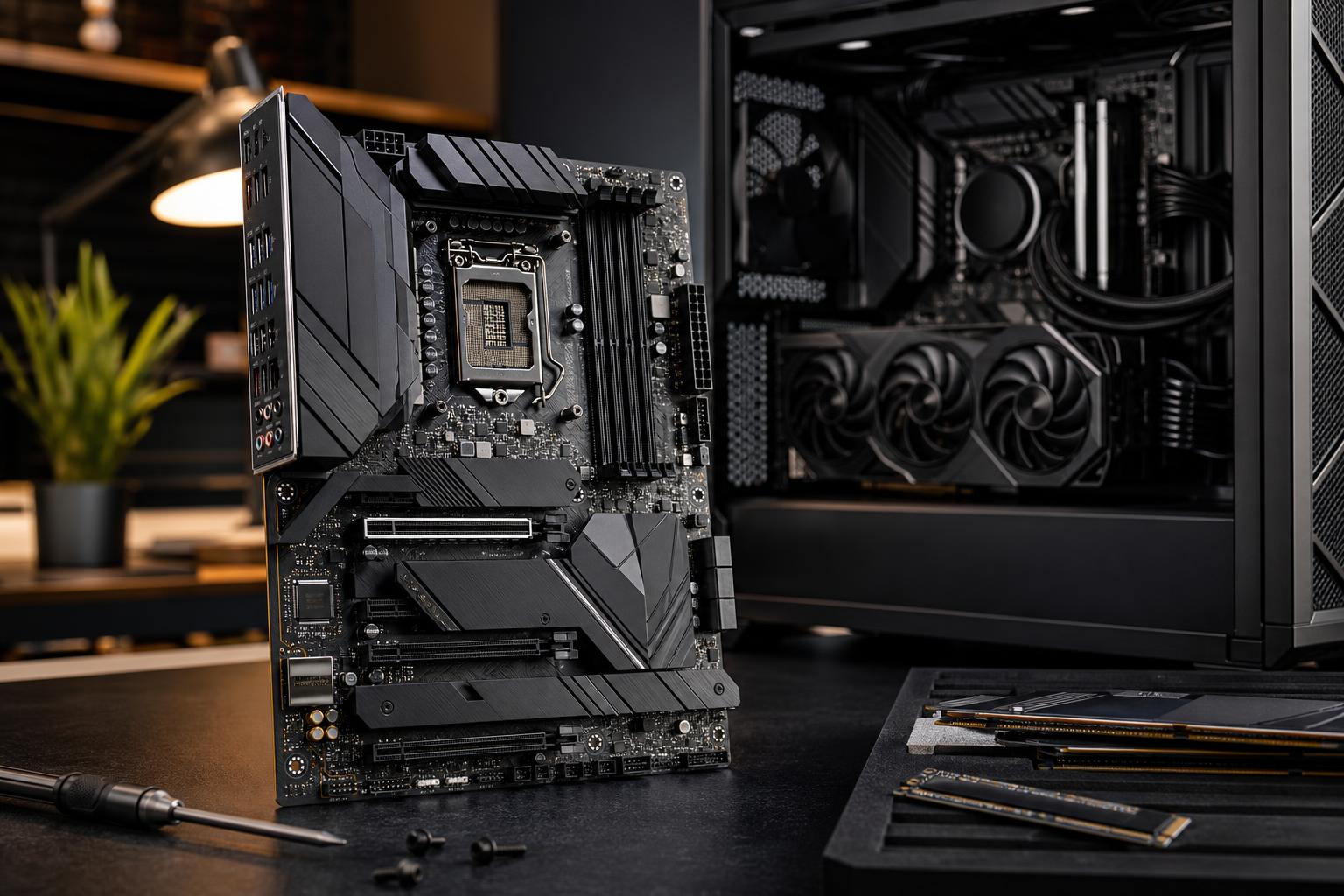
The motherboard is rarely the most exciting part of a custom PC. It does not raise frame rates the way a faster graphics card can, and it does not make a render finish sooner by itself. Still, it determines which processor fits, how much memory and storage you can install, what ports are available, and how easily the system can be expanded later.
A poor motherboard choice can turn an otherwise sensible build into a cramped, noisy, limited machine. An overly expensive one can waste money that would have made a real difference when spent on the graphics card, processor, storage, or monitor. The goal is not to buy the most elaborate board. It is to buy one that properly supports the system you are building.
The first filter is simple: the motherboard must support your CPU socket. Processors from different CPU families cannot be mixed with whatever motherboard happens to be on sale. Even CPUs that physically share a socket may need a particular chipset or BIOS version to work correctly.
Check the motherboard maker’s official CPU support list for the exact processor model. This matters most when pairing a newer CPU with a board that may have been manufactured before that CPU launched. A BIOS update may be required. Some boards offer a way to update the BIOS without an installed CPU; that feature is useful, but a builder should ideally ensure compatibility before the system reaches your desk.
The chipset controls many of the board’s available features, including PCIe lanes, USB connectivity, storage options, overclocking support on applicable platforms, and expansion capacity. Higher-tier chipsets often add connectivity and flexibility. They do not automatically make the same CPU faster in everyday use.
For a typical gaming system, a sensible midrange chipset board is usually the sweet spot. Step up when you specifically need more high-speed USB ports, additional NVMe drives without compromises, more expansion slots, stronger networking, or advanced tuning options. For many buyers, a flagship-class motherboard is a very expensive way to get features they will never touch.
Motherboards come in several standard sizes. Your case must support the board you choose, but the larger question is how much expansion you realistically need.
For most buyers, ATX is the easy recommendation when desk space allows. It makes the system easier to assemble, cool, service, and expand. Micro-ATX is excellent when you want a smaller tower without accepting all the compromises of Mini-ITX.
A motherboard’s voltage regulator module, usually called the VRM, delivers controlled power to the CPU. A robust VRM helps a high-power processor sustain heavy workloads without overheating or reducing its speed.
This is particularly relevant for workstations that spend hours rendering, compiling software, simulating data, or processing video. It also matters for a high-end CPU in a gaming PC, especially in a warm room or a case with restricted airflow.
Do not judge VRM quality by a large phase-count number printed on a product page. Manufacturers describe power stages in different ways, so those numbers are not always directly comparable. Instead, look for substantial heatsinks around the CPU socket, independent reviews that measure VRM temperatures, and a board class appropriate for the CPU.
A modest processor does not need an exotic motherboard. Conversely, pairing a top-tier CPU with the least expensive board available is false economy if the machine will work at full load. The practical rule is straightforward: match board power delivery to the processor’s sustained power demands, not just to the fact that it fits the socket.
Check whether the platform uses DDR4 or DDR5 memory. These are not interchangeable. Then confirm the board has enough memory slots and supports the capacity you expect to need over the life of the PC.
Most ATX and Micro-ATX boards have four DIMM slots. That is ideal for buyers who want to start with two memory modules and keep an easy upgrade path. Many Mini-ITX boards have only two slots, which is reasonable in a compact build but means an upgrade may require replacing the original kit.
For gaming, two matching memory modules are generally preferred because they allow dual-channel operation. For professional systems, capacity is often more valuable than chasing the last small percentage of memory speed. A video editor struggling with 32GB of RAM will benefit far more from moving to 64GB than from buying slightly faster memory at the same capacity.
Also check the board’s memory support documentation for the kit you plan to use. High-speed memory profiles are common and usually work well, but they are technically overclocked settings on many platforms. A quality board, sensible memory speed, and a validated kit are a more reliable combination than trying to set records in a PC meant to get work done.
Modern systems rely heavily on M.2 NVMe SSDs. Before choosing a board, count how many internal drives you need now and how many you may add later. A gaming PC with one or two NVMe drives has modest requirements. A workstation handling large video projects, photo libraries, engineering data, or local AI models may need several fast drives plus larger SATA storage for archives.
Look beyond the number of M.2 slots. On some platforms, populating certain M.2 or PCIe slots can share bandwidth with other ports or disable a SATA connection. This is not necessarily a problem, but it should be planned rather than discovered after the build is complete.
PCIe expansion slots matter for more than graphics cards. Depending on the workload, you may need room for a capture card, high-speed network adapter, professional audio interface card, additional storage controller, or specialized accelerator. A single-GPU gaming machine may never use a second full-length slot. A workstation with unusual I/O needs may benefit greatly from having it.
Rear ports are easy to overlook until you are crawling behind the desk with an adapter in hand. Check the number and type of USB ports, including USB-C if your external drives, phone, dock, or peripherals use it. Creators who frequently transfer footage to fast external SSDs should pay close attention to high-speed USB support, not just the total port count.
Other features worth checking include:
A higher-end board makes sense when it solves a real requirement: a powerful CPU under sustained load, multiple high-speed drives, extensive USB connectivity, faster networking, serious expansion needs, or a compact build that demands specialized layout and features.
It is usually not worth it just for decorative covers, more RGB lighting, or a long list of tuning settings that will remain untouched. For a gaming-focused budget, moving money from a luxury motherboard to a better GPU is often the smarter decision. For a workstation, reliable connectivity, storage capacity, and stable heavy-load operation can be worth more than cosmetic extras.
A motherboard should quietly support the rest of the system for years. Pick one with the right foundation and connections, then put the remaining budget into the parts that most affect your actual work or play. If you are planning a custom gaming PC or workstation and want the component choices checked as a complete system, contact Overclock Computers. We can help configure a balanced build without paying for motherboard features you will not use.