How to Choose a Graphics Card: A Practical Guide for Gaming and Workstations

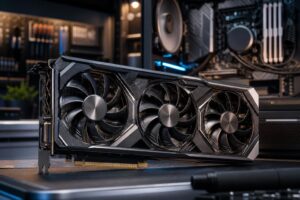
The graphics card is usually the most expensive part of a gaming PC and often the component that defines its performance. It is also easy to buy the wrong one: too little GPU for a high-resolution monitor, too much GPU for a game that is limited by the CPU, or plenty of raw power but not enough video memory for a professional project.
Choosing well starts with the job, not the product stack. A graphics card that makes perfect sense for competitive gaming at 1080p may be a poor fit for 4K gaming, 3D rendering, AI work, or a workstation running several high-resolution displays.
For gaming, your monitor is the most useful starting point. Resolution determines how many pixels the GPU must render every frame, while refresh rate determines how often it needs to do it. A 4K, 144 Hz display is asking for far more than a 1080p, 60 Hz display. That sounds obvious, but it prevents a lot of mismatched builds.
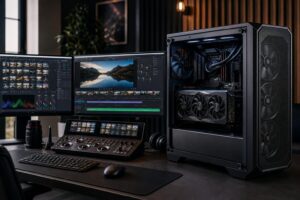
For professional use, check what your actual applications use. Video editors may benefit from GPU-accelerated effects and hardware video encoding. 3D artists should look at the rendering engine they use. CAD software can be more dependent on fast CPU performance than on a giant GPU, while large visualization models and GPU renderers can need both graphics horsepower and substantial VRAM.
Do not choose a workstation graphics card based on a general description such as “design work.” Identify the software, project size, display setup, and whether the GPU is being used mainly for viewport work, rendering, simulation, encoding, or AI. Those are very different jobs.
GPU model numbers are useful within one generation, but they do not tell the entire story across generations or between manufacturers. Benchmarks in the games and applications you use are more valuable than a box full of clock speeds and marketing labels.
Look for test results at your intended resolution and settings. If you play single-player games with visual settings turned up, pay attention to performance in demanding newer titles, not only lightweight esports games. If you play competitive shooters, average frame rate matters, but stable low frame rates matter too. A system that averages 240 frames per second but has frequent sharp dips will not feel as smooth as the average suggests.
Set a realistic goal before shopping. For example, a 1440p 165 Hz monitor does not require every game to run at 165 frames per second with every setting maxed out. Reaching that target in the most demanding games may require compromises, upscaling, or a much more expensive GPU. That is normal, not a sign that a card is inadequate.
VRAM is the graphics card’s dedicated memory. It stores textures, frame buffers, 3D scenes, geometry, AI models, and other data the GPU needs immediately. If a workload exceeds available VRAM, performance can fall abruptly. In some professional applications, the project may not run on the GPU at all.
For gaming, VRAM needs rise with resolution, texture quality, ray tracing, mods, and the age of the game engine. More memory does not automatically make a slower GPU faster, but too little can limit an otherwise capable card. For a new midrange-to-high-end gaming PC intended to stay useful for several years, avoid treating VRAM as an afterthought.
For content creation, rendering, photogrammetry, and local AI work, capacity can be the deciding factor. A GPU with enough VRAM to fit the scene or model is often more useful than a nominally faster one that runs out of memory. If your work regularly involves large scenes, high-resolution textures, large datasets, or local AI models, describe those projects when planning the system.
There is no honest universal number because a small CAD assembly and a massive textured architectural visualization are not remotely alike. The practical rule is simple: if a project does not fit in VRAM, raw shader performance cannot rescue it.
Ray tracing can improve lighting, reflections, and shadows, but it is expensive to render. Treat it as a feature you may use, not as the only reason to select a card. A GPU that performs well in the games you play without ray tracing will generally remain useful even when you choose to turn the feature down for higher frame rates.
Upscaling technologies render the game at a lower internal resolution and reconstruct a sharper image. They can provide a meaningful performance boost, particularly at 1440p and 4K. Frame generation can increase displayed frame rates further by creating intermediate frames, but it is not a substitute for solid native performance. It can add latency and works best when the game already has a healthy base frame rate.
These features are useful tools, not magic. We recommend choosing a card that meets your normal expectations before relying on every quality setting, ray-tracing option, and generated frame to reach an acceptable result.
Professional GPU selection is not simply a contest of gaming benchmarks. Many creative and technical applications favor particular GPU APIs, drivers, or compute platforms. Some rendering and AI tools are built around CUDA acceleration, which makes compatible NVIDIA hardware the practical choice. Other applications support a wider range of hardware through APIs such as OpenCL, Vulkan, DirectX, or vendor-neutral render engines.
That does not mean one brand is right for every professional. It means the software should lead the decision. Check the documentation for your version of the application, then consider the kind of work you actually run. A video editor working mostly with common codecs may value hardware encoding support. A 3D renderer may value render speed and VRAM. An engineer working in a CPU-heavy CAD package may be better served by a faster processor, more memory, or a better monitor than by an ultra-expensive GPU.
For organizations, consider reliability and consistency too. Standardizing similar configurations can simplify support, driver testing, replacement planning, and deployment. That is often more valuable than squeezing out a tiny performance advantage on paper.
A graphics card is not a self-contained purchase. It needs a balanced system around it.
Also avoid paying a premium for a factory-overclocked version of the same GPU when the price gap is large. Cooler design, noise level, warranty support, physical dimensions, and power requirements usually matter more than a small out-of-box clock increase.
Spend more on the GPU when it directly supports a monitor upgrade, a meaningful frame-rate target, faster professional rendering, a larger VRAM requirement, or a known software acceleration need. Those are benefits you will notice.
Save money when the GPU is already comfortably beyond what your display and applications can use. For example, a 60 Hz 1080p monitor does not need a premium high-end card to feel responsive in most games. Likewise, a workstation used mainly for office tasks and lightly accelerated CAD does not need the same GPU as a machine built for GPU rendering or local AI.
The best graphics card is not necessarily the fastest card available. It is the one that fits your workload, monitor, budget, case, power supply, and upgrade plans without forcing compromises in the rest of the system.
Start with the games, applications, displays, and project sizes that matter most. From there, choose enough GPU performance and VRAM to meet that goal, then give it a capable CPU, clean power, and proper airflow. That approach produces a faster, quieter, and more satisfying computer than simply allocating the biggest possible slice of the budget to one component.
If you are planning a gaming PC or professional workstation and want a second opinion on GPU choice, contact Overclock Computers with your software, monitor specifications, and performance goals. We can help configure a balanced system that makes sense for the work you will actually do.