How Much SSD Storage Do You Need for a Gaming PC or Workstation?

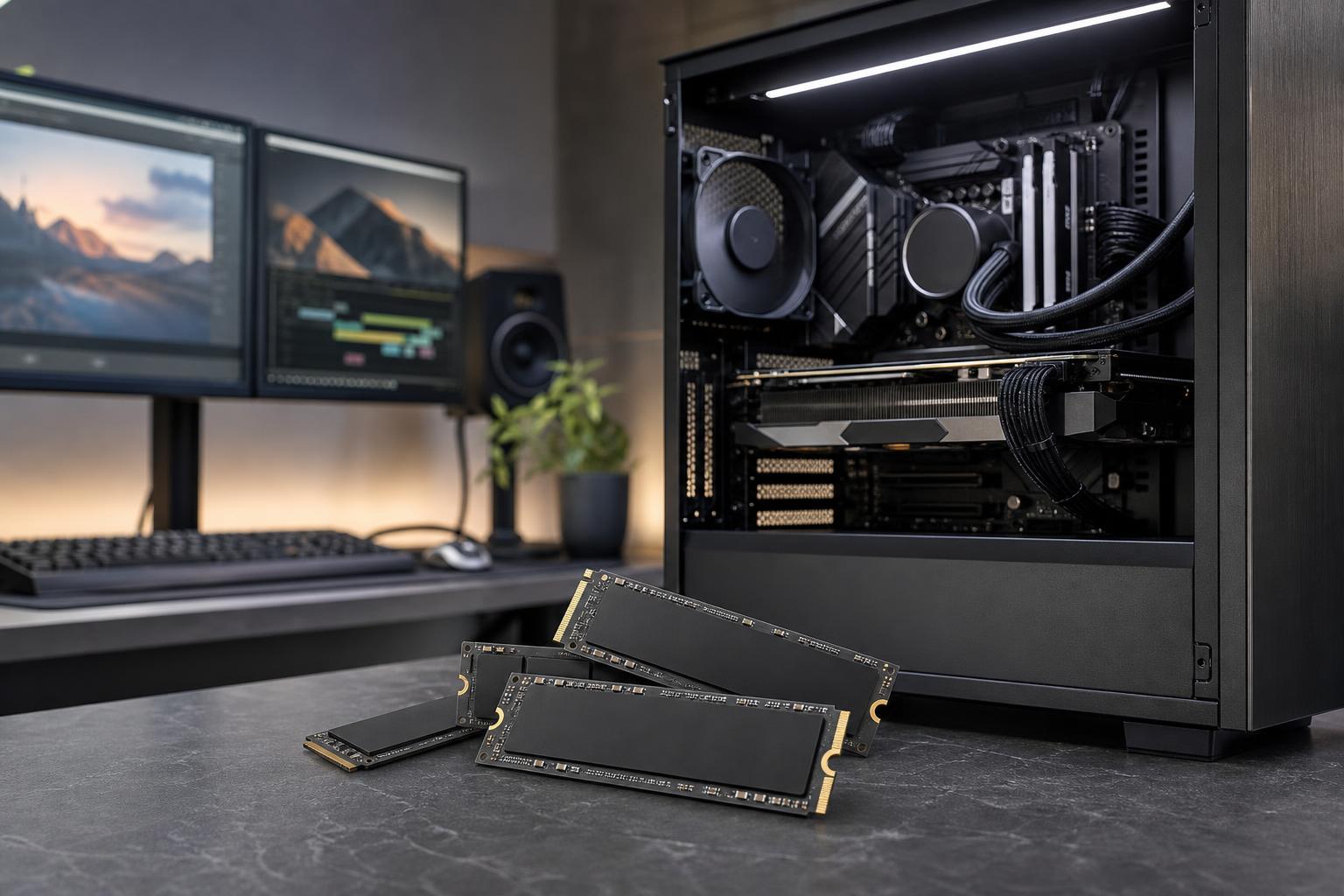
Storage is one of the easiest PC components to underestimate. A new system can feel wonderfully spacious on day one, then become a constant exercise in uninstalling games, moving project folders, and wondering why an expensive computer is warning that its main drive is full.
The good news is that storage planning is fairly straightforward when it starts with the files you actually use. For most new performance PCs, we recommend an NVMe SSD as the primary drive. The bigger question is capacity: 1TB, 2TB, 4TB, or a multi-drive setup?
Here’s how to make that decision without paying for capacity you won’t use—or buying too little and regretting it six months later.
A drive advertised as 1TB does not provide a full 1,000GB of convenient empty space in Windows. Formatting, recovery partitions, applications, updates, and system files take some room. More importantly, an SSD should not be run nearly full.
Keeping roughly 15 to 20 percent free space is a sensible target. Windows has room for updates and temporary files, while the SSD has room to manage data efficiently. Filling a drive to the last few gigabytes is a good way to turn routine maintenance into a nuisance.
That means a 1TB SSD is best treated as roughly 700 to 800GB of comfortably usable working space after Windows, applications, and a healthy free-space buffer. A 2TB drive offers closer to 1.5TB or more for your files and games. The exact figure will vary, but the planning principle holds.
A 1TB NVMe SSD works for a gaming PC with a modest game library, especially if you tend to play a few titles at a time. It also suits general home systems where documents, photos, and media are stored elsewhere.
However, modern games are not shy about storage use. Many large releases occupy 100GB or more, and a handful can consume most of a 1TB drive once Windows and everyday applications are installed. If you routinely keep a large library installed, 1TB becomes restrictive quickly.
Choose 1TB when the budget is tight and you have a realistic plan to add a second drive later. Don’t choose it simply because it is the cheapest option in an otherwise premium build.
For most gaming systems, 2TB is the sweet spot. It gives Windows, applications, several large games, screenshots, mods, and routine downloads enough breathing room without requiring constant file management.
It is also a strong starting point for developers, photographers, and creators who work with moderately sized projects. A 2TB drive will not solve every professional storage need, but it gives a new workstation a much more comfortable runway than 1TB.
If you are configuring a higher-end custom gaming PC and are unsure where to land, we would generally put the money into a 2TB SSD before spending extra on a storage specification that will not noticeably improve your day-to-day use.
A 4TB SSD makes sense for people who keep lots of games installed, edit video regularly, work with large photo catalogs, or want a single roomy primary drive. It is particularly convenient for a gaming PC that doubles as a content-creation machine.
For creators, 4TB can hold active project files, source media, exports, cache files, and applications without forcing immediate compromises. That convenience matters. Moving hundreds of gigabytes around to make room is not a productive part of the editing process.
Still, 4TB is not automatically the right answer for every workstation. If your workload produces many terabytes of source footage, scans, renders, or project archives, a thoughtful multi-drive layout is usually better than putting everything on one large drive.
Very large SSDs are useful for editors working with substantial video footage, 3D artists with large asset libraries, engineers handling large datasets, and professionals who need fast local access to active projects. They can also be a clean solution in compact systems with limited drive bays.
But capacity is only one part of the plan. At this level, backup strategy and long-term archive storage deserve equal attention. A large internal SSD is fast, but it is not a backup. One failed drive, accidental deletion, or ransomware incident can take everything with it.
A single high-quality NVMe SSD is perfectly capable for many PCs. Modern drives are fast enough that separating Windows and games does not automatically produce a noticeable performance gain. One drive is simple, easy to manage, and often the most cost-effective approach.
Multiple drives become useful when they solve a specific problem.
For a video-editing workstation, separate drives can reduce contention when the system is reading source media, writing cache files, and handling Windows background tasks at the same time. For a developer running several virtual machines, a dedicated project or VM drive can also make organization and rebuilds easier.
For a typical gaming PC, though, two drives are mainly about capacity and organization, not frame rate. Buy the second drive because you need the space, not because someone promised it will magically make every game faster.
NVMe drives connect through PCIe lanes. In broad terms, newer generations offer higher potential sequential transfer speeds. PCIe 4.0 SSDs are now an excellent fit for most performance PCs, while PCIe 5.0 drives can post eye-catching benchmark numbers.
Those numbers do not always translate into a major real-world difference. Windows boot times, game loading, and ordinary application launches are often limited by factors beyond peak SSD throughput. A good PCIe 4.0 drive is already extremely responsive for gaming, office work, programming, and most creative tasks.
A PCIe 5.0 SSD is more reasonable for workloads that repeatedly move or process very large files, provided the motherboard supports it properly and the drive has adequate cooling. Examples include certain high-resolution video workflows, large scientific datasets, and intensive local scratch-disk use. Even then, capacity, reliability, and sustained performance may matter more than the headline maximum speed.
Our usual recommendation is simple: choose a reputable PCIe 4.0 NVMe drive with enough capacity first. Step up to PCIe 5.0 when your workflow can genuinely use it, not just because the product box has a larger number.
Not all SSDs behave the same once they have been writing data for a while. Some lower-cost drives use QLC NAND, which can offer good capacity for the money but may slow down substantially during long writes after their faster cache is exhausted. TLC-based drives generally provide stronger sustained performance and are often a better fit for primary drives and heavy project work.
That does not make QLC inherently bad. It can be a reasonable choice for a game library, media storage, or a secondary drive where cost per terabyte is the priority. The problem is using the wrong drive in the wrong role.
For a workstation handling frequent exports, large file copies, virtual machines, or cache-heavy applications, prioritize a quality drive with strong sustained write behavior and an appropriate endurance rating. For a gaming library, capacity and value are usually more meaningful than chasing the fastest benchmark result.
More internal storage does not protect your files by itself. Important data should exist in more than one place. At minimum, keep a backup on an external drive or a trusted network location. For business data and irreplaceable project files, an additional off-site or cloud backup adds protection against theft, fire, and other local disasters.
Fast internal SSD storage is for getting work done. Backups are for recovering when something goes wrong. You need both.
For the majority of new gaming PCs, a 2TB PCIe 4.0 NVMe SSD is the practical recommendation. It offers enough room to enjoy the system rather than manage it constantly. A 1TB model is acceptable for a tightly budgeted build with easy future expansion. A 4TB drive is money well spent for large game libraries and serious creative work.
For professional systems, start by estimating the size of active projects—not your entire lifetime archive—and leave comfortable headroom. Then build a drive layout around how data moves through your applications. That produces a workstation that stays responsive and organized as projects grow.
If you are planning a custom PC and are unsure how much fast storage your games, media, project files, or software tools will require, contact Overclock Computers. We can help translate your actual workflow into a balanced storage configuration that makes sense now and leaves room for the future.