How Much SSD Storage Do You Need for a Gaming PC or Workstation?

Storage capacity is easy to underestimate when configuring a new PC. A 1TB SSD sounds roomy until a few modern games, a video project, a photo library, or several virtual machines move in. Then Windows starts warning that the drive is nearly full at exactly the wrong moment.
The right answer is not simply “buy the biggest drive you can afford.” Capacity matters, but so does how you use the computer, how much active data you keep locally, and whether one drive or several drives will make your work easier. A well-planned storage setup feels invisible: programs load quickly, projects have room to breathe, and you are not constantly uninstalling something to make space.
Installed applications are only part of the picture. The files created around them are often the real capacity problem.
Before choosing a capacity, look at your current computer. Check how much space is used today, then ask what you routinely delete or move elsewhere because there is not enough room. That number is more useful than a generic recommendation.
A 1TB NVMe SSD is a reasonable starting point for a general-use PC, a budget-conscious gaming build, or a workstation where most project data lives on a server or external storage. After formatting and the operating system, applications, updates, and recovery space, you will have materially less than a full terabyte available.
For a person who keeps a handful of games installed or works mainly with documents and cloud-synced files, 1TB can work well. It is less comfortable for someone who wants a large game library, edits video, or prefers to keep several active professional projects on the machine.
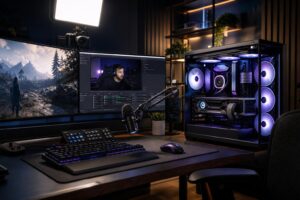
For most new gaming PCs, we consider 2TB the practical sweet spot. It provides enough room for Windows, everyday software, and a healthy rotation of large games without constant housekeeping. It also leaves useful headroom for screenshots, game recordings, mods, and the occasional large download.
A 2TB primary drive is also a strong choice for many creators and developers who work on modest-sized projects. If you are spending on a high-performance graphics card, buying enough storage to keep the games you play installed is usually a better experience than treating disk space as an afterthought.
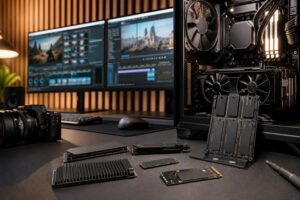
A 4TB SSD makes sense when local storage is part of your normal workflow rather than an occasional convenience. This is a good fit for gamers with large installed libraries, creators who keep active footage and project assets on the PC, developers running several VMs or containers, and users who work with local AI models.
It is also a good option for people who keep a computer for many years. Software, games, and project files do not tend to shrink. Paying for more capacity upfront can prevent an awkward storage upgrade a year later, especially in compact systems with limited M.2 slots.
Very large SSD capacity is justified for specific workloads: frequent 4K or 8K editing, large photo catalogs, extensive sample libraries, point-cloud processing, large local datasets, or professional projects that need fast access throughout the day.
For most people, however, putting every old project on expensive SSD storage is not the best use of budget. Keep current work on fast internal SSDs, then move completed projects to lower-cost archival storage or a managed network storage system. Fast storage is valuable; it does not need to hold your entire digital history.
Do not plan to run an SSD at 99% full. A drive needs free space for Windows updates, temporary files, application caches, and normal background maintenance. Some workloads also create very large temporary files without much warning.
As a practical habit, try to keep at least 15% to 20% of a primary SSD free. That is not a hard technical law, but it provides breathing room and avoids the constant friction of a nearly full drive. For video editing, 3D rendering, photogrammetry, and similar work, reserve even more free capacity because caches and exports can expand quickly.
One large NVMe SSD is simple, clean, and often the right answer. Modern NVMe drives are fast enough that a single quality drive handles Windows, games, and typical productivity work very well. Multiple drives are not mandatory just because a motherboard has several M.2 slots.
Separate drives become useful when they improve organization, protect your available workspace, or support a demanding workflow.
For many high-performance systems, a two-drive setup is excellent:
This arrangement makes it easier to reinstall Windows without immediately disrupting all your large files. It also prevents a growing game library or a pile of project media from consuming the space Windows needs. For editors, a separate drive for active media and cache files can also make project management much less messy.
That said, do not assume that two SSDs automatically double real-world speed. A second drive can help when an application is reading source files while writing large cache or output files, but the benefit varies by software and project. Organization and capacity are usually the bigger wins.
A second internal SSD is useful storage, but it is not a complete backup plan. Accidental deletion, malware, file corruption, theft, electrical damage, and hardware failure can affect both drives in the same PC.
Keep important files in at least one additional location. That might be an external drive disconnected after backups, a NAS, a reputable cloud backup service, or a combination of those options. Professionals should also think about version history: a backup that silently replaces a good file with a damaged one is not much help.
For large project workflows, it is sensible to separate three jobs: fast internal SSD storage for active work, larger storage for completed projects, and a separate backup destination. This costs more than relying on one drive, but losing a client project or years of personal work costs more too.
Choose capacity before chasing benchmark numbers. For gaming and normal desktop use, a quality PCIe Gen 4 NVMe SSD with enough space is generally a better purchase than a smaller top-end drive selected solely for its maximum sequential speed.
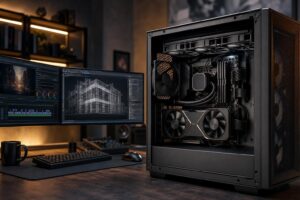
For a workstation, prioritize capacity, sustained performance, dependable cooling, and a storage layout that matches the application. A video editor who constantly runs out of room will benefit more from additional fast workspace than from a tiny improvement in synthetic benchmark results. The same goes for a developer whose virtual machines and containers are always competing for disk space.
Also buy known, well-supported drives from established manufacturers. Storage holds the files you cannot easily replace. This is not the place for mystery-brand bargain hunting.
If you want a concise starting point, choose a 2TB NVMe SSD for most gaming PCs. Move to 4TB if you maintain a large game library, create content, use virtual machines, or expect to keep the PC for several years without adding storage.
For professional workstations, start by measuring the size of your active projects rather than your total archive. Build around enough fast internal SSD capacity for current work, with a separate plan for completed projects and backups. A balanced storage configuration is one of the least glamorous parts of a custom PC, but you will notice a bad one every day.
If you are planning a new gaming PC or workstation and are unsure how much fast storage your applications need, contact Overclock Computers. We can help translate your game library, project sizes, and workflow into a sensible drive layout without paying for capacity you will not use.