Best PC for Point Cloud Processing: Workstation Specs That Make Sense


A good PC for point cloud processing needs more than a powerful graphics card. Large laser-scanning and photogrammetry datasets place heavy demands on system memory, storage speed, CPU performance, and graphics capability—often at different stages of the same project.
The right workstation is one that keeps your actual workflow moving. For many survey, architecture, engineering, and construction teams, that means prioritizing RAM and fast local storage before spending heavily on a top-tier GPU. For GPU-accelerated registration, visualization, or photogrammetry workflows, the graphics card matters much more. The software you use and the size of your typical projects should drive the build.
Point clouds are collections of spatial measurements, usually captured with terrestrial laser scanners, mobile mapping systems, drones, or LiDAR-equipped devices. A single project can contain millions—or billions—of points, along with color, intensity, classification, and scan-location data.
Processing that information commonly involves importing scans, registering them together, cleaning unwanted data, classifying points, creating meshes or surfaces, measuring features, and exporting results to CAD, BIM, GIS, or rendering software. Some applications can use the GPU well. Others rely mainly on CPU performance and system memory. Nearly all of them benefit from responsive, high-capacity SSD storage.
This is why a gaming PC can sometimes be a useful starting point, but it is not automatically the best point cloud workstation. A gaming configuration may put too much of the budget into the GPU while leaving too little RAM, storage, cooling, or expansion room for professional work.
Before choosing hardware, identify the largest projects you expect to handle locally. Do not base a workstation purchase only on the small files you receive today. Consider peak projects, overlapping deadlines, and whether you will run CAD, modeling, rendering, or other applications at the same time.
For routine scan review, light cleanup, measurements, and moderate datasets, a current high-performance desktop CPU, 32GB to 64GB of RAM, a capable dedicated GPU, and fast NVMe storage are usually enough. This is a sensible range for users working primarily with individual scans or projects that have been optimized before they arrive on their desk.
If you regularly register many scans, manipulate dense point clouds, create detailed deliverables, or keep several demanding programs open at once, step up to 64GB or 128GB of RAM. Storage capacity and organization become equally important. A workstation that runs out of memory or local scratch space halfway through a project is expensive in all the ways that do not show up on a specification sheet.
Projects involving exceptionally dense scans, large sites, city-scale captures, extensive photogrammetry, or repeated batch processing may justify 128GB of RAM or more, additional CPU cores, multiple high-capacity SSDs, and a GPU with substantial VRAM. At this level, the exact application matters greatly. Some workloads scale well across many CPU cores, while others respond better to a faster CPU with fewer cores.
CPU choice is one of the easiest places to overspend in the wrong direction. More cores are useful only when the software and specific task can use them.
A modern CPU with strong single-core speed and roughly 8 to 16 high-performance cores is an excellent foundation for many point cloud users. It keeps general application work, project navigation, CAD tasks, and lightly threaded processing responsive. It is often the best value for a single-user workstation.
A higher-core-count workstation processor makes sense when you routinely run heavily multithreaded registration, meshing, conversion, batch export, simulation, rendering, or multiple compute jobs. It also provides more PCIe lanes and memory expansion on the right platform, which can matter for several NVMe drives, high-speed networking, or specialized add-in hardware.
Do not buy a many-core CPU solely because it looks more professional. If your primary application favors clock speed or GPU acceleration, a balanced mainstream platform can deliver a better day-to-day experience.
Point cloud data consumes memory quickly, and Windows, CAD software, browsers, collaboration tools, and background processes also need room to work. When physical RAM fills up, the system starts leaning on storage as temporary memory. Even with a fast SSD, performance can fall sharply.
Capacity matters more than chasing very high memory speeds. Use a matched memory kit that is stable on the chosen platform. For professional work, reliable operation is more valuable than a small theoretical gain from an aggressive memory overclock.
A dedicated GPU is valuable for smooth navigation, high-resolution displays, 3D visualization, and software that uses GPU acceleration for processing. The key specification is not just the GPU model; it is available VRAM.
For modest datasets and standard 3D viewports, a midrange GPU with 8GB to 12GB of VRAM can be adequate. For larger clouds, multiple high-resolution monitors, GPU-assisted reconstruction, rendering, or visualization work, 16GB or more is a safer target. Extra VRAM gives the application more room for point data, textures, geometry, and display buffers before it must reduce detail or move data back and forth through system memory.
A professional GPU may be appropriate when your application vendor recommends or certifies it, when you need specific driver behavior, or when your workflow benefits from its larger VRAM options and professional support ecosystem. Otherwise, a well-chosen consumer GPU can offer excellent performance per dollar. The correct answer comes from the software requirements, not the color of the card’s box.
Point cloud files are large, and projects often create temporary files, caches, backups, exports, and derivative datasets. A single drive can become crowded surprisingly fast.
We generally recommend separating the operating system and applications from active project work when the budget allows. A practical layout looks like this:
Capacity is just as important as speed. Leave meaningful free space on active SSDs so the operating system and software can work normally. Also remember that RAID is not a backup. It can improve availability or performance in certain setups, but it does not protect against accidental deletion, corruption, theft, or a bad project overwrite.
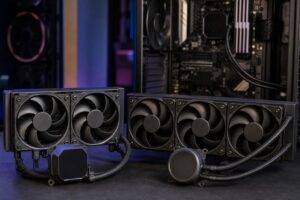
Registration, reconstruction, rendering, and exports can keep a CPU and GPU busy for hours. A system with inadequate cooling may become louder, slower, or both as temperatures rise. A quality air cooler or appropriately sized liquid cooler, a high-airflow case, and carefully planned fan placement help the machine sustain performance instead of merely looking fast in a short benchmark.
The power supply deserves the same practical thinking. Choose a high-quality unit with sufficient headroom for the installed CPU and GPU, plus reasonable future upgrades. Cheap power supplies are a poor place to save money in a workstation that handles valuable project data.
Finally, confirm the platform has the expansion you need: enough M.2 slots, accessible PCIe slots, adequate USB connectivity, and the networking your office requires. A 10GbE connection can be worthwhile when large project files live on a capable network-attached storage system. It will not replace fast local scratch storage, but it can make shared workflows far less frustrating.
For many professionals, the most balanced starting point is a high-clock-speed 8- to 16-core CPU, 64GB of RAM, a GPU with at least 12GB to 16GB of VRAM, a primary NVMe SSD, and a separate high-capacity NVMe project drive. Move to 128GB of RAM, more CPU cores, larger VRAM capacity, and expanded storage when your project sizes and software behavior prove you need them.
That approach avoids both common mistakes: buying an underpowered office desktop that constantly runs out of resources, or buying a maximum-spec gaming machine that is poorly balanced for the actual work.
The best PC for point cloud processing is not defined by one component. It is a stable, well-cooled system with enough memory for real project sizes, storage that supports active work, and CPU and GPU performance matched to the applications doing the processing.
If you are planning a new point cloud workstation, Overclock Computers can help translate your scanner output, software stack, project sizes, display needs, and budget into a balanced custom system. Bring the applications you use and an example of a typical large project; those details are far more useful than guessing from a generic specification list.