Best SSD for Gaming in 2026: What Actually Matters When Buying an NVMe Drive

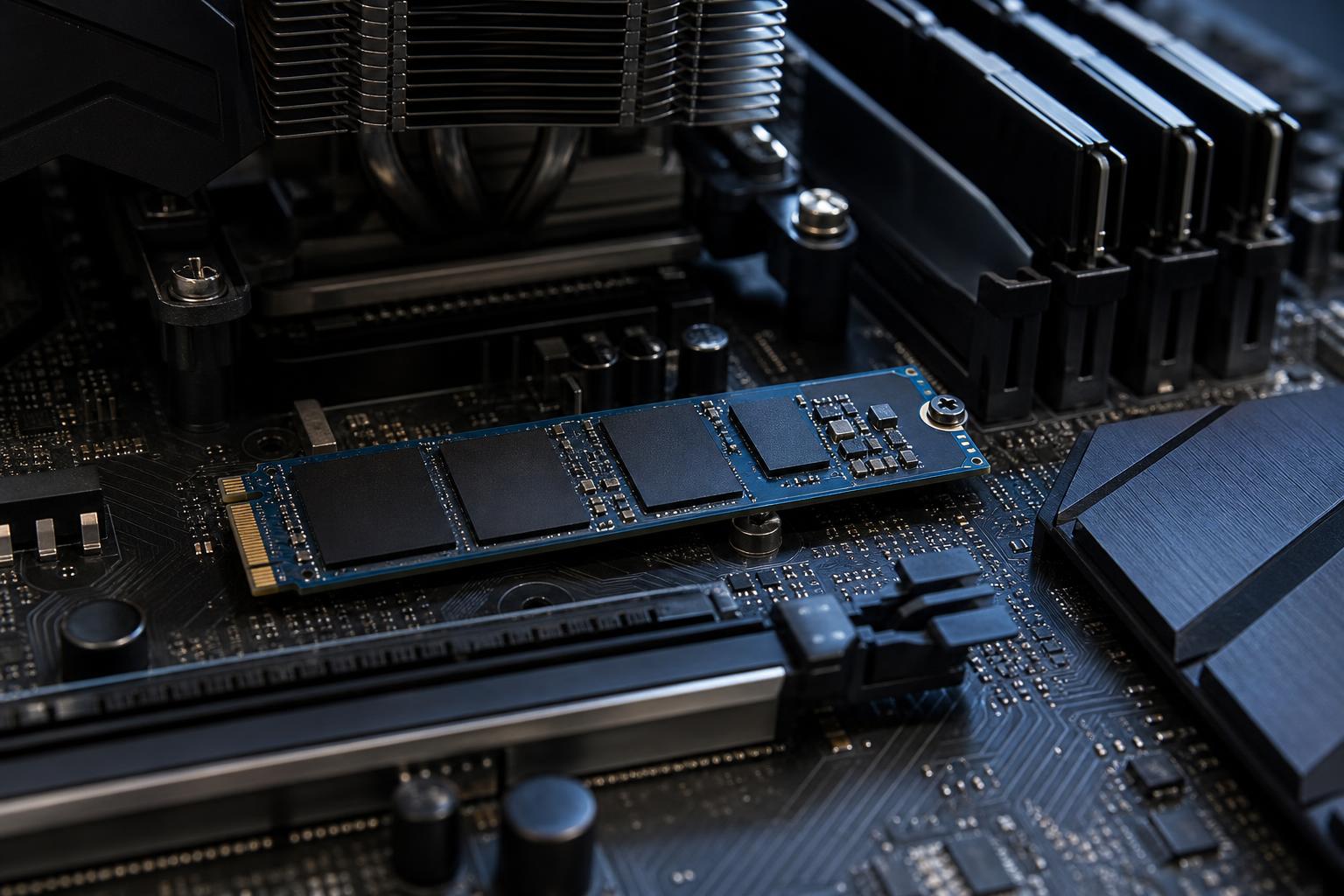
Shopping for the best SSD for gaming can get unnecessarily confusing. Drive listings emphasize enormous sequential read speeds, PCIe 5.0 support, heatsinks, cache sizes, and terms such as TLC and QLC. Some of those details matter. Others matter far less than they appear to on a product page.
For most new gaming PCs, the sensible choice is a 1TB or 2TB PCIe 4.0 NVMe SSD from a reputable manufacturer. It should offer good real-world and sustained performance, preferably use TLC NAND, and have enough capacity to keep the games you actively play installed. That combination is fast, mature, widely compatible, and generally better value than chasing the fastest benchmark result.
Workstations follow the same basic rules, but large video projects, source footage, virtual machines, data sets, and scratch-disk workloads can justify more capacity, higher endurance, or multiple drives.
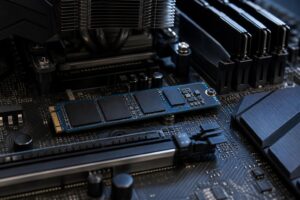
An SSD can connect through SATA or PCIe. SATA SSDs are still a substantial improvement over mechanical hard drives, but their interface limits throughput to roughly 550 MB/s. An NVMe SSD uses PCIe lanes through an M.2 slot and is several times faster, with lower latency and a much cleaner installation.
For a modern desktop, an M.2 NVMe drive should be the default boot and game drive. SATA SSDs still make sense when you have no open M.2 slots, need inexpensive secondary solid-state storage, or are upgrading an older system. They are not a mistake; they are simply no longer the best primary-drive choice for most new performance PCs.
PCIe 4.0 NVMe drives are the current value sweet spot. Strong models can reach roughly 7,000 MB/s sequential reads, which is already far beyond what games generally need. They run cooler, cost less per terabyte than many premium PCIe 5.0 options, and are supported by a wide range of current platforms.
PCIe 5.0 drives can post eye-catching benchmark numbers, often above 10,000 MB/s. Those numbers can help in specialized workstation tasks involving very large files, high-bandwidth scratch storage, or repeated heavy transfers. For normal game loading, Windows responsiveness, and most creative work, the difference from a good PCIe 4.0 drive is usually difficult to feel.
Gen 5 drives also tend to run hotter and may require a substantial motherboard heatsink or an included cooler. We recommend paying for one when a specific workload benefits from it, not because the box has the largest number.
Modern games are big. A few current releases, plus their updates and high-resolution texture packs, can consume hundreds of gigabytes. SSDs also need free space to maintain their best performance and give Windows room for updates, temporary files, and caches.
As a practical target, try to leave 15% to 20% of an SSD free. You do not need to panic when a drive passes that threshold, but filling any SSD to the brim can reduce write performance and make routine housekeeping harder.
NAND is the flash memory that stores data. TLC stores three bits per cell, while QLC stores four. QLC enables lower-cost, high-capacity drives, but it usually comes with lower endurance and weaker sustained write performance once the drive’s fast cache is exhausted.
A QLC drive can still be perfectly acceptable as a read-heavy game library drive. Games spend much more time reading assets than writing enormous files. It can also be a reasonable budget option when capacity matters most.
For a primary Windows drive, a high-use gaming PC, or a workstation that regularly writes footage, renders, project files, virtual machines, or large data sets, we generally prefer TLC NAND. It provides more consistent behavior under heavier use and tends to be the safer long-term choice.
Do not judge a drive by NAND type alone, though. Controller quality, firmware, capacity, thermal design, and warranty all affect the final result. Still, if two similarly priced drives are otherwise comparable, TLC is normally the better buy.
Sequential read speed measures a drive reading a large uninterrupted file. It is useful, but it is not a complete picture of how a system feels. Starting Windows, launching programs, loading levels, and browsing project folders also involve smaller, less predictable reads and writes.
More importantly, many lower-cost drives look quick during short bursts because they use a fast SLC cache. Once that cache fills during a long download, game transfer, or media ingest, write speed may drop sharply. Better drives maintain stronger performance after the cache is full.
This does not mean every buyer needs a flagship SSD. It means that a drive should be selected based on its whole behavior rather than one maximum read-speed figure. Independent reviews that test sustained writes, thermals, and recovery after a heavy workload are more useful than the headline number alone.
Many higher-end NVMe drives include dedicated DRAM to store mapping information. This can improve consistency during demanding workloads. Other drives are DRAM-less and use Host Memory Buffer, borrowing a small amount of system RAM instead.
A good DRAM-less PCIe 4.0 SSD is often completely fine for a gaming machine, especially as a secondary game drive. It can be an excellent value choice. For an operating-system drive in a premium build, or a professional system where sustained responsiveness matters, a drive with onboard DRAM is still a worthwhile preference when pricing is reasonable.
In short: DRAM is a quality indicator worth considering, not an automatic reason to reject every drive without it.
Most desktop NVMe drives use the common M.2 2280 form factor: 22 mm wide and 80 mm long. Confirm that your motherboard has an available M.2 slot and check which PCIe generation it supports. PCIe is backward compatible, so a PCIe 4.0 drive will work in a PCIe 3.0 slot, just at lower speeds.
Use the motherboard’s M.2 heatsink if it has one. Remove any plastic film from its thermal pad first; it is a surprisingly common and very avoidable mistake. A basic PCIe 4.0 drive usually does not need an oversized aftermarket cooler in a well-ventilated desktop. High-performance PCIe 5.0 drives are more likely to benefit from serious cooling.
Also consult the motherboard manual. On some boards, populating a particular M.2 slot can share lanes with SATA ports or an expansion slot. It is not usually a problem, but it is better to plan around it than discover it after cable management is finished.
Choose a 2TB PCIe 4.0 NVMe drive with TLC NAND from an established brand. Use it for Windows, applications, and games. This is the configuration we would recommend to most buyers because it balances cost, capacity, speed, and reliability without spending money where gaming performance will barely change.
Start with a 1TB PCIe 4.0 NVMe drive, or a quality PCIe 3.0 drive if the price difference is meaningful. Prioritize reputable support and warranty coverage over suspiciously cheap marketplace listings. Add a second drive later if the motherboard has another M.2 slot.
Use a 2TB or 4TB TLC NVMe drive as the primary drive, then add a separate SSD for active projects, scratch files, or frequently accessed source media when the application benefits from it. Keeping operating-system activity separate from sustained project writes can make a demanding workstation feel more consistent.
Pair a quality primary NVMe drive with a larger secondary NVMe or SATA SSD for games and media. This approach often costs less than buying one premium high-capacity flagship drive, while making future expansion easier.
The best SSD for gaming is not necessarily the fastest one on the shelf. A 2TB PCIe 4.0 NVMe SSD with TLC NAND, solid reviews, a sensible warranty, and adequate cooling is the smart default for most new systems. Move to PCIe 5.0 only when you have a compatible platform and a workload that can use the extra throughput. Choose QLC when its capacity or price clearly serves your needs, not by accident.
A well-balanced storage plan makes a PC easier to live with for years. If you are planning a gaming PC or a workstation and want help matching storage, CPU, graphics card, cooling, and power delivery to the work you actually do, contact Overclock Computers for a configuration built around your priorities.