Best PC for Local AI in 2026: Hardware That Makes Sense

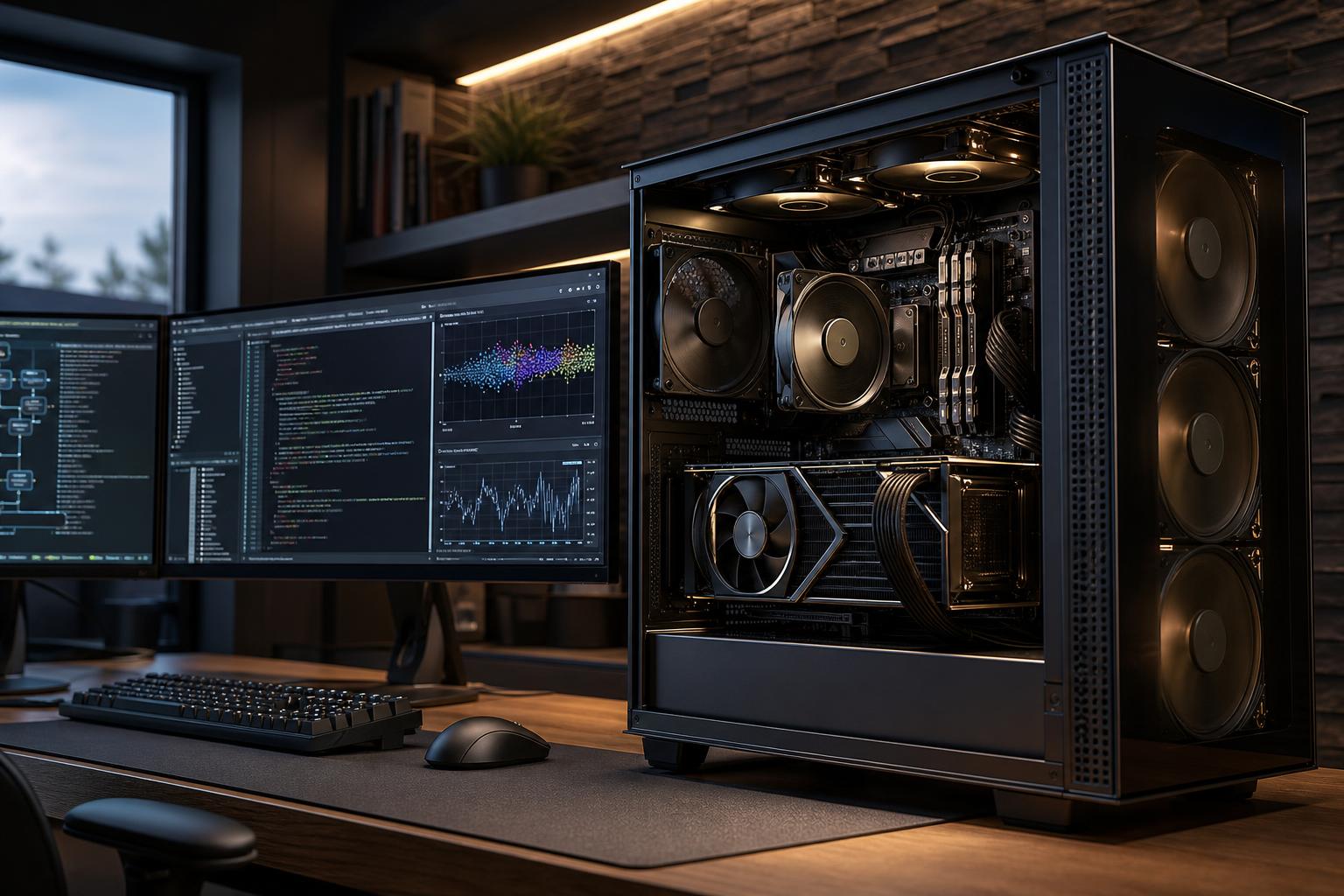
If you want to run AI models on your own computer, buy the most capable GPU with enough VRAM for your intended models before spending extra on an extreme CPU, oversized motherboard, or decorative cooling. For most people starting with local language models, image generation, coding assistance, and document search, a modern NVIDIA GPU with at least 16GB of VRAM, 64GB of system memory, and a 2TB NVMe SSD is the sensible starting point.
For larger models, longer context windows, serious image or video work, or business use, 24GB or more of VRAM and 128GB of RAM can be a much better investment. Local AI is one of the few desktop workloads where a GPU’s memory capacity can matter more than its raw gaming speed.
Choose this tier for learning, testing smaller models, local coding tools, basic image generation, and personal document workflows.
A 12GB GPU can run useful local models, especially when they are quantized, meaning compressed to reduce memory use. But it is the minimum we would target for a new AI-focused system. It limits model size, context length, and headroom quickly. If the budget allows, move to 16GB VRAM before upgrading the CPU beyond what your work requires.
This is the best fit for buyers who plan to use local AI regularly for development, larger language models, image generation, retrieval-augmented generation (RAG), or demanding creative work.
A 24GB GPU is a meaningful step up, not just a luxury. It opens the door to larger models at useful quantization levels, more generous context settings, and fewer compromises when other applications are open. It is also a strong choice for local image-generation workflows that use larger models, multiple control tools, or higher-resolution output.
Choose this level only when AI is a revenue-producing part of the job, model sizes have outgrown a single 24GB card, or several people need reliable access to local compute.
Multi-GPU systems deserve careful planning. Two graphics cards do not automatically behave like one larger card, and software support varies. Some inference tools can split a model across GPUs, while other workloads benefit little or create extra setup work. Buy a multi-GPU workstation because your chosen software and model requirements support it, not because two cards sound impressive.
For local AI, VRAM is the GPU’s dedicated working memory. The model weights, context, and intermediate calculations must fit within it for the fastest and simplest workflow. When they do not fit, software may offload part of the work to system RAM or the CPU. That can still be usable, but response speed often drops substantially.
This is why a GPU that wins gaming benchmarks is not automatically the best local AI purchase. A faster card with less VRAM may be more restrictive than a slightly slower card with more memory.
Model parameters alone do not tell the full story. Quantization format, context window, batch size, the inference engine, and what else is loaded into VRAM all affect memory use. Before choosing hardware, identify the models you expect to run and check their documented memory guidance in the software you plan to use.
AMD and other hardware can run certain AI workloads, and their software support continues to improve. Still, NVIDIA is usually the lower-friction recommendation for a local AI PC because many popular AI tools, tutorials, libraries, and prebuilt environments are designed around NVIDIA’s CUDA ecosystem.
That does not mean every buyer must choose NVIDIA. An AMD-based system can make sense when a specific application supports it well and the value is compelling. But if you are new to local AI, following community setup guides, or supporting a mixed set of language-model and creative tools, broad software compatibility is worth real money. Saving a little on hardware is not a bargain if every update turns into a weekend troubleshooting project.
A good modern desktop CPU matters, but it is rarely the main performance limiter for GPU-based inference. For a single-GPU local AI system, an efficient 8-core or 12-core CPU is generally enough. Spend the next dollars on GPU VRAM, RAM, or storage first.
Spend more on the CPU if you also compile large software projects, preprocess datasets, run virtual machines, render on the CPU, or use AI tools that place significant work on the processor. A workstation that does CAD, video work, development, and AI all day may justify a stronger CPU than an AI-only box.
System RAM holds your operating system, applications, datasets, CPU-offloaded model layers, and file caches. While the GPU does most of the AI work in a well-configured machine, insufficient RAM makes everything around it less pleasant.
64GB is the right target for most new local AI builds. It gives the operating system and supporting tools room to breathe while you work with modest datasets and models. Choose 128GB if you expect to run larger models partially in system memory, work with substantial documents or datasets, use virtual machines, or keep several professional applications open at once.
For a modest personal AI PC, 32GB can function. We would not build around it if local AI is a purchase priority. Memory is relatively easy to overlook until the system starts swapping data to the SSD, at which point even a powerful GPU cannot make the experience feel smooth.
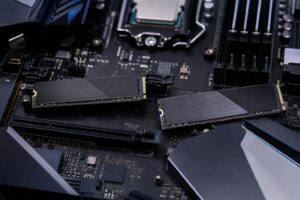
AI model files, checkpoints, source images, generated output, Python environments, and datasets can consume terabytes faster than expected. A single 2TB NVMe SSD is a good starting point for personal use, but two drives are often cleaner for a serious workstation: one for the operating system and applications, and another for active models and project data.
Prioritize reliable NVMe storage and enough capacity over chasing the most expensive benchmark numbers. Very fast storage helps with loading large models, moving datasets, and caching media, but capacity and organization usually have a greater day-to-day impact. Keep a backup plan as well. An AI workstation is not a backup appliance.
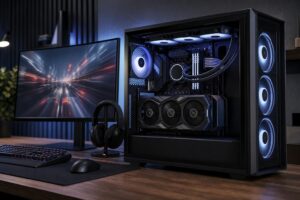
Local inference, image generation, and model training can hold a GPU near full load for long periods. That makes cooling and power delivery part of the performance decision, not cosmetic extras.
Use a case with unobstructed front-to-back airflow, enough GPU clearance, and room for future storage or expansion. Choose a reputable power supply sized for the selected GPU or GPUs, with the proper native connectors. Avoid treating wattage as the only measure of quality. Stable power delivery, cable compatibility, and sensible headroom matter more than buying the largest number on the box.
Good cooling also reduces fan noise during extended work. A system that sounds like a leaf blower every time it indexes a document library tends to get used less often.
A generic high-end desktop can be an excellent machine, but it may allocate money in the wrong places for local AI: too much CPU, too little VRAM, one small SSD, limited airflow, or a power supply that leaves no practical upgrade path. A well-planned custom system lets you direct the budget toward the hardware your models and applications will actually use.
At Overclock Computers, we can help configure a local AI PC around the models you want to run, your development or creative applications, your budget, and your plans for future upgrades. Bring a list of the tools, model sizes, datasets, and any existing hardware you plan to keep, and we’ll help separate the upgrades that matter from the expensive distractions.