Best PC for Unreal Engine in 2026: Practical Specs for Development and Rendering

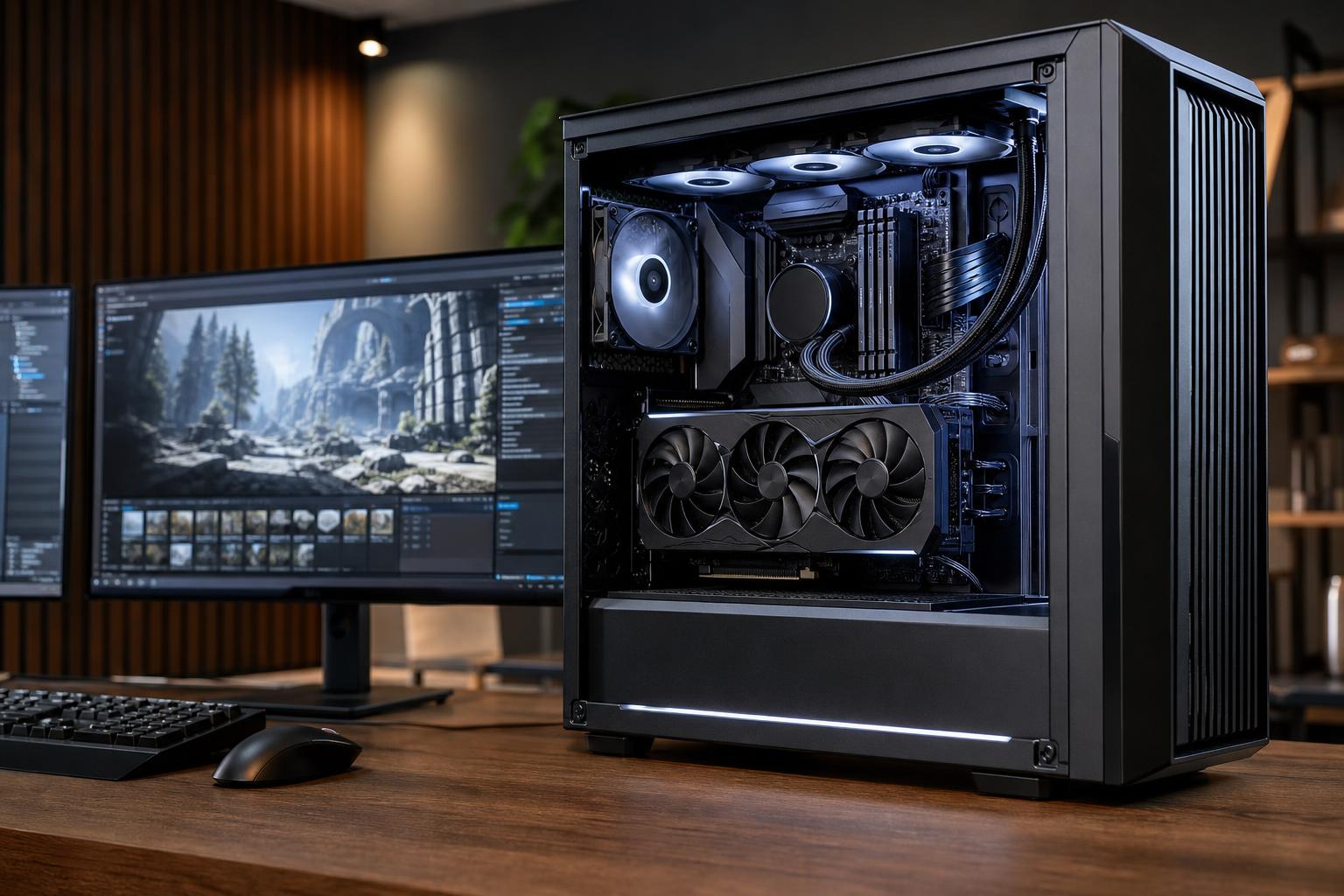
Choosing the best PC for Unreal Engine is not as simple as buying the most expensive gaming computer available. Unreal Engine can lean heavily on different hardware depending on what you are doing: building shaders, compiling C++ code, editing a large level, testing a game in the viewport, baking lighting, or rendering a cinematic.
The practical answer is this: a well-balanced Unreal Engine PC needs a fast modern CPU, a capable NVIDIA or AMD graphics card with enough VRAM for the project, at least 32GB of RAM, and generous NVMe SSD storage. For serious professional projects, 64GB of memory and a higher-VRAM GPU are often the sensible starting point.
Do not overspend on one component while neglecting the rest. A powerful GPU cannot compensate for inadequate RAM, and a many-core CPU will not make a cramped SSD or undersized graphics card less frustrating.
Unreal Engine is used for far more than traditional game development. The right configuration changes with the workload.
A PC intended to learn Unreal Engine and make small projects should not be specified like a studio workstation. On the other hand, a machine that regularly opens large scenes, builds source code, or produces client-facing visualization should have headroom from day one.
Unreal Engine benefits from both strong single-core performance and a healthy number of CPU cores. Day-to-day editor responsiveness, many tools, and parts of development depend on fast individual cores. Meanwhile, shader compilation, code builds, asset processing, and some rendering tasks can use multiple cores effectively.
For most users, a current midrange-to-high-end Ryzen 7 or Core Ultra 7 class processor is a good floor. These CPUs provide the speed needed for a responsive editor and enough cores to avoid making compilation work unnecessarily slow.
For larger codebases, frequent shader compilation, or professional production work, step up to a higher-core-count Ryzen 9 or Core Ultra 9 class CPU. This is one of the upgrades you will notice if you spend real time waiting for shaders or builds to finish.
A workstation-class processor platform can be justified for teams or specialists who compile enormous projects, run several demanding applications at once, or need unusually large memory capacity and expansion. It is not automatically the best choice for every Unreal Engine user. For a lightly threaded editor task, a more expensive platform with lower per-core speed can be a poor trade.
The graphics card drives viewport performance, real-time lighting, ray tracing, and the experience of testing your project at its intended resolution. In Unreal Engine, VRAM capacity deserves nearly as much attention as raw GPU speed.
When a scene exceeds available VRAM, the result may be stutters, slowdowns, texture compromises, or instability. This is especially relevant with high-resolution textures, dense geometry, Lumen, hardware ray tracing, virtual production tools, and multiple high-resolution displays.
NVIDIA GPUs are common in Unreal Engine workstations because their ray-tracing performance, broad software support, and CUDA acceleration can also be useful in adjacent creative applications. That does not make AMD a bad choice. A Radeon GPU can offer strong rasterized performance and attractive VRAM capacity at certain price points. The best option depends on the specific GPU generation, your rendering features, and whether other software in your pipeline benefits from CUDA.
Do not choose solely by the word “gaming” or “professional” on the product box. Many Unreal Engine users are best served by a high-end consumer GPU. Professional GPUs become more compelling when certified drivers, specialized visualization workflows, larger memory configurations, or organizational requirements justify their higher cost.
Unreal Engine, a web browser, source-control tools, a 3D application, image editing software, and reference material can all be open at the same time. Memory use rises quickly with project size.
Running out of RAM forces Windows to lean on storage as temporary memory. Even a fast NVMe drive is dramatically slower than RAM, so the editor can become sluggish at precisely the wrong moment. Extra memory does not make every task faster, but it prevents a very real bottleneck.
Unreal Engine installations are sizeable, and active projects can grow much faster than expected once you add source assets, marketplace content, Derived Data Cache files, renders, and backups.
A good baseline is a 1TB NVMe SSD for the operating system, applications, and active development work. For professional use, 2TB is usually a more comfortable starting point. Larger projects benefit from a second NVMe SSD dedicated to projects, source media, cache files, or scratch data.
Use fast NVMe storage for active work. A large hard drive or network storage can still be useful for archives and backups, but it should not be the only place your current project lives. Keep in mind that storage capacity is not backup capacity: important projects need a separate backup strategy.
This is a sensible configuration for building skills, creating smaller games, working with standard assets, and learning the engine without buying a workstation you do not yet need.
This is the configuration range we would recommend to most professionals working in Unreal Engine regularly. It handles demanding editor work while maintaining reasonable cost and upgradeability.
This tier makes sense when time lost to compilation, loading, memory limitations, or viewport slowdowns has a direct cost. It is not about bragging rights; it is about keeping complex work moving.
Unreal Engine can sustain heavy CPU and GPU loads for long periods. A system that performs well for a short benchmark but overheats during shader compilation or a long render is poorly configured.
Choose a case with real airflow, a CPU cooler sized for the processor, and a reputable power supply with enough headroom for peak loads. Good cable management and sensible component spacing also help cooling and make future upgrades easier. These details are easy to ignore on a parts list, but they influence noise, reliability, and sustained performance every day.
The best PC for Unreal Engine is the one that addresses the slowest part of your real workflow. If shader compilation dominates your day, spend more on the CPU. If large scenes and ray tracing make the editor stutter, prioritize GPU power and VRAM. If your system slows while several creative tools are open, move to 64GB of RAM. If projects constantly compete for disk space, add fast storage before buying hardware that will sit idle.
Overclock Computers can help design a custom Unreal Engine PC around your project type, target resolution, applications, workflow, and budget. A properly balanced system is usually more valuable than simply choosing the most expensive part in every category.