Gaming PC Upgrade Guide: What to Replace First and When to Buy a New PC

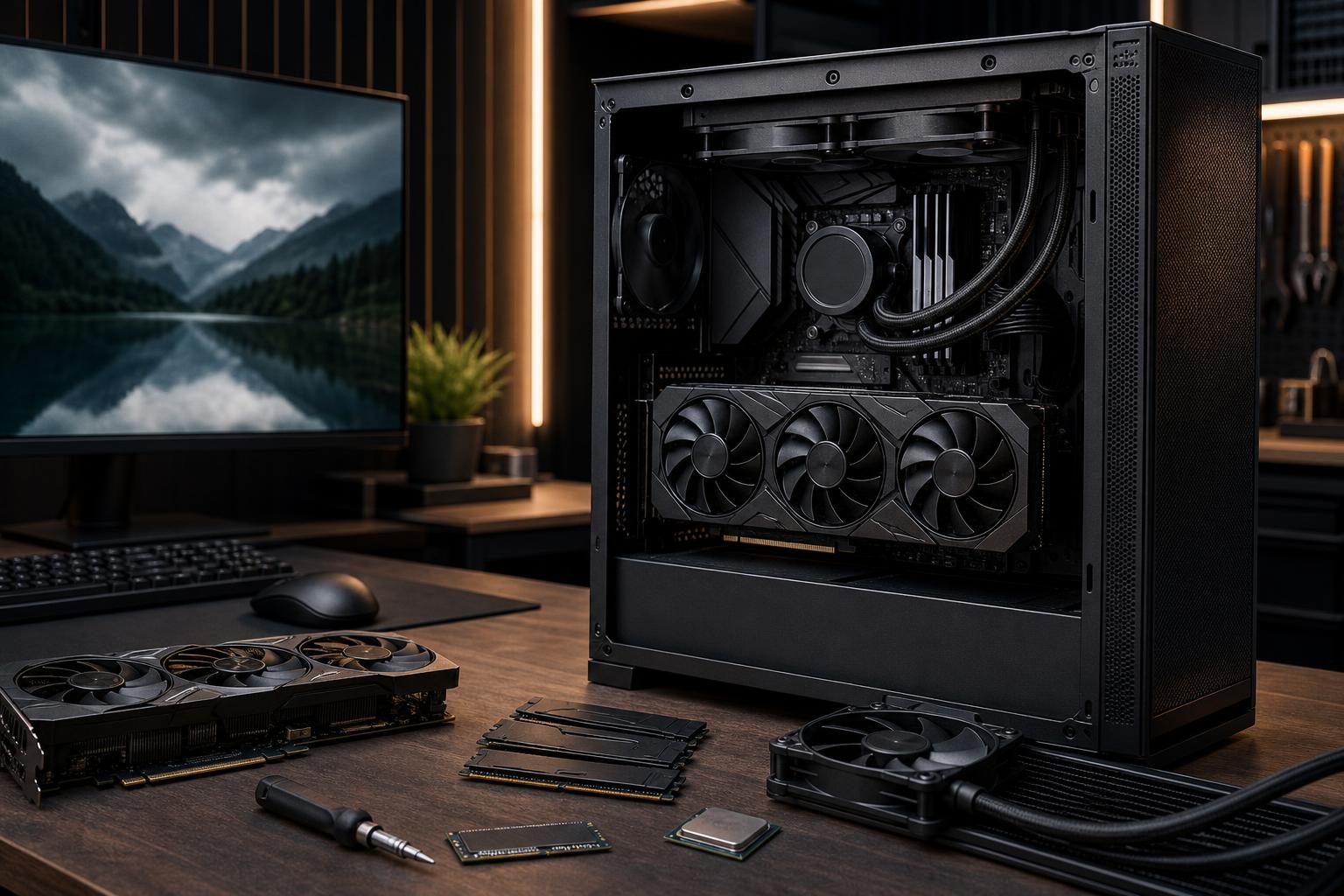
A good gaming PC rarely becomes useless all at once. More often, one part starts holding back the experience: newer games need more graphics horsepower, storage fills up, or the system begins to feel slow with a game, browser, Discord, and a stream all open at once.
The right move is not always “buy the fastest new part.” A smart upgrade fixes the component causing the problem without creating a new one somewhere else. This gaming PC upgrade guide explains what to replace first, which upgrades offer the best real-world value, and when putting money into an older computer stops making sense.
Before shopping, identify what you want to improve. “My PC is slow” can mean several very different things, and each points to a different upgrade.
Use the games and programs you actually run as the test. Check whether CPU, GPU, RAM, or storage usage stays pinned during the problem. Built-in performance overlays and system monitoring tools can help, but the practical question is simple: what happens at the moment the PC feels limited?
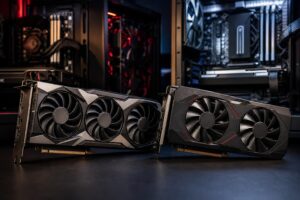
For most gaming PCs, the graphics card is the most meaningful upgrade. It has the largest effect on visual settings, resolution, ray tracing performance, and frame rate in modern graphically demanding games.
A GPU upgrade makes the most sense when the current card cannot deliver the performance your monitor calls for. Someone moving from a 1080p 60Hz display to a 1440p high-refresh monitor, for example, may need considerably more GPU performance. The same is true for 4K gaming, where the graphics card does the overwhelming share of the work.
There are a few checks to make before installing a more powerful card:
Do not automatically buy the most expensive GPU you can afford. Put that money toward the GPU only if your monitor, games, and desired settings can use it. A graphics card designed for demanding 4K gaming is wasted on a 1080p 60Hz screen unless a monitor upgrade is part of the plan.
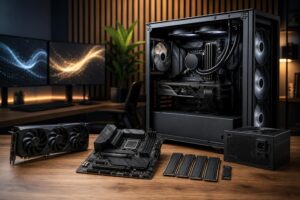
RAM upgrades are often inexpensive and can solve frustrating stutter and multitasking issues. For a modern gaming PC, 32GB is a sensible target for many buyers. It provides room for current games, background applications, browser tabs, voice chat, recording software, and modded titles without constantly operating near the system limit.
Moving from 16GB to 32GB can be a worthwhile practical upgrade. Moving from 32GB to 64GB is more situational. It is useful for heavy content creation, large mod lists, virtual machines, professional applications, or serious multitasking, but it will not normally double gaming performance.
When adding RAM, match the existing memory kit as closely as possible. Mixing separate kits can work, but it can also create stability problems or force lower memory speeds. If reliability matters, replacing the old modules with one matched kit is the cleaner approach.
If your PC still runs games or Windows from a mechanical hard drive, an SSD is one of the clearest quality-of-life upgrades available. It improves boot times, loading screens, updates, file transfers, and general desktop responsiveness.
Even systems that already have an SSD may benefit from more capacity. A nearly full drive can be inconvenient and may perform less consistently than one with adequate free space. Large modern games, game capture files, project assets, and creative software can consume storage surprisingly quickly.
For most gaming upgrades, a good PCIe NVMe SSD is the practical choice if the motherboard supports it. However, do not replace a perfectly good SSD solely to chase peak benchmark numbers. Capacity and reliable sustained performance usually matter more than buying the newest interface generation.
A CPU upgrade is most useful for high-refresh-rate gaming, simulation games, strategy titles, esports, streaming from the same PC, compiling code, and production workloads. If your GPU utilization is low while the CPU is working hard, or if frame rates fall sharply in busy scenes, the processor may be the limiting component.
The catch is platform compatibility. A newer CPU may require a new motherboard, different RAM, and possibly a new cooler. At that point, what looked like a simple processor replacement becomes a platform rebuild.
There is nothing wrong with doing that rebuild. In fact, it is often the right choice for a system that is several generations old. Just budget honestly. A CPU upgrade is not a bargain if it quietly requires four other parts to make it work properly.
Replacing a single part makes sense when the rest of the computer remains sound. Building or buying a new system makes more sense when multiple core components need attention at the same time.
Consider starting fresh when several of these apply:
This is where many people overspend on piecemeal upgrades. A new GPU placed into an aging system may help, but it can leave you with inadequate power, heat, noise, limited storage, and a platform that needs replacement next year. A balanced new PC can be more cost-effective than repeatedly trying to modernize every weak link.
These parts do not usually add frames per second directly, but they determine whether performance hardware can run reliably and quietly. A strong CPU and GPU inside a restrictive case with poor airflow may run hot, throttle under sustained load, and make enough fan noise to be heard across the room.
Quality cooling and power delivery are particularly important when upgrading a graphics card. The system should have clear airflow through the case, adequate intake and exhaust fans, a CPU cooler suited to the processor, and a reputable power supply with sufficient headroom. This is not glamorous hardware, but it is the difference between a machine that merely turns on and one that performs well for years.
This order is not universal, but it prevents a common mistake: buying a premium graphics card before checking whether the rest of the system can support it properly.
The best upgrade path is based on your target experience. A player aiming for smooth 1440p gaming needs a different balance than someone pursuing competitive frame rates at 1080p, editing 4K video, or building scenes in a 3D application. Your monitor, preferred games, applications, and tolerance for noise all matter.
At Overclock Computers, we can help assess an existing system or design a new custom PC around your games, software, performance goals, and budget. The goal is not to sell unnecessary hardware. It is to build a balanced machine that solves the problem you actually have and leaves a sensible path for the next upgrade.