Best Workstation Specs for Point Cloud Processing

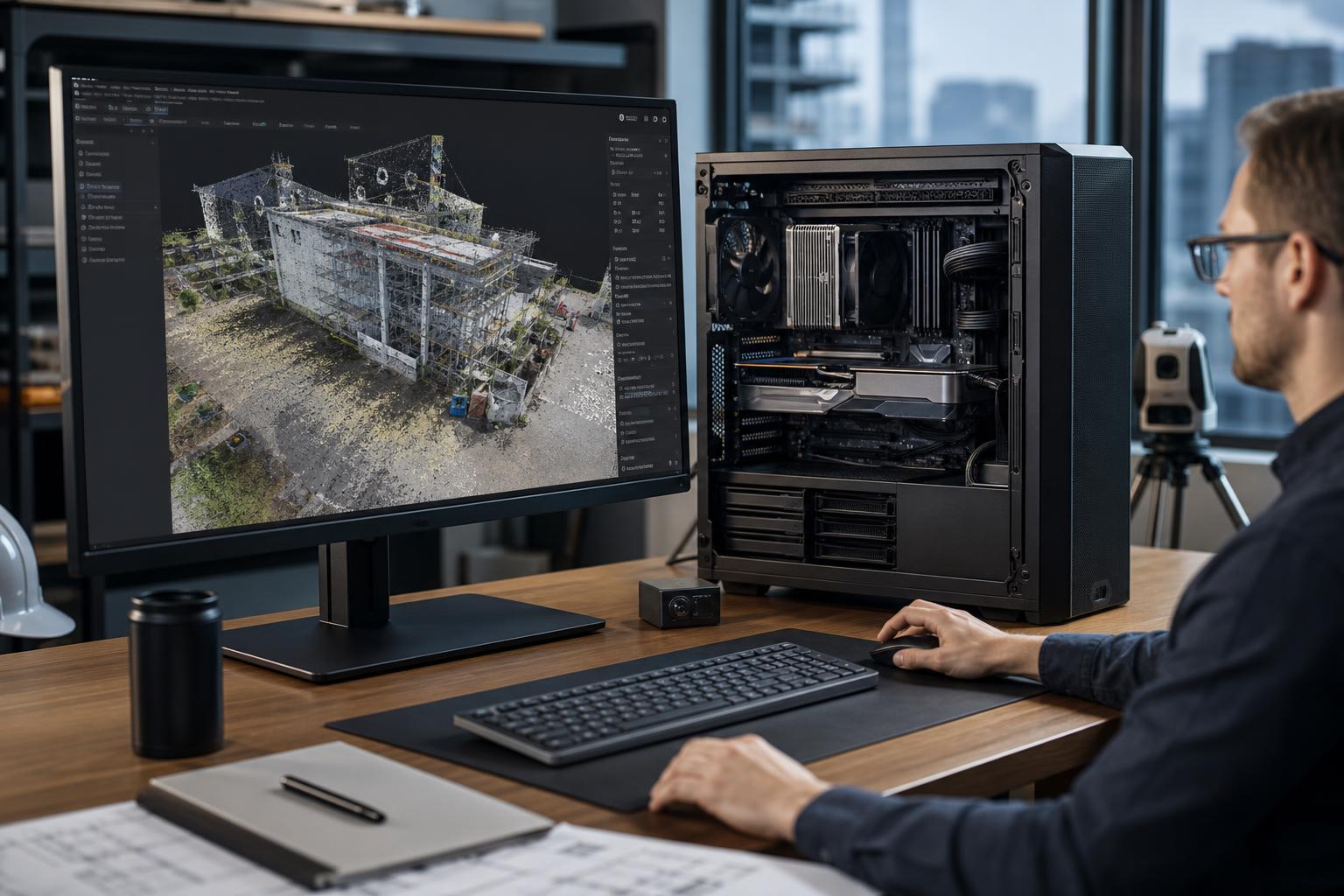
Point cloud workstations are easy to overbuy in the wrong direction. A system with an expensive GPU but too little memory can still struggle to load a large scan. A processor with dozens of cores may not make day-to-day navigation feel any faster. And a single full SSD can turn import, indexing, and cache operations into an unpleasant wait.
The right point cloud workstation is built around the software you use, the size of your typical datasets, and what happens after capture. Viewing and registering terrestrial laser scans, classifying LiDAR, creating surfaces, running measurements, producing CAD deliverables, and processing imagery do not all stress a PC in the same way.
For most survey, AEC, GIS, and reality-capture professionals, the priority order is straightforward: enough RAM to keep active data out of the page file, a fast CPU with strong per-core performance, a capable GPU with adequate VRAM, and a sensible multi-drive storage layout. Here is how to choose each part.
Point count matters, but it is not the whole story. Two projects with a similar number of points can place very different demands on a workstation. File format, imagery, number of scans, color information, classification data, registration method, meshing, and the software’s own data structures all affect memory use and processing time.
Before purchasing, identify the largest project your team handles regularly rather than the average small job. Also consider whether the machine will be used only to inspect and deliver point clouds or will run registration, classification, surface generation, CAD, GIS, photogrammetry, or rendering alongside them.
Ask these practical questions:
Those answers determine where the budget should go. A technician reviewing moderate scan files has very different needs from a processing specialist handling dense, multi-site datasets all day.
Many point cloud applications include a mix of lightly threaded and multi-threaded tasks. Opening projects, navigating a view, selecting data, and parts of general application use may respond best to high clock speeds and strong single-thread performance. Registration, indexing, classification, meshing, exports, and related processing can use more cores, but the degree of scaling varies significantly by application and task.
That means an ultra-high-core-count processor is not automatically the best choice. For a workstation focused on interactive work in CAD, GIS, and point cloud software, a modern high-performance desktop CPU is often the sensible starting point. It provides excellent day-to-day responsiveness and enough cores for moderate processing workloads.
A workstation-class high-core-count platform becomes worthwhile when the workload genuinely needs it: frequent long processing jobs, simultaneous local workloads, very large datasets, substantial PCIe expansion, or exceptionally high memory capacity. These platforms can also offer more PCIe lanes, which matters when combining multiple NVMe drives, fast network adapters, expansion cards, and one or more GPUs.
Do not choose based on core count alone. The best CPU for a point cloud workstation is the one that improves the tasks your staff actually wait on.
For large point clouds, system memory is not a luxury specification. It is working space. When an active project and the applications around it exceed available RAM, Windows begins moving data to the storage drive. Even fast NVMe storage is dramatically slower than RAM, and this can lead to stutters, long waits, and instability when several programs are open.
Memory needs depend on the software and project, so there is no universal formula based purely on file size. Still, these tiers are useful starting points for a professional point cloud workstation:
More RAM than you need does not speed up every task. But insufficient RAM can slow down nearly everything. For a business buying a machine expected to handle larger future projects, moving from 64GB to 128GB is often a more meaningful upgrade than chasing a slightly faster graphics card.
The GPU is responsible for drawing large 3D scenes smoothly and accelerating specific functions in software that supports GPU compute. It matters most when navigating dense visible data, working across high-resolution displays, using advanced visualization, or running GPU-accelerated processing features.
However, a GPU is not a substitute for enough RAM or a balanced CPU. A top-tier GPU cannot compensate for a workstation that is paging to disk or waiting on poorly organized project storage.
For many point cloud workflows, a current midrange or upper-midrange GPU with 12GB to 16GB of VRAM is a sensible professional starting point. More VRAM becomes valuable when working with very large visual datasets, high-resolution textures or imagery, multiple high-resolution monitors, demanding 3D applications, or software that specifically benefits from GPU acceleration.
Professional GPUs and consumer GPUs both have a place. Professional models may offer features, memory configurations, drivers, support paths, and validation considerations that matter in certain managed environments or specialized applications. Consumer GPUs can provide excellent performance per dollar for many visualization and compute workloads. The correct decision should be based on the application vendor’s current guidance, the need for any verified certification, VRAM requirements, and the organization’s support expectations—not the label on the box.
Large scan files make storage planning unavoidable. Fast NVMe drives improve project loading, temporary-file activity, cache use, imports, exports, and general system responsiveness. Capacity matters just as much. An SSD that is nearly full has less room for scratch data and active projects, and it gives users no practical space to work.
A well-designed point cloud workstation commonly uses more than one drive:
Keeping active work on fast local NVMe storage is often worthwhile, even if the master project data is stored centrally. Move completed work back to shared storage when appropriate. For teams regularly transferring hundreds of gigabytes or more, 10GbE networking can make a meaningful difference, provided the server, switches, and storage can sustain the speed.
This tier fits users who inspect, measure, annotate, and deliver point cloud projects, with regular CAD or GIS work.
This is the sweet spot for many processing professionals and technical teams working with substantial scans on a regular basis.
This tier is for specialists whose machines spend significant time processing large data, producing derived outputs, or handling demanding datasets alongside other professional applications.
Processing point clouds can keep a CPU and GPU busy for hours. A workstation needs cooling that can sustain those loads without excessive noise or thermal throttling. It also needs a quality power supply sized for the installed hardware, with room for normal transient demand and reasonable future upgrades.
For business purchases, upgradeability is worth discussing early. A compact system that cannot accept more memory, storage, or a faster network card may be cheaper at first but more restrictive later. That does not mean every workstation needs a huge chassis and every possible expansion slot. It means the platform should match the likely life of the machine and the direction of the workload.
The best point cloud workstation is balanced. It has enough RAM for active datasets, fast local storage for current work, a CPU suited to both interactive use and processing, and a GPU chosen for the application rather than a marketing tier.
Overclock Computers can help configure a custom workstation around the software you use, typical and maximum project sizes, storage workflow, networking needs, upgrade plans, and budget. Bring the details of your current projects and the tasks that waste the most time; those are the details that lead to a workstation that makes a real difference.