What Is CPU Thermal Throttling? Signs, Causes, and Practical Fixes

A powerful PC should stay fast during a long gaming session, a video export, or a sustained rendering job. If it starts strong and then becomes slower, louder, or less consistent after a few minutes, CPU thermal throttling may be the reason.
Thermal throttling is not a mysterious hardware failure. It is a deliberate safety feature built into modern processors. When the CPU reaches its temperature limit, it automatically reduces clock speed, power draw, or both to prevent damage. The protection is necessary, but a computer that reaches that limit regularly is leaving performance on the table.
The good news is that many thermal problems are fixable without replacing the entire system. The right solution depends on the processor, cooler, case airflow, workload, and how the machine was assembled.
Modern CPUs adjust their speed constantly. Under a light workload, they may run at lower clocks to save power. When an application needs more performance, they boost to higher clock speeds for as long as power, current, and temperature allow.
Thermal throttling begins when the processor reaches its designed temperature ceiling. That ceiling varies by CPU model, but many modern desktop processors are designed to tolerate temperatures in the 90s Celsius under heavy load. This does not automatically mean something is broken. It does mean the CPU is operating with very little thermal headroom.
Once the temperature limit is reached, the processor reduces performance enough to hold a safe temperature. In a short benchmark, this may barely matter. During a 30-minute render, shader compilation, code build, or CPU-heavy game, it can make a noticeable difference.
A warm CPU is normal. A CPU that repeatedly slams into its temperature limit, drops frequency sharply, and sounds like it is preparing for takeoff deserves attention.
Temperature alone does not tell the whole story. Look for a pattern of heat and reduced sustained performance.
Do not confuse CPU throttling with every performance issue. A game that stutters can also be limited by the graphics card, memory capacity, shader compilation, storage activity, network conditions, or a poorly optimized game update. The useful clue is a clear relationship between a sustained CPU workload, rising temperature, and falling CPU clocks or performance.
Use a reputable hardware-monitoring utility and watch CPU temperature, clock speed, package power, and any thermal-limit indicator while running the task that concerns you. A demanding game, a long export, or a CPU stress test can all be useful, though each produces a different kind of load.
Start from a cold system and observe what happens over 10 to 20 minutes. The important question is not simply, “Did the CPU get hot?” Instead, ask these questions:
For gaming, monitor the CPU while playing the actual game rather than relying only on a synthetic test. Some games barely load the CPU, while simulation titles, large multiplayer matches, strategy games, and high-refresh-rate competitive games can keep it busy for long periods.
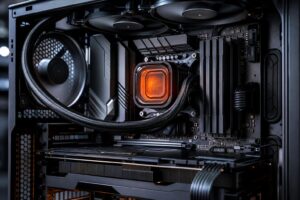
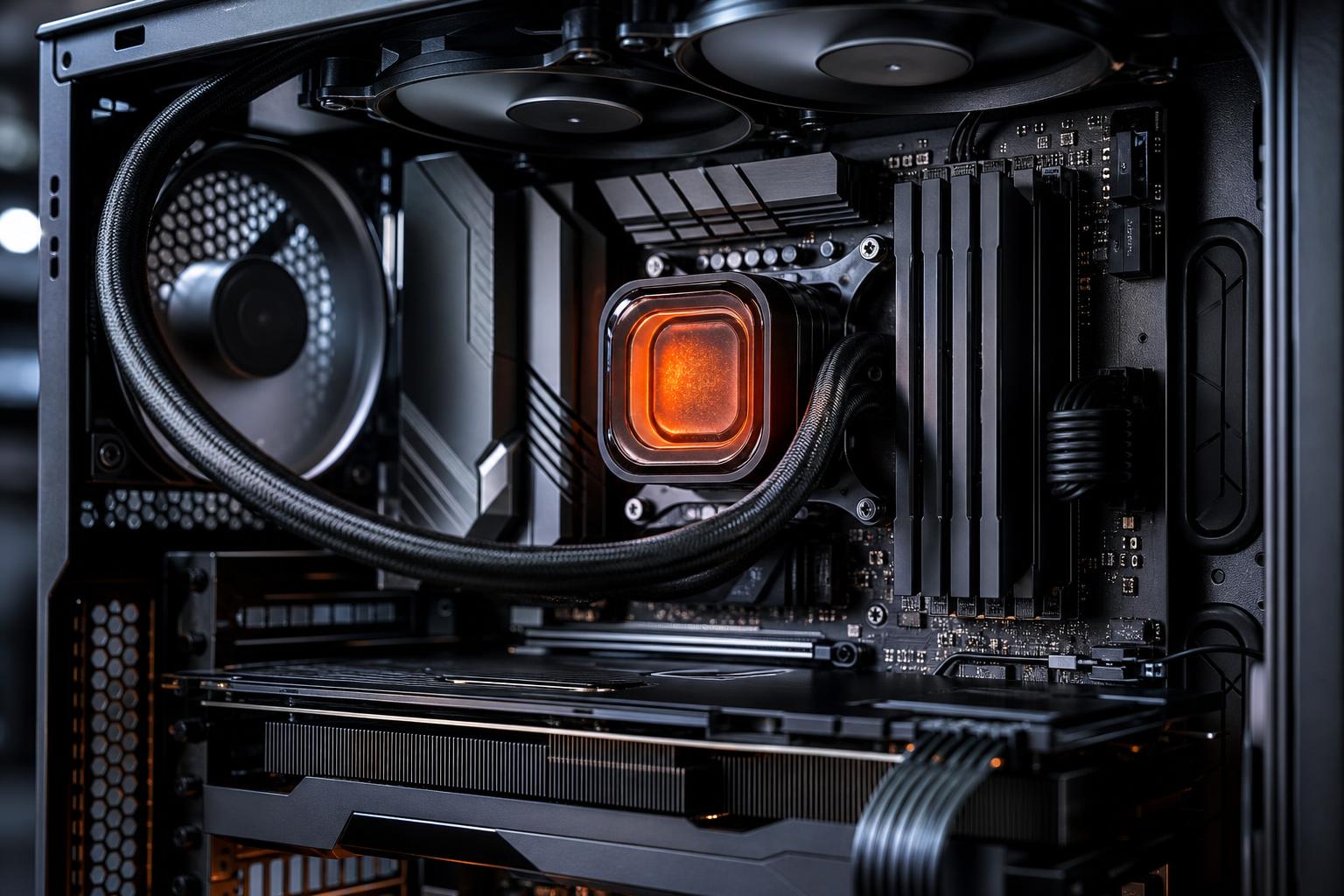
The cooler needs to move heat from the CPU into the air efficiently. A small stock cooler can be perfectly acceptable for a modest processor at default power settings, but it may not be enough for a high-power CPU running all cores at full speed. The same is true of a low-cost liquid cooler paired with a processor that can consume substantial power under a heavy workload.
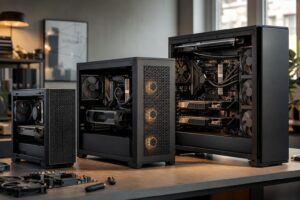
Installation quality matters just as much. Uneven mounting pressure, a forgotten protective film on a new cooler, old or poorly applied thermal paste, or an incorrectly connected pump can turn a capable cooler into a poor one.
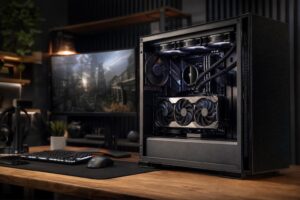
A CPU cooler cannot work well if it is fed warm air. Cases with solid front panels, clogged dust filters, too few intake fans, or tangled cables around the intake path can trap heat inside the chassis.
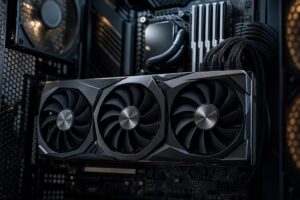
This is especially common in systems with a powerful graphics card. The GPU dumps a large amount of heat into the case during gaming. If the case cannot exhaust that heat, the CPU cooler ends up recycling hot air.
Many motherboards prioritize benchmark performance by allowing a CPU to draw more power than its baseline settings suggest. This can improve short-term multicore results, but it also creates much more heat. A processor may not be “overclocked” in the traditional sense and still be running with relaxed power limits.
For some buyers, this trade-off is worthwhile when paired with serious cooling. For others, a small performance gain is not worth more fan noise, higher temperatures, and less consistent sustained behavior. Sensible power limits can often retain most real-world performance while reducing heat substantially.
Dust buildup on heatsinks and filters acts like a blanket. It is boring, predictable, and remarkably effective at raising temperatures. In liquid-cooled systems, a pump issue, trapped air, or gradual coolant loss can also reduce cooling performance. If temperatures have become much worse over time without a hardware change, inspect the cooling hardware before assuming the CPU itself is the problem.
Begin with the simple checks before buying parts. Confirm that every cooler fan spins, the liquid-cooler pump is connected and running when applicable, and the fan curves are not set unusually low. Clean dust filters and heatsinks with the PC powered down. Make sure front intake and rear or top exhaust paths are not obstructed.
If the system was recently built or the problem started after a cooler change, reseating the cooler with fresh thermal paste is often worthwhile. Use a quality paste, apply an appropriate amount, and tighten the mounting hardware evenly according to the cooler manufacturer’s instructions.
Next, review BIOS settings. Restoring sensible default CPU power behavior, rather than using unlimited or enhanced power modes, can make a larger difference than many people expect. This is not “giving up” performance. It is choosing a balance that the cooler and case can sustain.
If the current cooler is genuinely too small, upgrade it. A quality tower air cooler is an excellent choice for many gaming and productivity PCs: reliable, quiet, and easy to maintain. A larger liquid cooler can make sense for high-power processors, compact layouts, or buyers who want more thermal capacity under sustained all-core workloads. It is not automatically better; radiator placement, pump quality, and case airflow still matter.
Some modern processors are designed to use available thermal headroom aggressively, particularly during heavy multicore work. Seeing a brief high temperature during a boost event is different from seeing constant temperature-limit operation with declining performance.
Focus on sustained results. If the PC maintains expected performance, remains stable, and operates within the processor’s intended limits, a high reading during a demanding workload may be normal. If it is loud, throttling frequently, or delivering inconsistent performance, there is a real reason to improve the cooling setup or power configuration.
Cooling is not just about avoiding a scary number on a monitoring screen. It affects noise, sustained performance, component longevity, and how pleasant the computer is to use every day. A properly matched CPU cooler, ventilated case, sensible fan layout, and reasonable power settings are more valuable than chasing the biggest specification on a parts list.
If you are planning a new gaming PC or professional workstation, or if an existing system is running hotter than it should, contact Overclock Computers. We can help match the processor, cooling, case airflow, and power settings to the work you actually need the machine to do.