Ethernet vs. Wi-Fi for Gaming PCs and Workstations: What Should You Use?

A powerful PC can still feel frustrating if its network connection is unreliable. Online games may stutter, large project files can crawl across the network, and video calls can break up at exactly the wrong moment. Your internet plan matters, but the connection between your PC and router matters too.
For a desktop that stays in one place, our default recommendation is simple: use wired Ethernet whenever it is practical. It is usually more consistent, easier to diagnose, and less affected by walls, distance, and other wireless devices. Modern Wi-Fi is genuinely good, though, and it can be the right answer when running a cable would be expensive, unattractive, or impossible.
The best choice is not about chasing the largest number printed on a router box. It is about getting dependable performance for the work and games you actually use.
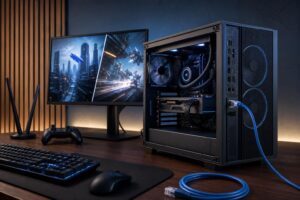
Ethernet sends data over a physical cable from your PC to a router, network switch, or wired access point. The major advantage is consistency. A cable does not care whether someone starts a microwave, closes a metal door, or adds another wireless device to the house.
For gaming, Ethernet will not magically reduce a distant game server’s response time. If the server is across the country, much of that latency comes from the wider internet. What a wired connection can do is reduce variation in latency, often called jitter, and avoid the brief packet loss or retransmissions that can cause rubber-banding, voice-chat dropouts, or a sudden disconnect.
For workstations, wired networking becomes even more valuable when moving large files to a NAS, shared storage server, or another computer on the local network. Raw camera footage, video projects, CAD assemblies, point-cloud data, virtual machines, and backups can quickly expose the limits of a weak wireless link.
Most current desktop motherboards include 2.5 Gigabit Ethernet, often labeled 2.5GbE. That is an excellent standard for a new performance PC. It works with ordinary Gigabit equipment at up to 1Gbps, and it leaves room for faster internet or local storage later.
There is a catch: the network only runs as fast as its slowest relevant link. A PC with 2.5GbE connected to a 1GbE router or switch still has a 1GbE connection. To benefit from 2.5GbE file transfers, the PC, switch or router, storage device, and cabling path all need to support it.
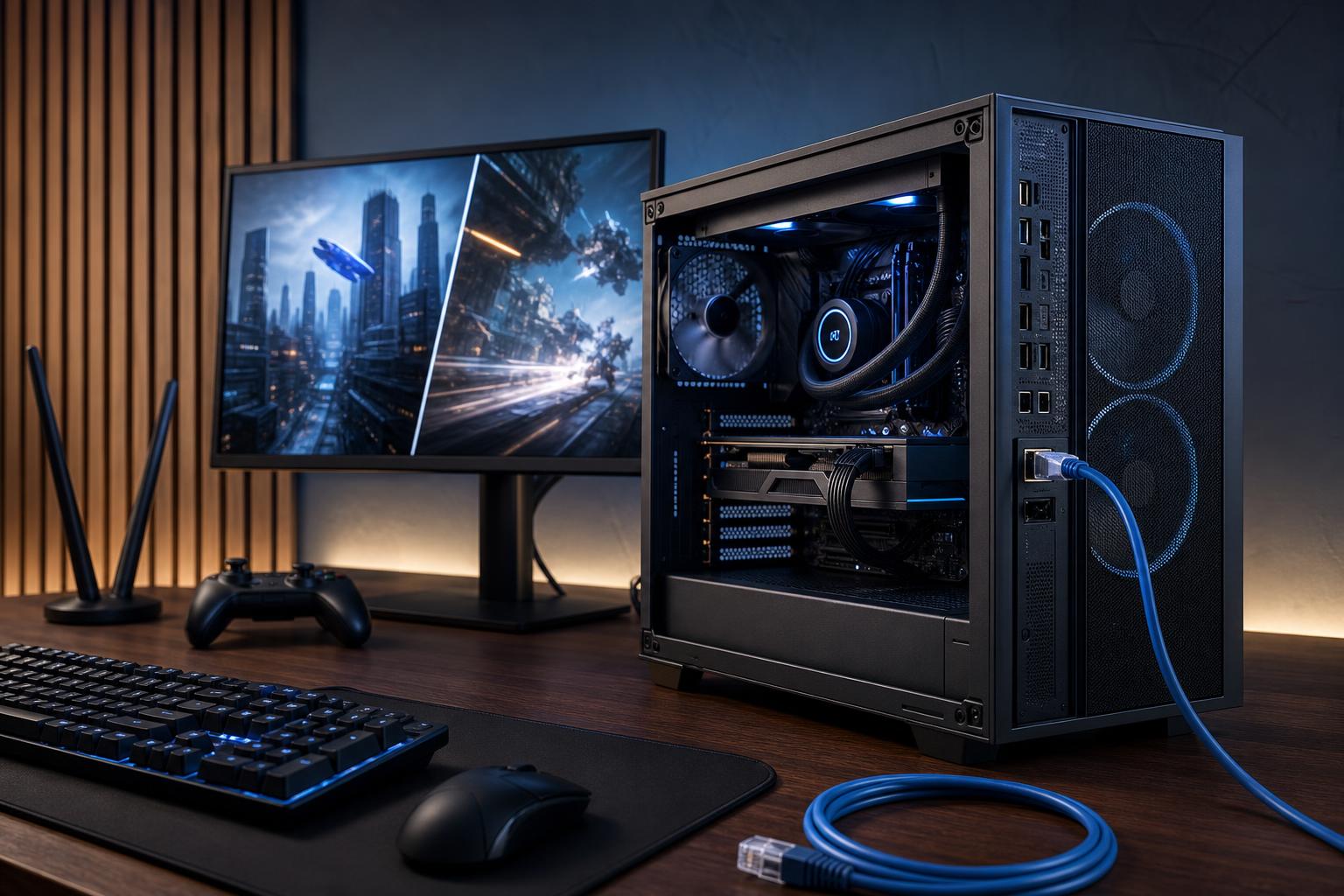
For typical home runs, a quality Cat6 cable is a sensible choice for Gigabit and 2.5GbE networking, with plenty of headroom for most setups. Cat6a is useful for longer 10GbE runs or permanent in-wall installation. Avoid very thin, flat, poorly made patch cables when reliability matters. They can work, but a conventional round cable from a reputable manufacturer is usually the safer bet.
You do not need exotic audiophile-grade network cables. Ethernet either maintains a reliable link at the negotiated speed or it does not. Spend money on sensible routing, good equipment placement, and the hardware that actually supports your required speed.
Wi-Fi makes sense when the PC is far from the router, the home is rented, or routing Ethernet would mean drilling walls and creating a cable trip hazard. It is also useful for a desktop that is moved frequently or used in a room without existing network wiring.
A well-designed Wi-Fi setup can handle gaming, streaming, video calls, and everyday creative work very well. The important phrase is well-designed. A high-end Wi-Fi adapter cannot fully overcome a poorly placed router, thick masonry walls, crowded apartment radio space, or a weak internet connection.
Wi-Fi generations affect capacity, available radio bands, and the features a network can use. They do not guarantee a specific speed in your room.
For a new desktop that will use wireless as its primary connection, Wi-Fi 6E or Wi-Fi 7 is a reasonable target. Make sure the motherboard or add-in card includes external antennas. Those antennas are not decorative. Positioning them in open air rather than behind a metal PC case can make a meaningful difference.
Wireless signal quality is strongly affected by the path between the access point and PC. Floors, concrete, brick, plumbing, appliances, mirrors, and dense furniture can all reduce signal strength or create reflections. The 5GHz and 6GHz bands offer more capacity but generally lose strength through obstacles more quickly than 2.4GHz.
Putting a router inside a cabinet or on the floor at one end of the house is an excellent way to make a good router look bad. Place it in a central, elevated, open location where possible. For larger homes, a properly placed mesh system or wired access point is usually a better answer than buying one extremely expensive router and hoping physics feels generous.
If you use mesh Wi-Fi, pay attention to the connection between mesh nodes, called backhaul. A node with a wired Ethernet backhaul is generally more dependable than one that must relay traffic wirelessly through several rooms. A wireless mesh can still be useful, but each hop can reduce available capacity and add variability.
Online games use far less bandwidth than a 4K video stream or a large download. A 1Gbps internet plan is not required for a good multiplayer experience. What matters more is a stable route, low packet loss, and reasonable latency to the game server.
Use Ethernet if you play competitive shooters, fighting games, racing simulators, or any title where a brief connection hiccup is costly. It is also the sensible route for a desktop that streams while gaming, particularly in a busy household.
Wi-Fi is perfectly workable for many players. Before blaming the PC, test it realistically: play at the time your household network is busiest, keep the router in its normal location, and watch for dropouts rather than only checking peak download speed. A connection that reports 700Mbps but briefly loses packets is less useful for gaming than a stable 100Mbps connection.
For a workstation, ask where your files live. If everything stays on the internal SSD and the cloud is used mainly for syncing, a standard wired connection or strong Wi-Fi may be enough. If you edit directly from network storage, share large datasets with colleagues, or perform regular full-system backups to a NAS, the local network deserves planning from the start.
A practical baseline is 2.5GbE for the workstation and NAS, connected through a 2.5GbE switch. This is often a worthwhile upgrade for media creators, designers, and technical users handling large files. Move to 10GbE when the storage itself can sustain the speed and waiting on transfers is a regular part of the workday. A single hard-drive NAS will not suddenly perform like a fast SSD array simply because it has a 10GbE port.
Powerline adapters use electrical wiring to carry network data. They can rescue a difficult room, but performance depends heavily on the age, layout, and electrical noise of the home’s wiring. Treat them as a convenience option, not a guaranteed substitute for Ethernet. Buy from a retailer with a workable return policy and test them in the actual outlets you plan to use.
Small USB Wi-Fi adapters are fine for light use or temporary troubleshooting. We would not choose one as the primary connection for a premium desktop when a motherboard Wi-Fi solution or PCIe card with proper external antennas is available. Better antennas and a more permanent installation usually mean a more stable result.
If you can run Ethernet neatly and safely, do it. A new gaming PC or workstation with 2.5GbE gives you a stable connection today and useful upgrade room later. Add Wi-Fi as a backup or for Bluetooth connectivity if it is convenient, but let the cable handle the important traffic.
If Ethernet is not realistic, choose a motherboard or adapter with Wi-Fi 6E or Wi-Fi 7, place the router or access point thoughtfully, and use the external antenna. For larger spaces, improve coverage with well-placed access points or mesh nodes instead of expecting one router to cover every corner flawlessly.
Network hardware is easy to overlook when planning a high-performance computer, but it affects every download, match, backup, and remote-work session. If you are configuring a new PC around gaming, shared storage, or demanding professional applications, contact Overclock Computers. We can help match the system’s networking hardware to the way you will actually use it.