How to Build a Quiet High-Performance PC Without Sacrificing Performance

A powerful computer will produce heat. There’s no clever marketing around that fact: a fast CPU and graphics card turn electrical power into useful work, and some of that power becomes heat. The question is how efficiently the system moves that heat out of the case.
A quiet high-performance PC is not built by removing fans, choosing the smallest cooler possible, or accepting poor temperatures. It is built with enough cooling capacity that fans can run slowly most of the time, then increase speed only when a demanding task actually requires it.
Good acoustics are a system-level decision. The case, CPU cooler, graphics card, fan selection, power supply, component power limits, and fan tuning all matter. Get the foundation right, and a gaming PC or workstation can be impressively quiet during everyday use while still delivering full performance when rendering, compiling, or gaming.
More fans do not automatically make a PC quieter. A case full of small, fast-spinning fans can be louder than a well-designed system with fewer, larger fans. What matters is a clear path for cool air to enter and warm air to leave.
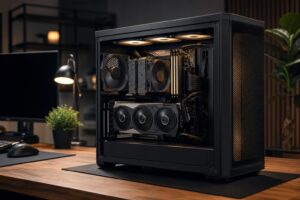
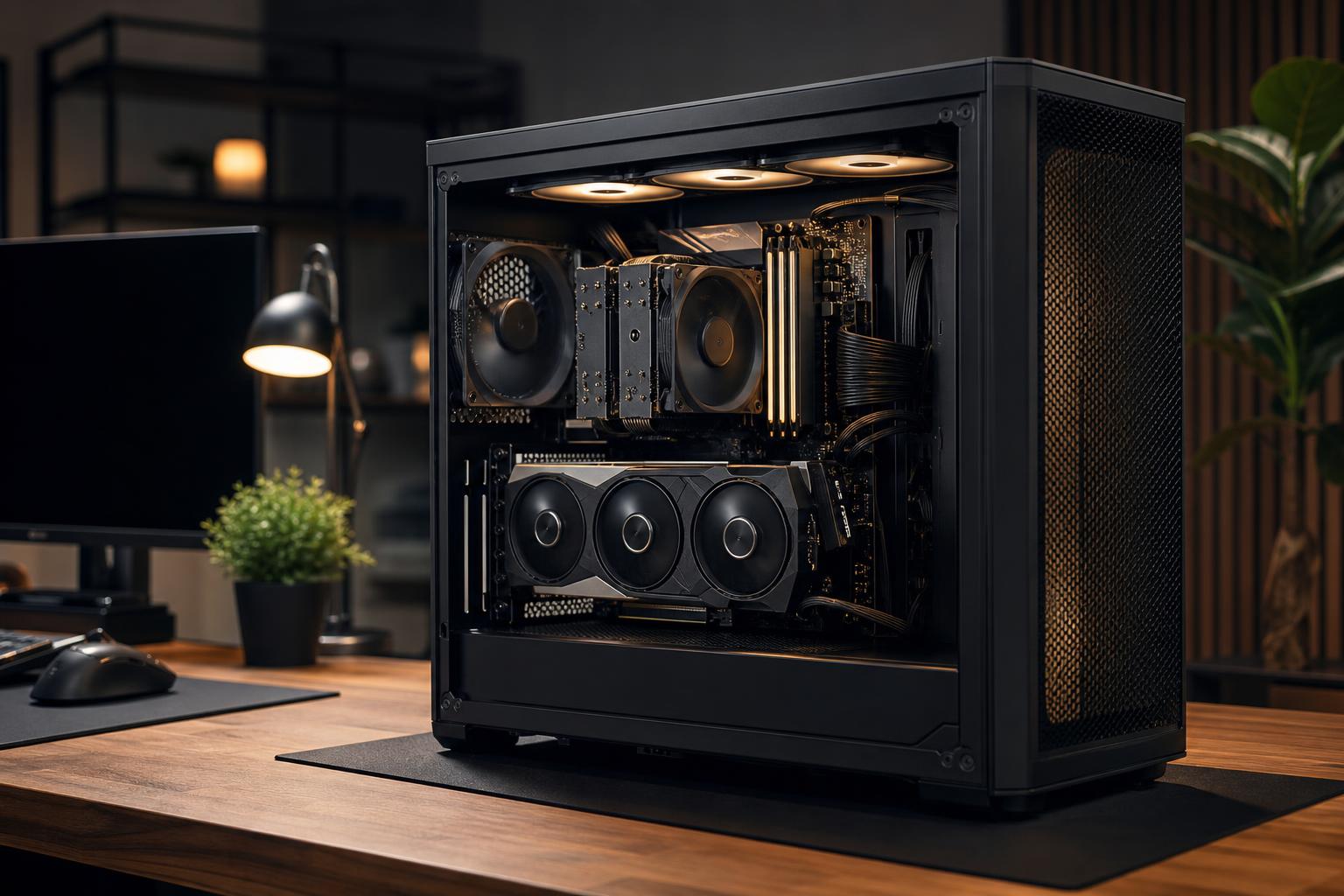
For most high-performance desktops, we prefer an airflow-focused case with a ventilated front panel, open top or rear exhaust positions, and room for full-size fans. Glass-fronted cases can look tidy, but they often make the fans work harder to pull in air. Restrict the intake, and fan speed—and noise—usually follows.
This does not mean every mounting point needs a fan. Empty mounts are not a sign of an unfinished build. If temperatures are already under control, adding another fan may add more noise than cooling benefit.
We generally aim for slightly positive case pressure: a little more filtered intake airflow than exhaust airflow. This helps reduce dust entering through unfiltered gaps, although it does not eliminate the need for occasional cleaning.
Fan diameter matters because a larger fan can move a useful amount of air at a lower rotational speed. In practical terms, a good 140 mm fan running slowly is often less noticeable than a 120 mm fan pushed to a high RPM.
That does not make 120 mm fans bad. They remain common, fit more cases and radiators, and can perform very well. But when a case supports 140 mm intake fans without compromises, they are usually a smart choice for a quiet build.
Quality also matters. Better fans tend to have smoother bearings, more refined blade designs, and a broader stable speed range. Cheap fans often develop clicking, humming, or bearing noise long before their airflow figures become the problem. A PC can have excellent benchmark temperatures and still be annoying to sit beside if its fans produce a sharp or uneven tone.
The CPU cooler should be selected for the processor’s real sustained power draw, not just the number printed on the CPU box. Modern processors can briefly or continuously use far more power than many buyers expect, especially with motherboard defaults that favor maximum boost behavior.
A large dual-tower air cooler is an excellent quiet-performance option for many gaming PCs and moderately demanding workstations. It has a lot of metal surface area, uses one or two large fans, has no pump noise, and can remain quiet when handling sustained CPU loads.
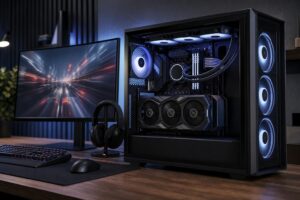
A 240 mm or 360 mm liquid cooler can also make sense, especially for CPUs that draw substantial power during long renders, simulations, or code builds. A larger radiator provides more surface area, allowing radiator fans to run at lower speeds. However, liquid cooling is not automatically quieter. The pump creates its own noise, and a small radiator with aggressive fan speeds can be quite loud.
For a gaming-focused system, do not buy an oversized cooler solely because it looks impressive. Most games do not load the CPU like an all-core rendering test. Spend enough for a capable cooler with acoustic headroom, then direct the remaining budget where it improves the experience more, usually the graphics card, display, or storage capacity.
During gaming, the GPU usually produces more heat than the CPU. That makes its cooler, power draw, and settings central to how quiet the whole system feels.
When comparing graphics cards in the same performance class, do not focus only on the GPU chip. Cooler design varies significantly between models. A larger card with a substantial heatsink and three well-tuned fans often runs quieter than a compact two-fan version, even though both deliver similar frame rates.
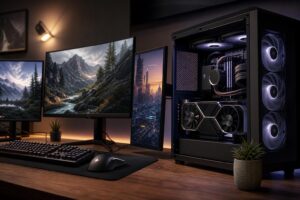
Physical size still matters. Make sure the case has enough GPU clearance and that the card has room to draw air. Installing a thick, high-powered graphics card tightly against a solid side panel is a reliable way to worsen temperatures and noise.
Uncapped frame rates can make a GPU work flat-out to generate frames a monitor cannot show. That wastes power and raises fan noise. If you play a single-player game on a 120 Hz display and the GPU is rendering 220 frames per second, a sensible frame cap can lower heat, power use, and noise with little or no visible downside.
This is especially useful in menus, older games, esports titles, and games with very high frame rates. Competitive players may reasonably prioritize the highest possible frame rate and lowest latency. Everyone else should not assume that maximum GPU utilization is automatically the best setting.
Undervolting can offer further reductions in GPU power and heat, but it requires careful stability testing. It is worthwhile for experienced users who enjoy tuning. For buyers who want predictable, out-of-the-box reliability, selecting a well-cooled GPU and applying a frame cap delivers much of the benefit with less fuss.
Factory fan curves are designed to protect components in a wide range of cases and room temperatures. They are often conservative, which means fans may ramp up abruptly for short temperature spikes. That repeated rise and fall is more distracting than a steady, modest fan sound.
A well-tuned fan curve keeps fans low at idle and light loads, then increases speed gradually as temperatures rise. The goal is not to chase the lowest possible temperature. Running a CPU at 65°C rather than 55°C under a sustained load is usually not a problem if performance is stable and the processor is within its intended operating range. The extra noise required to win those last few degrees often is not worth it.
Do not set every fan to follow CPU temperature. A GPU-heavy game may leave the CPU relatively cool while the graphics card dumps substantial heat into the case. In that situation, CPU-based case fans may not respond appropriately.
The last few percentage points of performance often require disproportionately more power. For some systems, a modest CPU power limit or a GPU efficiency setting can reduce heat and fan noise while producing a performance difference that is difficult to notice in real use.
This is most useful for compact PCs, quiet workstation builds, and users who run long sustained workloads. It is less appealing to someone whose work is billed by render time or who needs every available frame in a competitive title. The right choice comes down to whether the saved time is worth the additional heat and noise.
These settings should be applied thoughtfully. A custom PC should be tested for stability and workload performance after any tuning change. Quiet is good; quiet because the CPU is silently throttling is not.
Not all PC noise comes from fans. Coil whine is a high-pitched electrical sound that can occur from graphics cards, power supplies, or occasionally motherboards. It can vary with frame rate and workload. A frame cap may reduce it, but fan tuning will not solve it.
Mechanical hard drives also create audible spinning and access noise. They remain useful for economical bulk storage, backups, and media archives, but an SSD is the better choice for the operating system, active projects, and frequently played games if quiet operation is a priority.
Finally, a PC cannot be quieter than its environment requires. A warm room, dusty filters, carpet blocking a bottom intake, or a desk enclosure with poor ventilation will all increase fan speeds. Leave breathing room around the system and clean filters regularly.
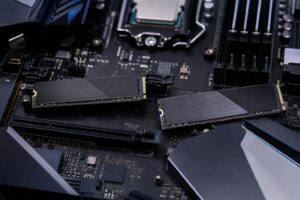
For most buyers, the best formula is straightforward: use a mesh-front case, quality large fans, a CPU cooler with reasonable thermal headroom, a well-cooled graphics card, and carefully configured fan curves. Add a high-quality power supply that is not operating near its limit, and use NVMe SSD storage for active work.
Do not spend heavily on noise-focused parts while choosing a restrictive case or an undersized cooler. That is like buying quiet tires for a car with a loose exhaust. The parts need to work together.
If you are planning a system where low noise matters alongside gaming, creative work, or professional workloads, contact Overclock Computers. We can help configure the cooling, case, power delivery, and performance level around how you actually use your PC—not just what looks good on a specification list.