PCIe Gen 4 vs. Gen 5 SSDs: Which NVMe Drive Should You Buy?

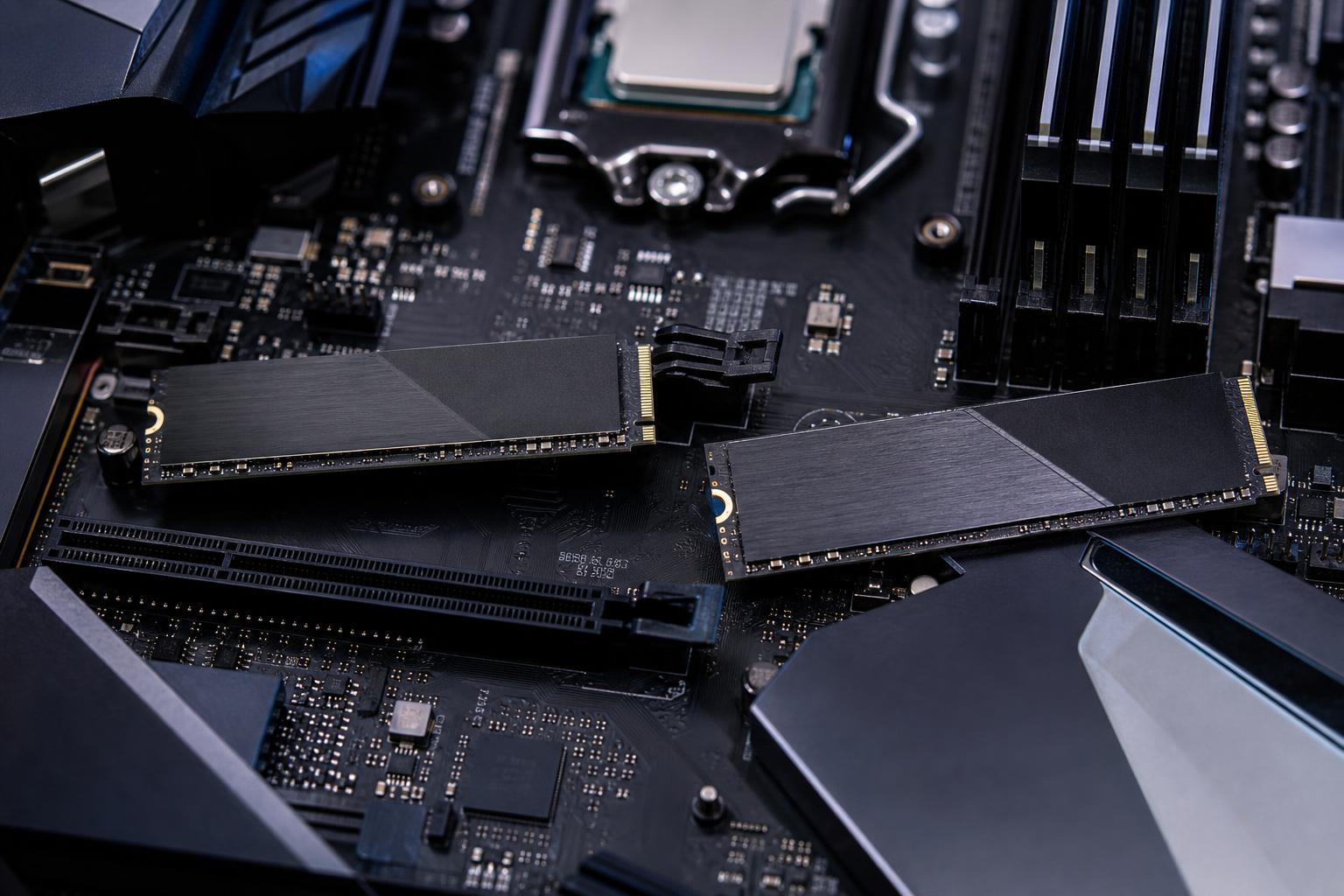
PCIe Gen 5 NVMe SSDs can post eye-catching benchmark numbers, with sequential transfer speeds roughly twice those of many good Gen 4 drives. That makes them tempting for any new high-performance PC build. But storage benchmarks and everyday responsiveness are not the same thing.
For most gaming PCs, a quality PCIe Gen 4 SSD remains the best purchase. It is fast, widely compatible, easier to cool, and usually offers more capacity for the money. A Gen 5 SSD makes sense for specific professional workloads that regularly move or create very large files, provided the rest of the system supports it properly.
The right question is not “Which drive is fastest?” It is “Will this drive remove a delay I actually notice?”
PCIe is the connection between an NVMe SSD and the PC. Each generation provides more bandwidth per lane. Most consumer M.2 NVMe drives use four PCIe lanes, so a Gen 5 x4 drive has about twice the available interface bandwidth of a Gen 4 x4 drive.
In broad terms, premium Gen 4 SSDs commonly reach around 7,000 MB/s in advertised sequential reads. Premium Gen 5 models can exceed 10,000 MB/s and, in some cases, approach 14,000 MB/s or more. Sequential performance measures reading or writing large, continuous blocks of data. Think copying a huge video file rather than opening a browser or launching a game.
Those numbers are real, but they do not mean every task becomes twice as fast. Many common PC tasks are limited by small-file performance, CPU processing, decompression, the game engine, the source drive, or the network connection. The SSD is only one part of the chain.
A fast PCIe Gen 4 NVMe SSD is the sensible default for a new gaming PC in 2026. Games benefit from solid storage performance, especially when loading large maps, textures, and shaders, but they rarely show a dramatic improvement when moving from a premium Gen 4 drive to Gen 5.
Game load times can improve compared with an older SATA SSD or hard drive. The jump from a hard drive to any decent NVMe drive is particularly noticeable. The jump from Gen 4 to Gen 5 is usually much smaller—often small enough that you will only see it in a timed comparison.
That does not make Gen 5 bad for gaming. It simply means the money is often better spent elsewhere:
Capacity matters more than many buyers expect. Modern games can consume well over 100GB each, and SSDs perform best when they are not filled to the absolute limit. For a premium gaming PC, 2TB is a practical starting point. Larger libraries, game capture, mods, and local media can justify 4TB.
A Gen 5 SSD earns its place when you routinely work with large files and your workflow is genuinely storage-heavy. Examples include:
Even in these cases, a Gen 5 drive is not automatically the answer. A video editor may get a larger practical benefit from a dedicated project drive, a separate cache drive, or more total storage capacity than from chasing the highest single-drive sequential score. A workstation that reads from one drive and writes to another can avoid contention during exports, ingest, and cache operations.
For professionals, we usually recommend mapping the storage workflow before selecting drives. Identify where source files live, where active projects live, where applications place caches, and where completed work is archived. That produces a better workstation than simply installing the fastest drive in every M.2 slot.
PCIe generations are generally backward compatible. You can install a Gen 5 NVMe SSD in a compatible M.2 slot on a Gen 4 platform, but it will operate at Gen 4 speeds. Likewise, a Gen 4 SSD can be used in a Gen 5-capable M.2 slot.
Before buying, check the motherboard manual or specifications for the exact M.2 slot configuration. This matters because not every M.2 slot on a Gen 5 motherboard necessarily supports Gen 5. Some slots may be connected through the chipset and run at Gen 4 speeds. On certain platforms, enabling a Gen 5 M.2 slot can also affect PCIe lane allocation for graphics or other expansion devices. Modern boards normally handle this well, but it is worth confirming rather than assuming.
Laptop upgrades require extra care. Many laptops support only a particular M.2 length, commonly 2280, and may not have enough physical room for a tall aftermarket heatsink. A Gen 5 drive can also create more heat than a thin laptop chassis can comfortably manage.
Fast NVMe drives generate heat under sustained loads. Gen 5 drives can draw more power and run warmer than Gen 4 models, which is why many include substantial heatsinks or use active cooling.
For a desktop, use the motherboard’s M.2 heatsink if it fits the drive and makes good contact with its thermal pad. Do not stack a motherboard heatsink on top of a drive that already has a large heatsink unless the manufacturer specifically supports that arrangement. It can fit poorly and trap heat rather than solve it.
Good case airflow also matters. An SSD that gets too hot may throttle itself to protect the hardware, reducing performance during long writes or sustained file transfers. A well-cooled Gen 4 drive is more useful than a Gen 5 drive that repeatedly throttles.
Two drives with similar advertised read speeds can behave very differently in real use. Look beyond the largest number on the product page.
Buy enough capacity for your active work. Larger versions of the same SSD family can sometimes sustain writes better because they have more NAND flash chips available to work in parallel. Also review the endurance rating, commonly expressed as TBW, especially for a scratch drive, recording drive, or workstation that writes large amounts of data.
Many consumer SSDs use a fast portion of their flash as an SLC cache. That is normal and often effective. However, once the cache fills during a long write, some drives slow down substantially. This is more relevant to video production, backups, large game installs, and professional file transfers than it is to ordinary web browsing.
Use established drives from reputable vendors, keep firmware current when the manufacturer recommends it, and register the warranty if required. Storage is not the place to gamble on an unknown bargain model with vague specifications. A drive can be fast on day one and still be a poor long-term choice if support, firmware quality, or endurance is questionable.
Choose a high-quality PCIe Gen 4 NVMe SSD if you are building a gaming PC, a general-purpose enthusiast desktop, or a typical development machine. Prioritize 2TB or more before paying extra for Gen 5 speed.
Choose a PCIe Gen 5 SSD if you have a Gen 5-capable platform, can cool the drive correctly, and regularly perform large local transfers or storage-limited professional work. It is a targeted performance purchase, not a requirement for a fast PC.
For many premium workstations, the strongest setup is a mix: a fast primary NVMe drive for the operating system and applications, one or more separate high-capacity drives for active projects and scratch data, and a proper backup plan. Fast storage is valuable. Replacing lost work is not.
If you are planning a new gaming PC or workstation and are unsure where Gen 5 storage fits, contact Overclock Computers. We can help design a balanced storage layout around the files, applications, and performance goals that actually matter to your work.