Should You Upgrade Your Old PC or Replace It? A Practical Decision Guide

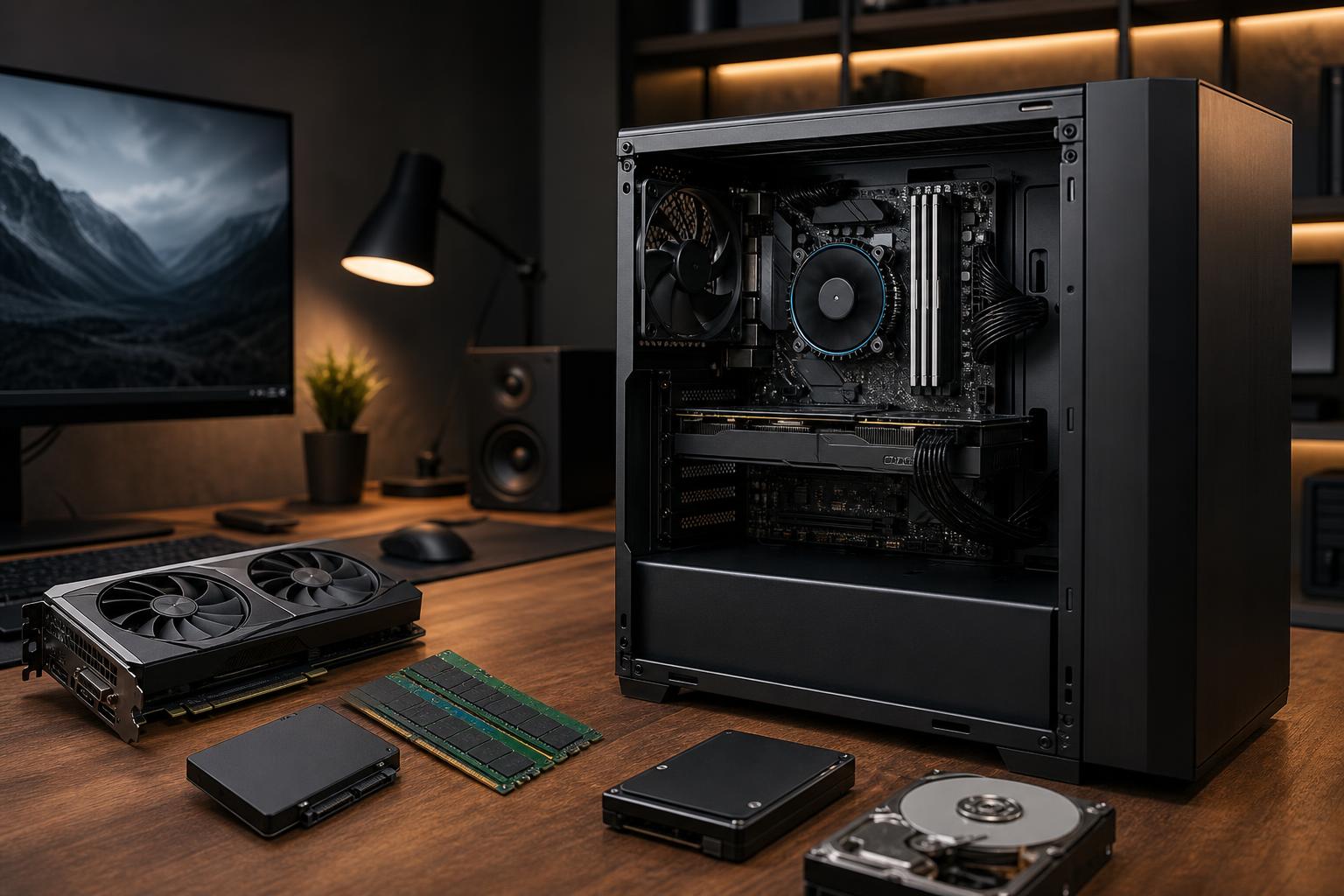
An older desktop doesn’t automatically need to be replaced. A well-chosen SSD, memory, or graphics card upgrade can make the right system feel dramatically better for a reasonable cost. On the other hand, it’s easy to spend several hundred dollars improving a machine that still has an outdated processor, limited upgrade support, poor cooling, or a questionable power supply.
The useful question isn’t simply, “How old is my PC?” It’s, “What is limiting the work I need it to do, and can that limitation be fixed without creating three new ones?”
Here’s how to make that call before buying parts.
“My computer is slow” can describe several very different problems. A PC that takes five minutes to start, a game that stutters, and a workstation that takes too long to render video do not necessarily need the same upgrade.
First, identify the moment performance becomes frustrating:
Windows Task Manager is a good first diagnostic tool. While reproducing the problem, check the Performance tab. If memory is consistently near full, more RAM may help. If a hard drive is pinned at 100% activity during normal use, an SSD is likely the best first upgrade. If the GPU is fully loaded in a game while the CPU has room to spare, the graphics card is the likely limit.
One caution: a single number rarely tells the entire story. A CPU can be the problem even when its overall usage looks modest because one or two cores are maxed out. This is common in games, CAD applications, and older software.
If your system runs Windows from a mechanical hard drive, installing an SSD is almost always worthwhile if the rest of the PC is stable. This is the upgrade that most clearly improves everyday responsiveness: booting, opening applications, installing updates, and loading files all become noticeably quicker.
An NVMe SSD is preferable when your motherboard supports it, but a SATA SSD is still a massive improvement over a hard drive. Don’t obsess over benchmark numbers here. Moving from a hard drive to almost any decent SSD matters far more than moving from one fast SSD to a slightly faster one.
Keep the old hard drive only for secondary files if it passes a health check and you have backups. Aging hard drives are not a sensible place for the only copy of important work.
Memory upgrades are often cost-effective, provided compatible modules are available and the system supports enough capacity. For a basic office or home PC, 16GB is usually comfortable. For modern gaming, 32GB is the practical target for a new build and a worthwhile upgrade for many older systems. Creative applications, large datasets, virtual machines, and professional multitasking may need 64GB or more.
Capacity comes before speed. If a system runs out of memory, it starts relying heavily on the storage drive as overflow space. Even a fast SSD is vastly slower than RAM, which is why a PC can feel unresponsive with many programs open.
Check the motherboard’s maximum memory support and the type of RAM it uses before ordering anything. DDR3, DDR4, and DDR5 are not interchangeable. Also, matching existing memory is preferable, but not every old system is worth hunting down expensive discontinued modules for.
A GPU upgrade can extend the life of a gaming PC nicely, particularly if the machine already has a reasonably modern processor, sufficient memory, an SSD, and a quality power supply. It can also help with GPU-accelerated rendering, video editing, 3D work, and certain AI tasks.
But graphics card upgrades deserve a compatibility check before checkout. Confirm:
Putting a high-end modern GPU into a very old platform can work, but it isn’t automatically a good value. You may gain performance in GPU-heavy games at higher resolutions while seeing little improvement in CPU-limited games or productivity work. It can be a sensible temporary move if the card will later be moved into a new build. Otherwise, it may be better to budget for a balanced replacement system.
Targeted upgrades stop making sense when the platform itself is the bottleneck or the machine has several aging weak points at once.
Older processors can remain perfectly usable for email, office applications, web browsing, and light gaming. The trouble starts when your workload needs more CPU performance, newer instruction support, faster memory, additional storage connectivity, or modern expansion options.
If replacing the CPU also requires a new motherboard and new RAM, you are effectively planning the core of a new computer. At that point, retaining an old case, power supply, and storage drives may save some money, but only if those parts are compatible and still reliable.
This is especially relevant for people moving into newer workloads: high-refresh-rate gaming, 4K editing, large CAD assemblies, software development with multiple local services, 3D rendering, or local AI tools. These tasks can expose the limits of an older platform quickly.
A power supply isn’t exciting, which is exactly why it gets ignored. It is also one component we don’t recommend stretching beyond reason. If it is an unknown budget unit, has been in regular service for many years, lacks the needed GPU connectors, or shows instability, replace it rather than building new upgrades around it.
A good modern power supply provides clean, stable power and the correct cabling for current hardware. It also leaves sensible headroom for peak loads. Wattage alone doesn’t establish quality; a suspicious 800-watt unit is not automatically better than a well-built 650-watt model.
A dusty cooler or dried-out thermal paste can sometimes be remedied with maintenance. However, recurring overheating, failing fans, damaged case airflow, unstable memory, and storage errors are a different category of problem. Chasing intermittent faults across several old components is rarely enjoyable and rarely economical.
For a work machine, reliability has real value. Lost time, corrupted projects, and a deadline-day failure cost more than the part price on paper.
Add up the real plan: graphics card, RAM, SSD, power supply, cooler, operating system considerations, and any professional installation or troubleshooting time. If that total is a large share of a new system, compare the outcomes honestly.
A new PC may provide not only more performance, but also a current CPU platform, faster storage support, better networking, quieter cooling, a known-good power supply, cleaner cable management, and a more useful upgrade path. Reusing a few old parts is not a victory if it leaves you with the same limitations six months later.
Keep and upgrade the PC if it is stable, has a reasonably current platform, and one clear component is limiting your experience. An SSD upgrade for a hard-drive-based desktop, more RAM for a memory-starved system, or a carefully matched GPU upgrade are classic examples.
Replace the core platform if your CPU, motherboard, and RAM are all holding you back, but your case, recent storage, and quality power supply can be reused. This can be a sensible middle ground for experienced owners with compatible parts.
Replace the complete system if it has multiple old components, stability concerns, an inadequate power supply, poor airflow, or no clear upgrade path. This is often the cleaner choice for professionals whose time matters, as well as gamers moving several generations forward.
Before declaring hardware obsolete, make sure the problem is not a full startup list, nearly full storage drive, malware, damaged Windows installation, outdated drivers, or severe dust buildup. Back up important files first, then address these basics.
That said, software cleanup cannot turn an old four-core processor into a modern workstation, and no registry cleaner has ever made a weak PC a good purchase. Maintenance helps a healthy system perform as it should. It does not rewrite the hardware.
Buying the most expensive component available is not a strategy. A balanced upgrade plan starts with the workload, identifies the true constraint, checks compatibility, and considers how long the remaining platform will serve you.
If you’re unsure whether an upgrade is worth it, Overclock Computers can help evaluate your current hardware and recommend a practical path forward—whether that means refreshing the system you own or configuring a new PC around the work and games you actually run.