Gen 4 vs. Gen 5 SSD: Which NVMe Drive Should You Buy?

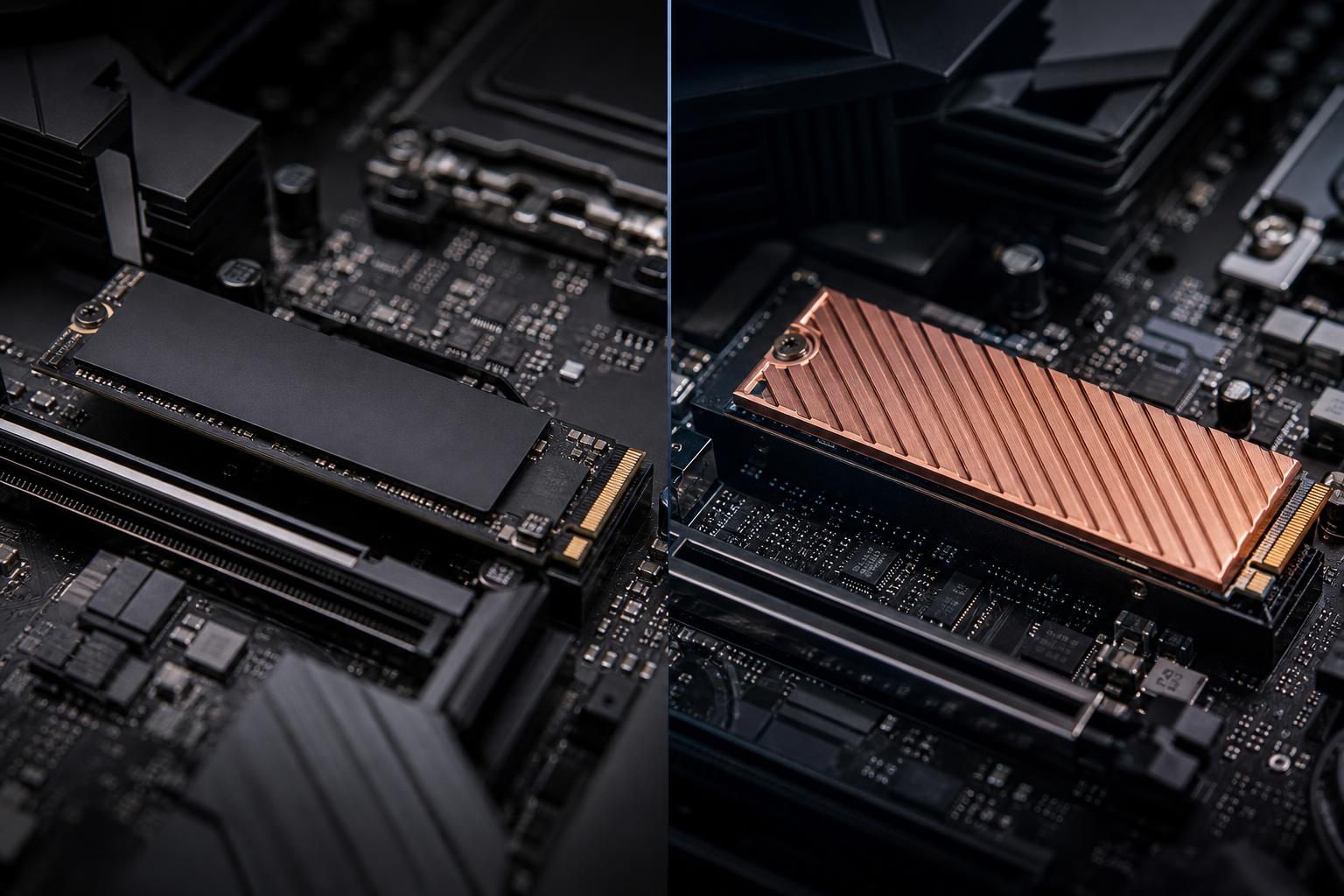
NVMe SSDs have become so fast that choosing one is no longer as simple as buying the drive with the biggest number on the box. A PCIe Gen 5 SSD can advertise roughly twice the sequential read speed of a strong Gen 4 model, but that does not mean it makes every PC feel twice as fast.
For most gaming PCs, a quality Gen 4 NVMe drive remains the sensible choice. It is already fast enough for excellent boot times, quick game loads, and responsive everyday use. Gen 5 storage earns its place in specific high-end workstations and enthusiast builds, particularly when moving very large files is part of the job.
The right choice comes down to your workload, platform compatibility, cooling, and budget. Here is how to make that decision without paying extra for benchmark results you will rarely notice.
PCIe is the connection that allows an NVMe SSD to communicate with the CPU and chipset. Each newer generation increases the available bandwidth per lane. Most modern M.2 NVMe drives use four PCIe lanes, often written as PCIe x4.
Sequential speed measures long, uninterrupted transfers, such as copying a large video file or loading a massive project archive. It is useful, but it is not the whole story. Operating systems, games, and many applications also rely heavily on small, scattered reads and writes. These are commonly called random operations, and they do not always improve in proportion to headline sequential speeds.
In other words: a Gen 5 SSD is unquestionably faster on paper and in the right workloads. The question is whether your work gives it enough to do.
A good Gen 4 SSD is already a very capable gaming drive. It makes Windows feel responsive, loads large games quickly, and handles game updates without trouble. Moving from a SATA SSD to an NVMe SSD can be noticeable. Moving from a decent Gen 4 NVMe SSD to Gen 5 is usually much less dramatic.
Game load times are not controlled by storage speed alone. The CPU must process game assets, the system needs available memory, and the game engine itself determines how efficiently it streams data. A faster SSD cannot overcome a CPU bottleneck, limited RAM, shader-compilation stutter, or a game that simply does not take full advantage of modern storage.
DirectStorage and similar asset-streaming technologies may make faster storage more useful over time, especially in large open-world games. Even so, a quality Gen 4 drive provides plenty of bandwidth for current gaming builds. If choosing between a 1TB Gen 5 drive and a 2TB Gen 4 drive at a similar price, we would generally choose the 2TB Gen 4 model for a gaming PC. Modern game libraries are enormous, and running out of fast space is more annoying than losing a fraction of a second from a loading screen.
Choose a quality 2TB PCIe Gen 4 NVMe SSD as the primary drive for most new gaming PCs. Consider Gen 5 only after the graphics card, CPU, memory capacity, power supply, cooling, and case airflow are already appropriately specified.
That is not an argument against premium storage. It is an argument for putting the budget where it changes the experience most. In a gaming system, the GPU almost always deserves that next dollar before the SSD does.
Gen 5 drives are more compelling in workstations that regularly read, write, or copy very large amounts of data. The benefit is greatest when the storage drive, source drive, destination drive, software, and rest of the system can all keep up.
A Gen 5 SSD can be a worthwhile upgrade for:
Even in these cases, capacity and drive layout matter as much as peak speed. A workstation that reads media from one SSD, writes cache data to another, and saves finished work to separate storage can avoid unnecessary contention. One exceptionally fast drive cannot provide its advertised transfer rate if it is copying to a much slower drive.
For many professional systems, a balanced approach works well: use a high-capacity Gen 4 drive for the operating system and general projects, then add a Gen 5 drive for active scratch files, cache, or a workload proven to benefit from it. This can deliver better value than filling every slot with the fastest available drive.
PCIe generations are backward compatible. You can install a Gen 5 SSD in a Gen 4 M.2 slot, but it will operate at Gen 4 speeds. Likewise, a Gen 4 drive works perfectly in a Gen 5 slot. This makes Gen 5 drives safe to use from a basic compatibility standpoint, but buying one for a Gen 4-only platform rarely makes financial sense.
Before purchasing, verify these details:
A Gen 5 M.2 drive does not automatically steal bandwidth from the graphics card. That depends on the motherboard’s lane layout. Well-designed modern platforms often provide dedicated storage connectivity, but the exact board and slot selection still matter.
High-speed Gen 5 controllers can produce significantly more heat than Gen 4 drives during sustained work. Many Gen 5 models include large heatsinks, and some rely on the motherboard’s M.2 heatsink. Either solution can work, provided there is good contact with the thermal pad and reasonable airflow around the drive.
Without adequate cooling, an SSD protects itself by reducing speed. This is called thermal throttling. It will not damage the drive, but it can erase much of the performance you paid for during long transfers, exports, or cache-heavy work.
Check clearance before buying a drive with a tall factory heatsink. You generally should not stack it underneath a motherboard M.2 cover designed for a bare drive. Use one heatsink solution correctly rather than two awkwardly.
PCIe generation is only one part of SSD quality. Two Gen 4 drives can perform very differently when full, under sustained writes, or after months of normal use.
Buy enough capacity to keep the drive from living at the brink of full. SSDs need free space for efficient housekeeping, and professional applications often need room for cache, previews, temporary files, and project duplicates. For a new gaming PC, 2TB is a comfortable starting point. For a workstation handling video, 3D assets, or raw project data, 2TB may be only the starting point.
Most premium consumer drives use TLC NAND flash, which is generally preferable for sustained performance and write endurance. Less expensive QLC drives can still make excellent secondary game-library or general storage drives, especially at higher capacities. They are simply less ideal for a primary workstation drive that regularly receives large writes.
Some drives include onboard DRAM, while others use a feature called Host Memory Buffer to borrow a small amount of system memory. Either design can be appropriate, but premium drives with strong controllers, good firmware, and consistent sustained performance are better choices for demanding primary-drive roles than a bargain model selected solely by its advertised peak read speed.
Compare the manufacturer’s endurance rating, commonly shown as TBW, along with warranty terms. A high TBW rating is particularly relevant for scratch disks, editing caches, content creation, virtual machines, and other write-heavy tasks. It matters less for a lightly used gaming library drive, where capacity and price may be more important.
For most buyers, a high-quality PCIe Gen 4 NVMe SSD is the sweet spot. It is fast, mature, widely compatible, easier to cool, and often available in the larger capacities that make a PC more enjoyable to own.
A Gen 5 SSD is not a bad purchase; it is a specialized one. If your work includes frequent large-file transfers, high-resolution media, intensive caching, or data-heavy technical projects, its additional bandwidth can save real time. If your PC is mainly for gaming and everyday use, put that money toward more storage capacity or a stronger graphics card instead.
If you are planning a gaming PC or workstation and are unsure how storage fits into the rest of the configuration, contact Overclock Computers. We can help design a balanced system around the applications and files you actually use.