How to Choose a Motherboard for a Gaming PC or Workstation

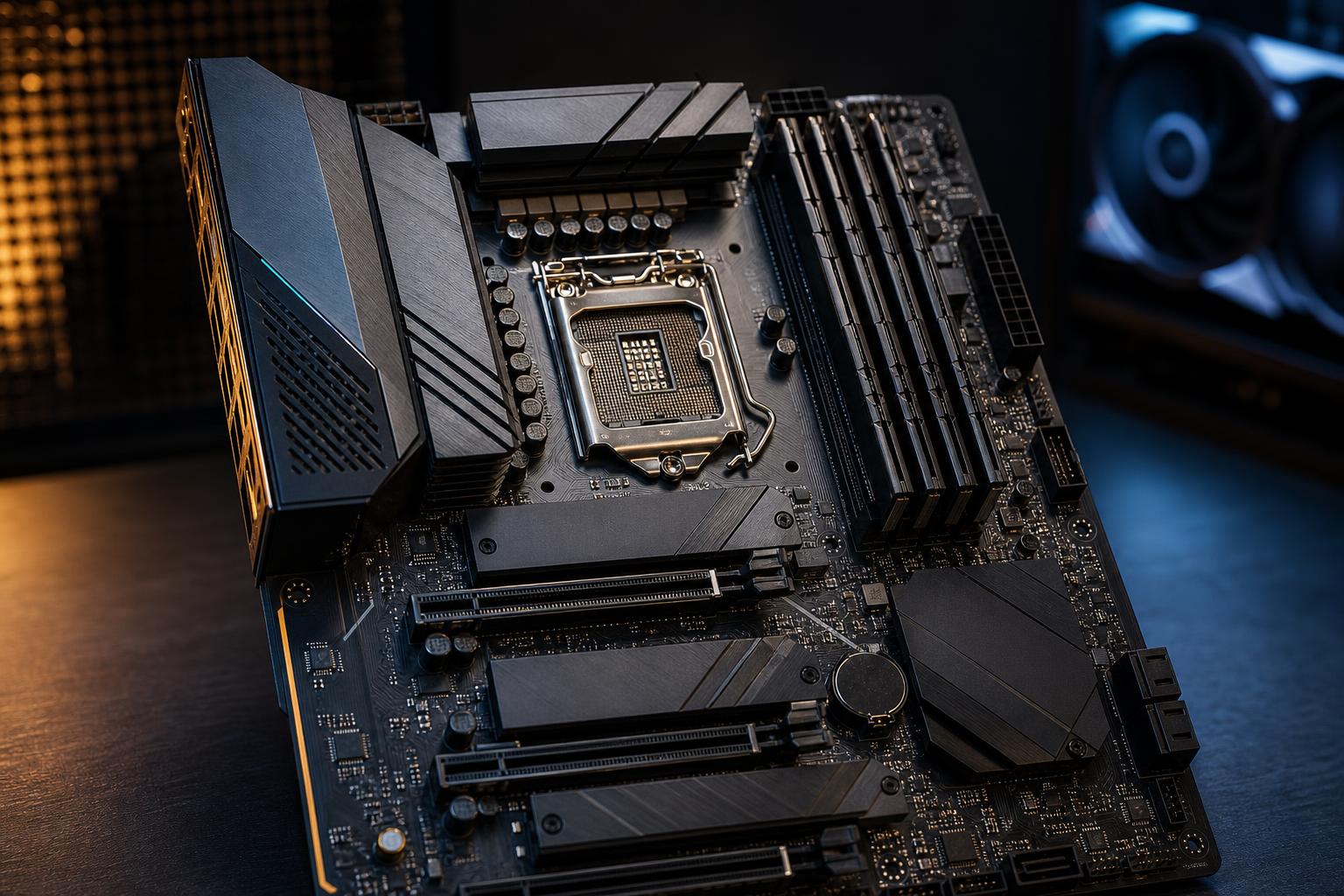
A motherboard rarely raises frame rates by itself, so it’s easy to treat it as an afterthought. That’s a mistake. The motherboard decides which CPU and memory your system can use, how much storage and expansion it supports, what ports are available, and how easily the PC can be upgraded or serviced later.
The right choice is not automatically the most expensive board. A sensible motherboard has the features your build needs, solid power delivery for the processor, enough room for storage and expansion, and a layout that works well in the chosen case. Spending hundreds extra on features you’ll never connect is just a more elaborate way to waste part of the GPU budget.
Your CPU determines the motherboard socket and chipset family. These must match exactly. An AMD processor requires an AMD-compatible socket and chipset; an Intel processor requires its matching Intel socket and chipset. A board from the right manufacturer can still be completely incompatible with a particular CPU generation.
This is the first filter, but not the last. Check the board manufacturer’s CPU support list and BIOS requirements for the exact processor. A motherboard may physically accept a CPU but require a newer BIOS version before it can boot. Reputable builders handle this before delivery, but it matters if you are assembling or upgrading a system yourself.
Platform choice also affects future upgrade options. Some sockets support several CPU generations, while others may be near the end of their supported life. That does not mean an established platform is a bad purchase. A well-priced platform with a CPU that already meets your needs can be an excellent value. It simply means you should not pay a large premium for an assumed upgrade path without confirming what that path actually is.
The chipset helps determine the motherboard’s connectivity and expansion options. Within a CPU platform, higher-tier chipsets usually offer more USB ports, more PCIe lanes, more storage flexibility, and additional overclocking controls. They do not automatically make the same CPU faster in everyday use.
A capable midrange chipset board is normally the sweet spot. Look for support for your chosen CPU, two or more M.2 NVMe slots, the USB ports you actually use, and a reliable networking option. Most gaming systems run one graphics card, one or two NVMe drives, and a handful of USB devices. They do not need a workstation-grade collection of expansion lanes.
A higher-end chipset can be worthwhile when the workload calls for it. Examples include multiple high-speed NVMe drives, capture cards, high-bandwidth networking, several add-in cards, or a platform designed for large memory capacities and many CPU cores. Video production, 3D work, engineering, and data-heavy projects can justify these capabilities, but only when the workflow uses them.
Do not buy a premium chipset solely because the name sounds faster. Put that money toward the CPU, GPU, memory capacity, or storage capacity if those parts are currently limiting your work.
The voltage regulator module, usually called the VRM, converts power from the power supply into the low-voltage power a CPU needs. A better VRM design and adequate heatsinks help the processor maintain its intended boost behavior during long, demanding workloads.
This matters most with high-core-count processors, CPUs that draw substantial power under sustained rendering or compiling, and systems configured for overclocking. For a modest gaming CPU at stock settings, nearly any reputable board in the appropriate tier should be fine. For a top-end processor that will render, simulate, compile, or encode for hours, avoid the cheapest board in the lineup.
Marketing claims around “power phases” are not enough to judge a board. Board reviews that test sustained CPU loads are useful, as are practical indicators: substantial heatsinks around the CPU socket, a known-good model line, and a power limit configuration appropriate for the cooler and case airflow.
Count the devices you expect to install, not only the ones in the initial parts list. At minimum, most buyers should want two M.2 slots: one for the operating system and applications, and one for games, project files, or a future upgrade. Workstations may need three or more M.2 slots, especially when separate fast drives are useful for source media, active projects, cache files, or scratch data.
Also check whether using certain M.2 slots disables SATA ports or changes the bandwidth available to another expansion slot. This is not necessarily a flaw; motherboard lanes are a finite resource. It is simply a detail worth understanding before you install several drives.
The main graphics-card slot should be full-length and run at the appropriate bandwidth for the platform. Modern graphics cards generally perform very similarly across current PCIe generations in normal gaming, so PCIe version alone should not drive the purchase. Slot placement, clearance for a large GPU, and room for other cards can matter more.
If you need a capture card, professional audio interface, 10Gb Ethernet card, extra USB controller, or storage controller, verify that a usable slot remains after the graphics card is installed. Large modern GPUs commonly cover adjacent slots, particularly in smaller cases.
Make sure the board supports the type of memory your platform requires. DDR4 and DDR5 are not interchangeable, even when boards support the same CPU family. Check the number of memory slots and the maximum supported capacity.
For most new gaming PCs, two matched memory modules are preferable to one. They enable dual-channel operation and leave a straightforward path to add capacity later if the board has four slots. A workstation that genuinely needs 64GB, 96GB, or more should be planned around a tested memory kit and the application’s actual demand.
Very high RAM speeds can require more tuning and may be less stable, especially with four modules. For a work machine, stable memory settings are more valuable than chasing a small benchmark gain. Check the motherboard’s memory compatibility list when building with an unusually fast or large kit, but understand that it is a helpful reference, not a complete list of every working kit.
Rear I/O is one of the most noticeable differences between motherboard models. Before choosing, make a short list of what needs to connect directly to the system:
Integrated Wi-Fi is worth paying for when you need it. Adding it later is possible, but an onboard solution is usually neater and preserves an expansion slot. For stationary gaming PCs and workstations, wired Ethernet remains the best choice for consistent low-latency networking.
Look beyond the specification list. A good layout keeps M.2 connectors accessible, avoids awkward cable routing, and provides enough fan headers for the planned cooling setup. Confirm that the CPU cooler does not block the first memory slot and that the board has the internal headers required by the case.
Useful quality-of-life features include a BIOS flashback function, diagnostic LEDs, a clear-CMOS button, and tool-free M.2 retention. None makes the computer faster, but all can make troubleshooting or upgrading much less frustrating. BIOS flashback is particularly useful because it can allow a BIOS update without installing an older compatible CPU.
For a custom PC, we generally favor established boards with sensible layouts and mature firmware over feature-packed models with questionable value. Reliability, support, and clean integration beat a long list of functions that never leave the product page.
For most gaming PCs, a well-built midrange motherboard with strong basic power delivery, two or more M.2 slots, modern USB connectivity, and the network connection you need is the right answer. Put the remaining budget into the graphics card, processor, display, or larger SSD.
For a workstation, step up only when you can name the feature you will use: more NVMe storage, additional expansion cards, faster networking, larger memory support, or a processor that genuinely demands a stronger board. That is how you build a balanced system instead of an expensive parts list.
If you are planning a new PC and are unsure which motherboard features your work or gaming setup actually needs, contact Overclock Computers. We can help configure a balanced system around your applications, peripherals, storage plan, and upgrade goals.