How to Build a Quiet PC Without Sacrificing Performance

A powerful PC doesn’t have to sound like it is preparing for takeoff. A little fan noise under a long render or demanding game is normal, but a well-designed system should be nearly unobtrusive at the desktop and comfortably controlled under load.
The trick is not buying one “silent” part and hoping for the best. Quiet PCs are built as a system. Case airflow, cooler size, graphics card behavior, fan quality, component power limits, and software settings all affect the final result.
There is also a reality check: the more heat a computer produces, the more air it needs to move. A compact system with a top-tier CPU and graphics card can be fast, but it will have a harder time staying quiet than the same hardware in a larger, well-ventilated case. Physics remains annoyingly immune to marketing.
Good airflow is the foundation of a quiet PC. It sounds backwards at first. Many people assume a quiet case should be sealed and lined with sound-dampening material. That can help with certain noises, but trapping heat inside a case forces fans to spin faster. Faster fans generally make more noise than a modest amount of acoustic foam can hide.
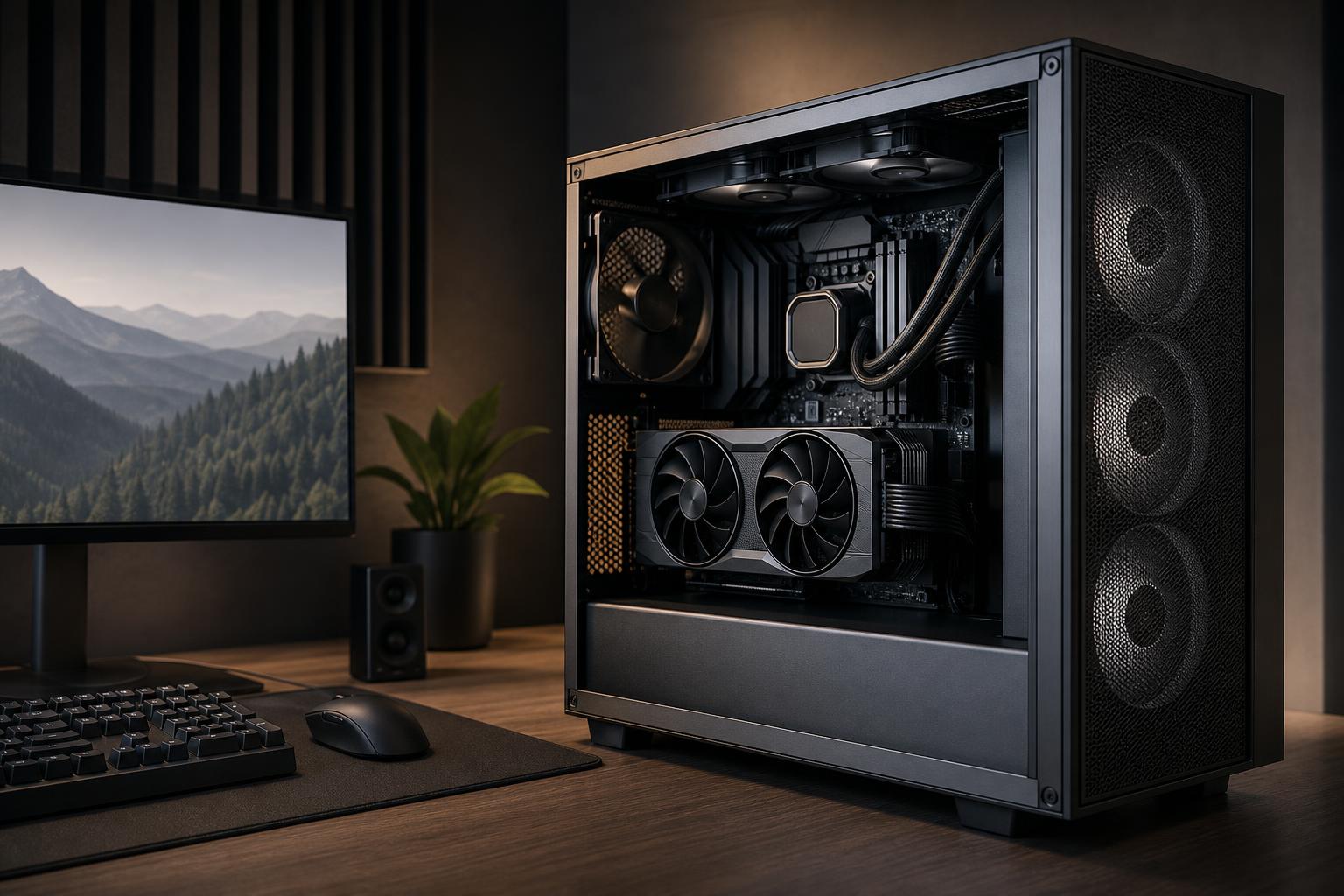
A better approach is a case with a clear, low-restriction path for air. In most systems, that means filtered front or bottom intake fans, plus rear and top exhaust. The exact layout depends on the case and installed hardware, but the objective stays the same: bring cool air to the graphics card and CPU cooler, then give warm air an easy way out.
Mesh-front cases are often the sensible choice for high-performance gaming PCs and workstations. They may let a little more sound escape at idle than a heavily padded closed-front case, but their fans can run much slower during gaming, rendering, or compilation. In practice, that usually produces the quieter computer when it is doing real work.
More fans can reduce noise if they allow each fan to run at lower speed. But adding fans without a plan can create turbulence, extra motor noise, and a more complicated system to tune.
For many mid-tower PCs, this is a strong starting point:
A system with a powerful graphics card benefits especially from strong front or bottom intake. The GPU is commonly the loudest component in a gaming PC, so supplying it with cooler air helps more than obsessing over a single rear exhaust fan.
Fan diameter matters because a larger fan can move the same amount of air at a lower rotational speed. In a compatible case, 140 mm fans are usually preferable to 120 mm fans for a quiet build. They are not automatically better in every position, but they often produce a lower, less irritating sound at equivalent airflow.
Quality matters as much as size. A good PWM fan has a smooth motor, stable bearings, useful low-speed behavior, and blades designed to work against the resistance of a radiator, dust filter, or case panel. Cheap fans may look similar on a specification sheet yet develop clicking, humming, or uneven tonal noise that is far more noticeable than simple airflow noise.
PWM control is worth having. It lets the motherboard adjust fan speed precisely based on temperatures. Avoid treating all case fans as simple on-or-off accessories; they are part of the cooling system and should respond gradually to the heat inside the case.
CPU cooling decisions should be based on the processor’s sustained power behavior, not just the name on the box. Some CPUs are efficient and easy to cool with a quality tower air cooler. Others can draw substantially more power during all-core rendering, simulation, code compilation, or video exports.
For a typical gaming-focused PC, a good dual-tower air cooler is often the quietest value choice. It has a large heat sink, uses one or two slow fans, has no pump, and can cool many high-end processors very effectively. Air coolers are also mechanically simple and tend to age gracefully; replacing a fan years later is easy.
A 240 mm or 280 mm all-in-one liquid cooler can make sense when case space is limited around the CPU socket, when a processor runs hot in sustained multicore workloads, or when you want to move heat directly to a large radiator exhaust. A 360 mm radiator offers more surface area and can be useful for high-power workstation CPUs, but it is not automatically quieter. It adds three fans and a pump, and poor fan tuning can make it louder than a properly selected air cooler.
For most buyers, spending extra on a larger cooler is sensible only when it reduces sustained temperatures or noise for the workload they actually run. It is not a prize for owning a processor with an impressive model number.
During games, GPU rendering, and many AI workloads, the graphics card usually determines how loud the PC becomes. Its fans have to remove a great deal of heat from a relatively compact device, often while sitting close to the bottom of the case.
When comparing graphics card models using the same GPU, pay attention to cooler design and physical size. A thicker card with a larger heat sink and three well-designed fans often runs quieter than a compact two-fan model. That does not mean bigger is always better, but cooler capacity matters. Check case clearance before committing; large cards can create fitment problems in smaller cases.
Coil whine is the exception that cannot be predicted perfectly. It is an electrical vibration that can sound like buzzing, chirping, or a high-pitched squeal, usually at very high frame rates. It varies from one individual card to another, even within the same model. Good component selection can reduce the odds of an unpleasant build, but no builder can honestly promise that a particular graphics card will have zero coil whine.
One of the simplest ways to reduce GPU noise is to stop rendering frames that the monitor cannot display. If a game is running at 400 frames per second on a 144 Hz display, the GPU may be working much harder than necessary. Setting an in-game cap, a driver-level cap, or using a sensible frame limit with variable refresh rate can lower power use, heat, and fan speed.
This is especially useful in menus, older esports titles, and games where the GPU has far more performance than the display needs. It also often makes coil whine less noticeable.
A fan curve determines how quickly fans respond to temperature. Factory settings are often conservative, which is another way of saying they may ramp fans abruptly at the first sign of warmth. That protects hardware, but it can make a PC sound nervous and busy.
A better curve raises fan speed smoothly. Case fans should usually follow a sensor that reflects overall system heat, such as CPU package temperature, motherboard temperature, or—ideally for gaming—a GPU-related temperature when the motherboard or control software supports it.
Do not set every fan to react aggressively to short CPU temperature spikes. Modern processors can jump in temperature for a few seconds during ordinary tasks, then drop again. If every fan races up and down in response, the system becomes more distracting without becoming meaningfully cooler.
Use gradual ramp times and a curve that keeps fans slow at idle, then increases steadily as sustained temperatures rise. Test the system with the applications you actually use: a game, a render, a long export, or a compile. The desktop is easy; the demanding workload is where tuning proves itself.
Lower power consumption means less heat to remove, and less heat usually means less noise. This does not always require giving up much performance.
For a workstation where every minute of render time has value, maximum sustained performance may be worth the additional sound. For a gaming PC used a few feet from the desk, a small performance trade can be an excellent deal. The right choice comes down to the workload and where the computer will sit.
Modern NVMe SSDs are silent, which is one reason they are preferable to mechanical hard drives in most premium PCs. Hard drives can still be useful for large, inexpensive archives, but their spinning and seeking noises are difficult to hide. If silence is a priority, keep bulk hard drives out of the main system or use external/network storage for infrequently accessed files.
Power supplies can also contribute fan noise. A high-quality, correctly sized unit often keeps its fan off or at very low speed during lighter loads. Buying vastly more wattage than the system needs is not necessary, but leaving sensible headroom helps the power supply operate comfortably and supports future upgrades.
Finally, make sure cables, loose screws, and case panels are secure. A single cable brushing a fan blade or a panel that resonates at one fan speed can ruin an otherwise excellent build. These are unglamorous details, but quiet systems are built on details.
For most high-performance buyers, the reliable formula is a spacious airflow-focused case, quality PWM fans, a substantial CPU cooler, a graphics card with a capable cooler, and carefully tuned fan curves. Add frame-rate limits where appropriate, and avoid pushing unnecessary power through the CPU or GPU.
That approach produces a computer that stays calm while browsing and working, then moves enough air to remain stable during demanding sessions. It is more useful than chasing a misleading “silent PC” label, especially when the system has serious performance to deliver.
If you are planning a quiet gaming PC or workstation, contact Overclock Computers with the software you use, the performance you need, and how close the system will sit to you. We can help configure cooling, case airflow, and component choices around the noise level you can realistically expect.