Best PC for Adobe Premiere Pro in 2026: Workstation Specs That Make Sense

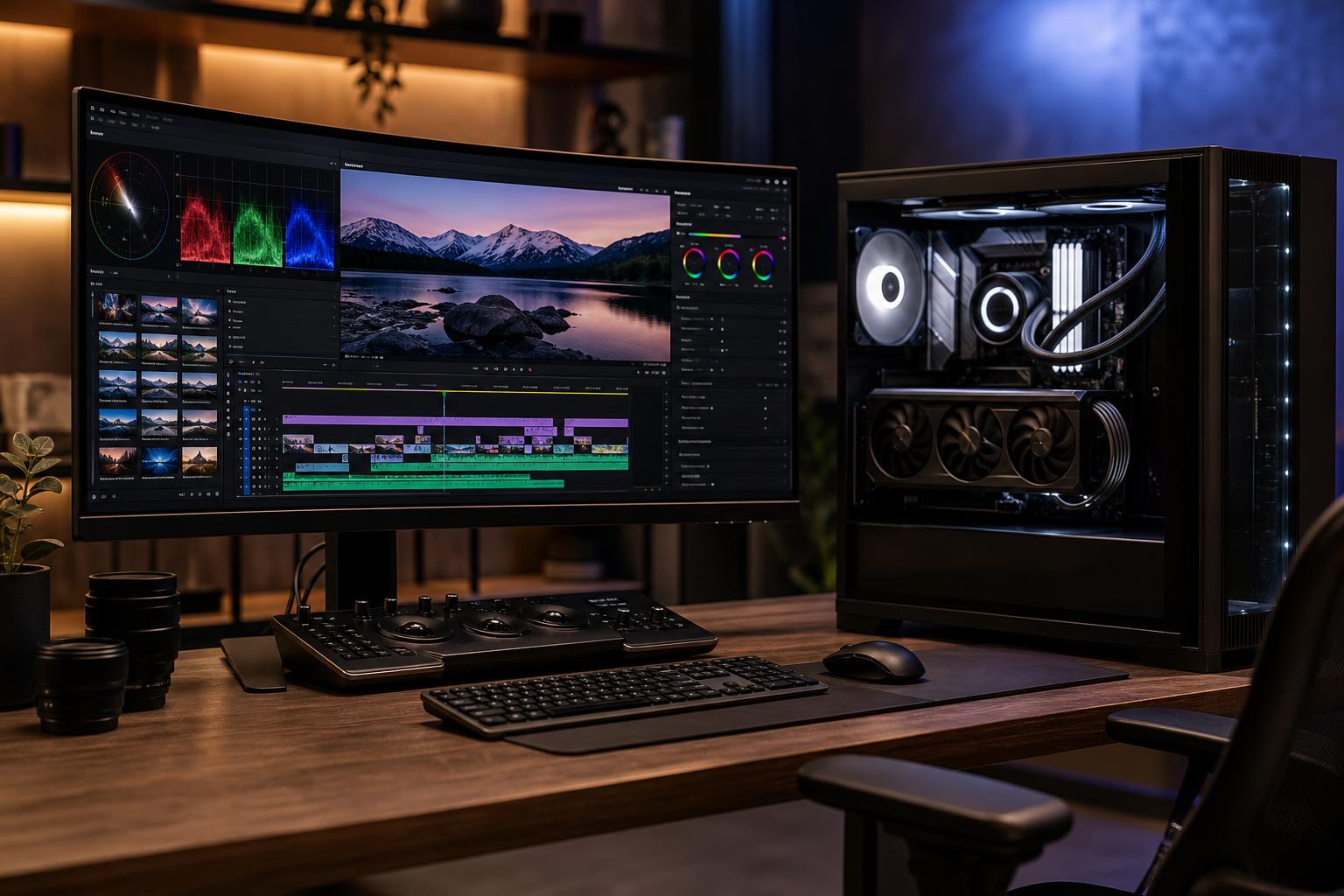
The best PC for Adobe Premiere Pro is not automatically the one with the most CPU cores or the most expensive graphics card. Premiere performance comes from a balanced system: a fast modern CPU, enough RAM for the size of your projects, a capable GPU with sufficient VRAM, and—often overlooked—storage arranged to keep media, cache files, and exports from fighting over one drive.
For most serious 4K editors, we recommend starting with a high-performance desktop CPU, 64GB of RAM, an NVIDIA GPU with at least 12GB of VRAM, a 1TB operating-system drive, and separate fast SSD storage for active projects and media. Editors working mainly in 1080p can spend less. Those editing multicamera 4K, high-bitrate RAW footage, complex motion graphics, or long-form projects should spend more on RAM, storage, and GPU memory before buying a luxury motherboard or an oversized power supply.
This tier suits editors working with 1080p footage, short-form social content, basic color work, and occasional 4K projects with sensible proxy use.
Thirty-two gigabytes is workable at this level, but it is the first part we would increase if you regularly leave Photoshop, After Effects, a web browser, and Premiere open at the same time. A full timeline and a browser with 40 tabs can be surprisingly effective RAM benchmarks.
This is the sensible target for a professional editor, production team, or creator who spends real working hours in Premiere Pro. It provides strong responsiveness while editing and more breathing room for demanding projects.
For many editors, this is where the best value lives. It handles 4K editing well, supports a more comfortable multicamera workflow, and leaves room for heavier effects, graphics, and background applications without turning every export into a tea break.
Move to this tier when your projects are genuinely limited by hardware: multicamera timelines, high-resolution source material, large RAW files, intensive color work, substantial After Effects work, or frequent client-facing exports. It also makes sense for an editor who earns money from saved time.
Do not jump to a workstation-class CPU merely because it has a large core count. Premiere benefits from cores, but timeline responsiveness also relies heavily on fast individual CPU cores, the codec in use, GPU acceleration, and storage. More cores are useful when export, rendering, encoding, and other CPU-heavy tasks are the actual bottleneck—not as a trophy on a specification sheet.
Premiere uses the CPU for many parts of editing, decoding, effects processing, exports, and general timeline work. A modern CPU with strong single-core performance keeps the interface responsive and helps with effects that do not lean heavily on the GPU. Additional cores improve performance in well-threaded tasks, particularly exports and rendering.
For a dedicated Premiere system, avoid entry-level processors with limited cores. At the other extreme, do not assume a very high-core-count workstation chip will feel faster in every edit. The right CPU is one that combines fast cores with enough total cores for the work you do.
Premiere Pro can use GPU acceleration for many effects, color tasks, scaling, playback, and export functions. A stronger GPU can make a noticeable difference, especially with GPU-accelerated effects, high-resolution footage, and demanding timelines.
For a new Premiere-focused PC, NVIDIA is often the straightforward recommendation because its CUDA acceleration and hardware video encoding support are widely useful across Adobe-centered workflows. That is not a claim that every Premiere task requires NVIDIA hardware; the best choice still depends on your codecs, effects, related applications, and budget. But it is a practical default for many editors.
Do not buy a powerful GPU with too little VRAM just to get a more impressive model name. VRAM is the graphics card’s working memory. When projects, effects, high-resolution frames, and displays demand more than is available, performance can become inconsistent. For serious 4K work, 12GB is a sensible floor. Heavier workflows benefit from 16GB or more.
Premiere, After Effects, Photoshop, Media Encoder, audio tools, plugins, and browser-based review platforms all compete for system memory. Once RAM runs short, Windows moves data to storage. Even a quick SSD is much slower than RAM, and the result is usually stuttering, slow switching, and a system that feels far less expensive than it was.
Buy matched memory as a kit and use the motherboard’s recommended slots for dual-channel operation. Capacity comes first; chasing tiny memory-speed gains while settling for insufficient capacity is backwards.
A single large SSD will work, but it is not ideal for a workstation that is constantly reading source media, writing cache files, opening applications, and exporting finished video. Separate drives reduce that traffic jam.
Capacity matters more than synthetic benchmark bragging rights for many editors. A fast PCIe Gen 4 NVMe SSD is an excellent practical choice for active projects. Faster-generation drives can make sense in a carefully configured high-end workstation, but they are not a substitute for enough storage space or a sensible drive layout.
Also, storage is not backup. Keep at least one additional copy of important footage and project files on separate storage. If the only copy of a client project is inside the editing PC, it is not a backup—it is a future bad afternoon.
A quality motherboard, power supply, cooling system, and case matter because reliability, noise, connectivity, and sustained performance matter. They do not need to be extravagant.
The most useful information you can provide a PC builder is not “I edit video.” It is the footage you edit and what happens around it. Note your usual resolution and frame rate, codecs, camera formats, multicamera needs, color-grading tools, effects, use of proxies, project duration, and whether After Effects, Blender, or AI tools are part of the job.
An editor cutting compressed 4K camera footage needs a different balance than someone working with RAW footage, long multicamera interviews, or motion-graphics-heavy commercial work. A good system is selected around that reality, not a generic “video editing PC” label.
Mass-market systems can be good buys, but their specifications are often assembled for a price point rather than an editing workflow. That can mean a strong CPU paired with too little RAM, a capable GPU with inadequate VRAM, limited storage expansion, or cooling that becomes noisy during sustained renders.
Overclock Computers can configure a Premiere Pro workstation around your budget, footage, preferred applications, storage requirements, noise expectations, and future upgrade plans. Bring us the details of your workflow, and we can help you spend where it improves your editing day—and skip the upgrades that only improve the parts list.