How to Choose a UPS for a Gaming PC or Workstation

A quality power supply inside your PC is essential, but it can only work with the electricity coming from the wall. A power outage, brief brownout, or voltage spike can still interrupt a game, corrupt an open project, or shut down a workstation halfway through a long render.
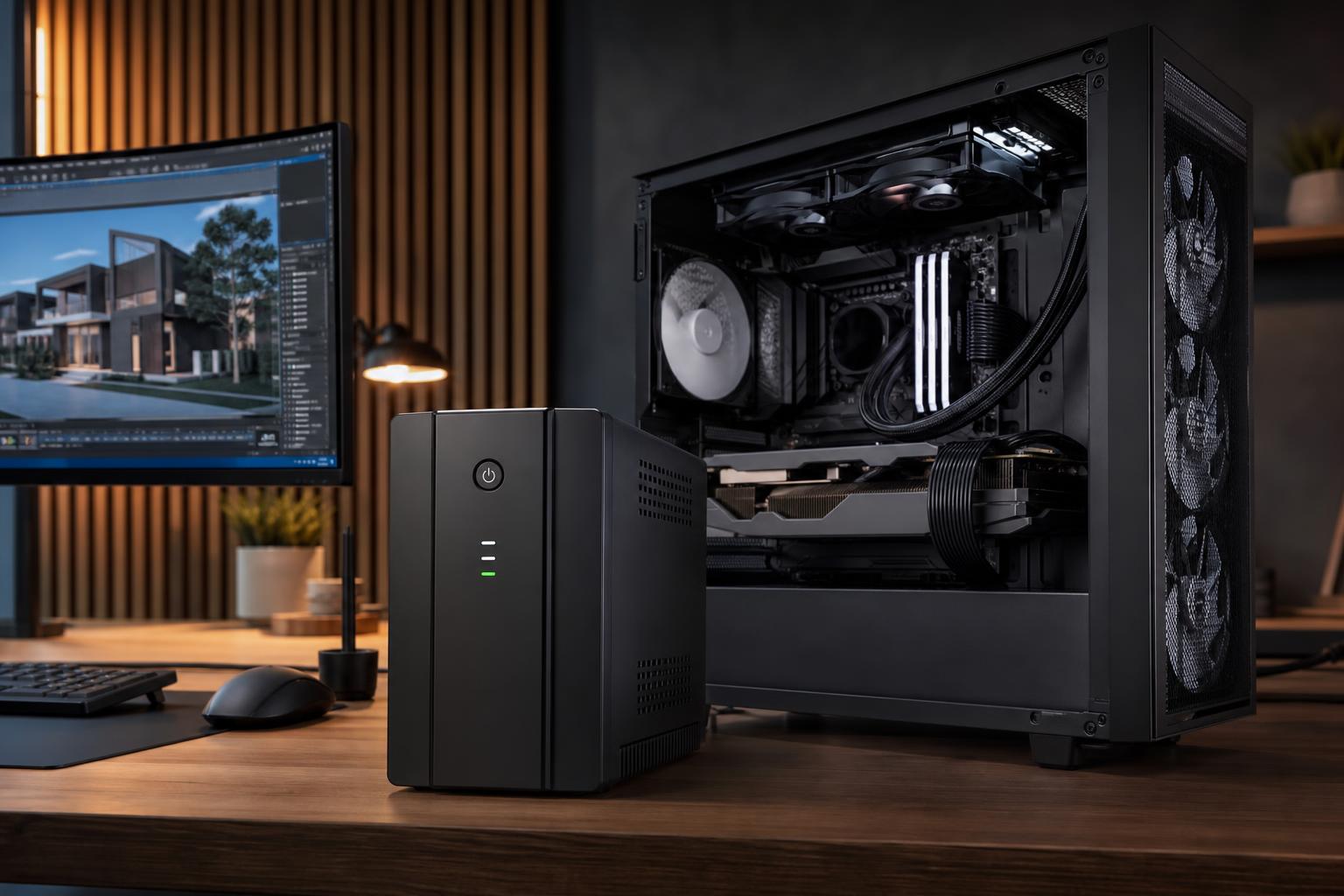
An uninterruptible power supply, usually called a UPS, adds a battery between your equipment and the outlet. When utility power fails, it switches to battery power quickly enough that your computer stays on. That gives you time to save your work and shut down properly. Some models also help manage low or unstable incoming voltage.
A UPS is not mandatory for every desktop. It is a very sensible purchase for a professional workstation, a PC used in an area with unreliable power, or any system where losing unsaved work would be expensive or deeply annoying. It can also protect the less glamorous but equally important parts of a setup: monitors, networking gear, and external drives.
The main job of a UPS is to provide short-term backup power. It is not a whole-home generator, and it usually will not keep a powerful gaming PC running for hours. Think of it as a controlled landing rather than extended flight.
With an appropriately sized UPS, a power interruption should give you several minutes to save files, stop a simulation, close applications, and shut the PC down normally. A UPS connected by USB can often signal the operating system to shut down automatically if you are away.
Many UPS units also include surge protection and automatic voltage regulation (AVR). AVR can boost low incoming voltage or reduce high voltage without using the battery. This is useful where lights occasionally dim or power quality is inconsistent.
Do not assume a UPS will solve every electrical problem. It cannot repair faulty household wiring, replace proper surge protection for a direct lightning strike, or make a badly sized PC power supply safe. It is one layer in a sensible protection plan.
The two ratings printed on a UPS are usually volt-amperes (VA) and watts. VA describes apparent power; watts describe the real power the UPS can deliver to connected devices. For modern PCs, the watt rating is the number that deserves your closest attention.
A unit might be labeled 1500VA / 900W. That means it can support up to 900 watts of actual load, even though its VA rating is 1500. If your PC and monitor together draw 950 watts during a heavy workload, that UPS is undersized regardless of the larger VA number on the box.
Do not size a UPS from the wattage printed on your PC’s power supply. A 1000W power supply does not mean the computer constantly consumes 1000 watts. It only means the supply is designed to deliver up to that amount. Instead, estimate or measure what the complete setup actually draws during its heaviest realistic use.
That margin improves runtime, avoids constant overload warnings, and leaves room for normal variations in power draw. It also accounts for the fact that GPUs can produce very brief power spikes above their typical average consumption.
For example, a 500W-to-650W gaming PC with a 50W monitor and basic networking gear may be well served by a 1000W-class UPS. A workstation that can sustain 900W or more under CPU and GPU rendering loads may need a larger unit, a higher-capacity model, or a plan to shut down immediately when power is lost.
Standby units run equipment directly from wall power until an outage occurs, then switch to battery power. They are generally affordable and fine for low-power devices or a modest home office setup. For an expensive desktop with an active power factor correction (active PFC) power supply, this is not our first choice.
For most gaming PCs and workstations, a line-interactive UPS is the sensible middle ground. It usually includes AVR, has a reasonably fast transfer time, and costs far less than an online model. Look for one with a pure sine wave output, especially for a modern high-wattage PC.
An online UPS continuously converts incoming AC power to DC and then creates fresh AC power for the connected equipment. There is no transfer time when utility power fails because the inverter is already supplying the load. These models provide excellent power conditioning, but they cost more, can use more energy, and often have fan noise that is not welcome beside a desk.
Online units make sense for mission-critical workstations, servers, networking closets, labs, and locations with consistently poor power. For a typical home gaming PC, a good line-interactive pure sine wave UPS is usually the better value.
Wall power has a smooth electrical waveform called a sine wave. Less expensive UPS units may create an approximation of that wave when operating on battery. It may be called simulated sine wave, stepped sine wave, or similar language.
Many computers will run on simulated sine wave power. The trouble is that modern, high-quality PC power supplies commonly use active PFC, and some combinations of active PFC supplies and simulated-wave UPS units do not behave gracefully during a switch to battery. The result can be buzzing, an overload warning, or an unexpected shutdown at exactly the moment the UPS was meant to help.
A pure sine wave UPS costs more, but it produces cleaner battery power that is more compatible with modern desktop power supplies. For a premium gaming PC or professional workstation, we recommend treating pure sine wave output as a requirement, not a luxury feature.
Battery runtime falls as power draw rises. A UPS that can run a 100W office PC for 30 minutes may provide only three to five minutes for a workstation drawing 800W. Manufacturer runtime charts are useful, but read the chart at your expected watt load rather than the most flattering number on the product page.
For most desktop users, five to ten minutes at a realistic load is enough. Your aim is to save work and shut down safely, not to finish a raid, a render, or a client call after the neighborhood loses power.
If you need longer runtime, prioritize a model that supports external battery packs or consider a generator-based plan. Simply buying an undersized UPS and hoping the battery lasts is a poor strategy.
Connect only equipment that needs to stay on long enough for an orderly shutdown:
Do not connect laser printers, space heaters, coffee makers, or other high-draw appliances to a UPS. Laser printers in particular can pull large bursts of power while fusing toner, which can overload a unit immediately. Most UPS models have separate surge-only outlets for nonessential peripherals.
USB monitoring is genuinely useful. It lets the UPS report battery status to your computer and can trigger automatic shutdown during a longer outage. For a workstation that runs unattended jobs, this feature is far more valuable than a decorative front-panel display.
Also look for user-replaceable batteries, clear load and battery indicators, and adequate outlet spacing for large power adapters. If the UPS will sit in a living space, check reviews and specifications for fan behavior. Some higher-capacity models run a fan frequently, while others are quiet until battery mode or heavy charging.
Finally, remember that UPS batteries are consumable parts. Sealed lead-acid batteries commonly need replacement after several years, often sooner in hot environments. A UPS that still turns on is not necessarily a UPS with healthy runtime. Test it periodically and replace the battery or unit when it no longer performs as expected.
For most high-performance desktops, choose a line-interactive, pure sine wave UPS with a watt rating comfortably above the measured or estimated load of your PC, primary monitor, and essential network equipment. Plan for at least several minutes of battery runtime, use USB shutdown software, and keep high-draw appliances off the battery outlets.
If your work involves long renders, engineering projects, client deliverables, or files that are difficult to recreate, a UPS is cheap insurance compared with one corrupted project or abruptly interrupted workday. And if you are configuring a new gaming PC or workstation and want the system, cooling, power supply, and backup power to make sense together, contact Overclock Computers. We can help design a balanced machine around the work you actually do.