What Is a PC Bottleneck? How to Find the Part Limiting Performance

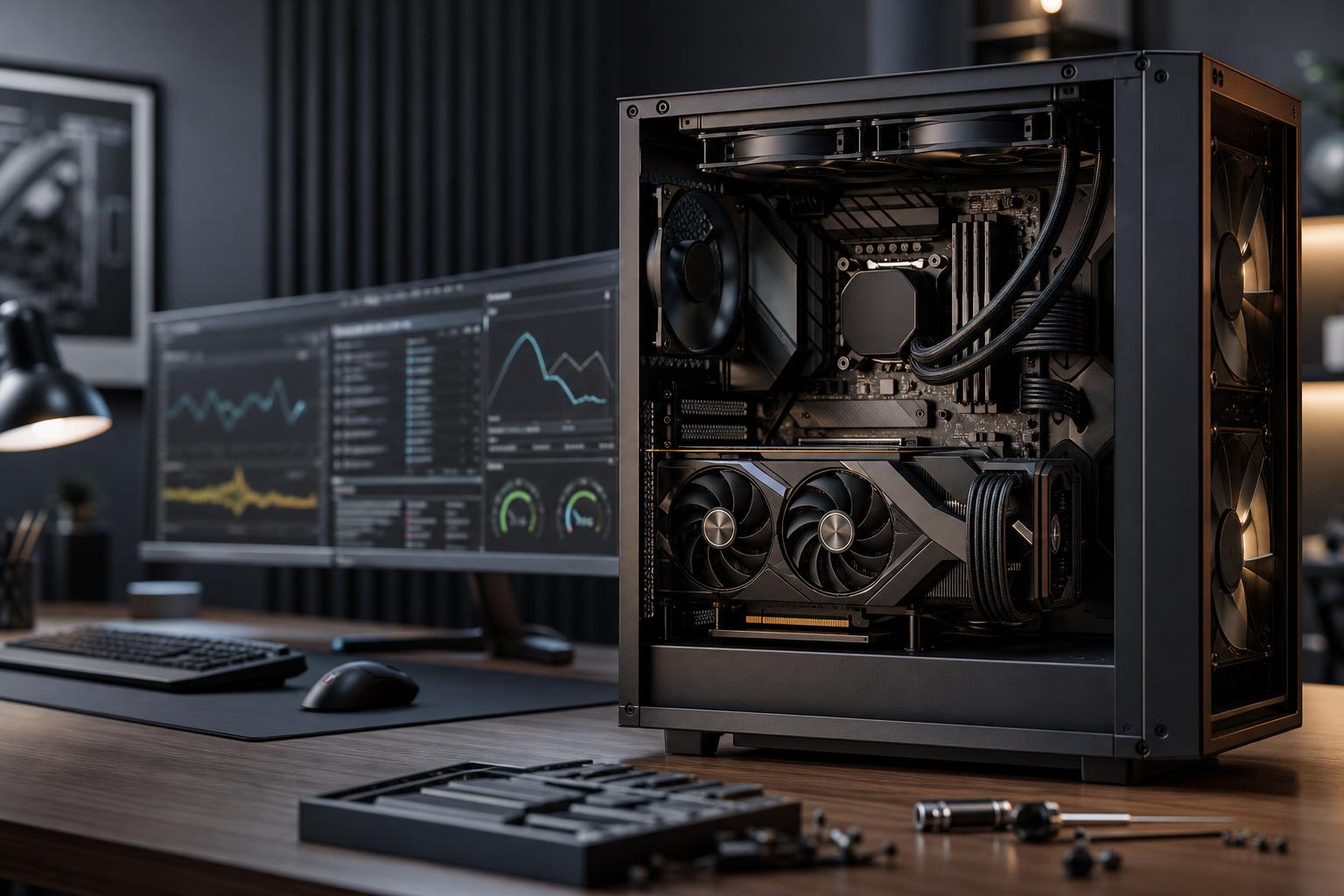
“Bottleneck” is one of the most overused words in PC discussions. It often gets treated as a permanent flaw in a parts list: pair one CPU with a certain graphics card and, supposedly, the whole computer is doomed.
Real computers are not that simple. A PC bottleneck is just the component, setting, or condition that currently limits performance in a particular workload. Every computer has one. The limiting factor can change from one game to another, from 1080p to 4K, or even from one scene to the next.
The useful question is not, “Does this PC have a bottleneck?” It is, “What is limiting the performance I want, and is upgrading it worth the money?”
Think of a gaming PC or workstation as an assembly line. The CPU prepares instructions, the GPU renders graphics or accelerates supported compute tasks, RAM holds active data, storage loads files, and cooling keeps the hardware running at its intended speed. The slowest stage for the job at hand sets the pace.
For example, a graphics card may be the limit while playing a visually demanding game at 4K with ray tracing. That same system can become CPU-limited when playing an esports title at 1080p while trying to hold 300 frames per second. Neither result means the PC is poorly built. It means the workload changed.
Some bottlenecks are expected and desirable. In a gaming-focused system, it is usually sensible for the GPU to be the limiting part at your target resolution and quality settings. Putting excessive money into a CPU while buying a modest GPU often produces the opposite result: lots of processor headroom, but not enough graphics performance to use it.
Online calculators typically compare a few basic specifications and return a percentage. That sounds precise, but it leaves out the things that actually determine performance: the game or application, resolution, graphics settings, ray tracing, upscaling, CPU architecture, memory configuration, driver version, background tasks, and cooling.
A calculator cannot know whether you play a CPU-heavy simulation, edit high-bitrate video, compile large software projects, or use GPU rendering. It also cannot tell you if your current problem is a dusty cooler, a single RAM stick, or a game installed on a nearly full older drive.
Use real application benchmarks for the software you run, then confirm the result with monitoring on your own PC. A percentage from a generic calculator is not a diagnosis.
Start with a repeatable situation. Use the same game area, benchmark run, render project, or workload each time. Close unnecessary programs, let Windows finish updates, and make sure the system is connected to wall power rather than a power-saving mode.
For games, monitoring tools can show GPU utilization, CPU utilization by core, clock speeds, temperatures, RAM use, VRAM use, frame rate, and frame-time behavior. Do not focus only on the average frame rate. Uneven frame times are what cause the stutters and hitches you can feel.
In a game, a GPU bottleneck usually means the graphics card is running close to full utilization for sustained periods while the frame rate is below your target. This is common at 1440p and 4K, especially with high image-quality settings, ray tracing, or demanding modern games.
The straightforward test is to lower GPU-heavy settings. Reduce render resolution, ray tracing, shadows, or other demanding visual effects. If frame rate rises substantially, the GPU was the main limitation. Upscaling technologies can also help when GPU performance is the issue, though they do not fix a CPU limit.
If you want better performance at the same resolution and visual settings, a faster graphics card is usually the meaningful upgrade. More system RAM or a premium motherboard will not turn a GPU-bound game into a high-frame-rate experience.
A CPU limitation often appears in games with many simulation tasks: large multiplayer matches, city builders, strategy games, flight simulators, open-world games, and titles with heavy physics or AI. Your GPU utilization may drop below full load because it is waiting for the CPU to prepare the next frame.
Do not judge this by total CPU usage alone. A modern CPU may show 35% overall use while one or two critical cores are fully loaded. That can still limit frame rate.
Lowering resolution is another useful test. If you reduce resolution from 1440p to 1080p and frame rate barely changes, the GPU had spare capacity already. The CPU, memory subsystem, game engine, or an imposed frame-rate limit is more likely holding things back.
For a CPU-limited gaming PC, a processor upgrade can help, but only if the game and target frame rate justify it. A buyer aiming for 60 to 100 FPS at 4K should generally prioritize the GPU. Someone with a 240Hz monitor who plays competitive games may get real value from a faster gaming CPU and properly configured DDR5 memory.
Not every performance problem is a CPU-versus-GPU debate. Insufficient RAM can cause hitching, long pauses, browser tabs reloading, or applications closing in the background. When physical memory is nearly full, Windows relies more heavily on the page file on storage, which is much slower than RAM.
For a new gaming PC, 32GB is the sensible baseline. It gives modern games, Windows, voice chat, browser tabs, and launchers enough breathing room. More memory is worthwhile for large creative projects, virtual machines, heavy multitasking, large CAD models, or data work—not simply because a larger number looks better on a spec sheet.
Memory also needs to be configured correctly. Two matched memory modules normally provide more bandwidth than one module of the same total capacity. On supported platforms, the memory profile in the BIOS must also be enabled for the RAM to run at its intended speed.
Storage rarely limits the average frame rate once a game level is loaded, but it absolutely affects boot times, application launches, project loading, file transfers, and some games that stream large amounts of data while you play.
A nearly full SSD can slow down and become harder to manage. As a practical rule, leave meaningful free space rather than filling it to the last few gigabytes. If a system still uses a mechanical hard drive for active games, applications, or project files, moving those files to a quality NVMe SSD is often one of the most noticeable everyday upgrades.
For professional work, storage layout matters as much as raw drive speed. Video editors, for example, benefit from separating the operating system and applications from active media, cache, and project files when workloads are large enough to justify it.
A PC that performs well for five minutes and then slows down has a different problem from a PC that was never fast enough. Excessive temperatures can reduce clock speeds to protect the CPU or GPU. This is called thermal throttling.
Check temperatures and clock speeds during a sustained workload, not only at the desktop. A blocked front intake, poor fan setup, dried thermal paste, an undersized cooler, or an aggressive quiet fan curve can all reduce sustained performance. Laptops and compact desktops are especially sensitive to this.
Power settings, outdated drivers, unstable overclocks, and a poorly seated cooler can create similar symptoms. Before replacing expensive parts, make sure the existing hardware is operating correctly.
Average FPS can hide a frustrating experience. A game averaging 100 FPS may still feel rough if it repeatedly pauses while loading assets or compiling shaders. Frame-time graphs expose those spikes more clearly.
Consistent performance usually matters more than chasing a higher benchmark average. That is why balanced cooling, enough RAM, a healthy SSD, and sensible background software matter alongside the headline CPU and GPU.
Once you know what is limiting your workload, spend where it changes the result you care about.
Also consider the platform as a whole. A major GPU upgrade may require a power supply with the right capacity and connectors, adequate case airflow, and enough physical clearance. A CPU upgrade may mean a motherboard, RAM, and cooler change as well. The cheapest individual component is not always the cheapest complete path.
A balanced PC is not a system where every part costs the same or reaches 100% usage at the same moment. It is a system where each component supports the intended workload without an obvious, avoidable weak point.
For a 4K gaming machine, that generally means allocating a larger share of the budget to the graphics card. For a 3D workstation, it may mean buying more CPU cores, more RAM, and enough VRAM for the scene sizes you use. For a developer running several virtual machines, memory capacity and CPU cores may matter far more than an expensive gaming GPU.
Start with the software, monitor, target performance, and files you work with. Then build around those facts. That approach is less exciting than a bottleneck calculator, but it produces a computer that makes better use of your money.
If your PC is underperforming or you are planning a new system, Overclock Computers can help translate your games, applications, display resolution, and budget into a practical component list. Contact our team with your current specifications and the performance you want to achieve, and we can help identify the upgrade that will make a real difference.