CPU Thermal Throttling: What It Is, How to Spot It, and How to Fix It

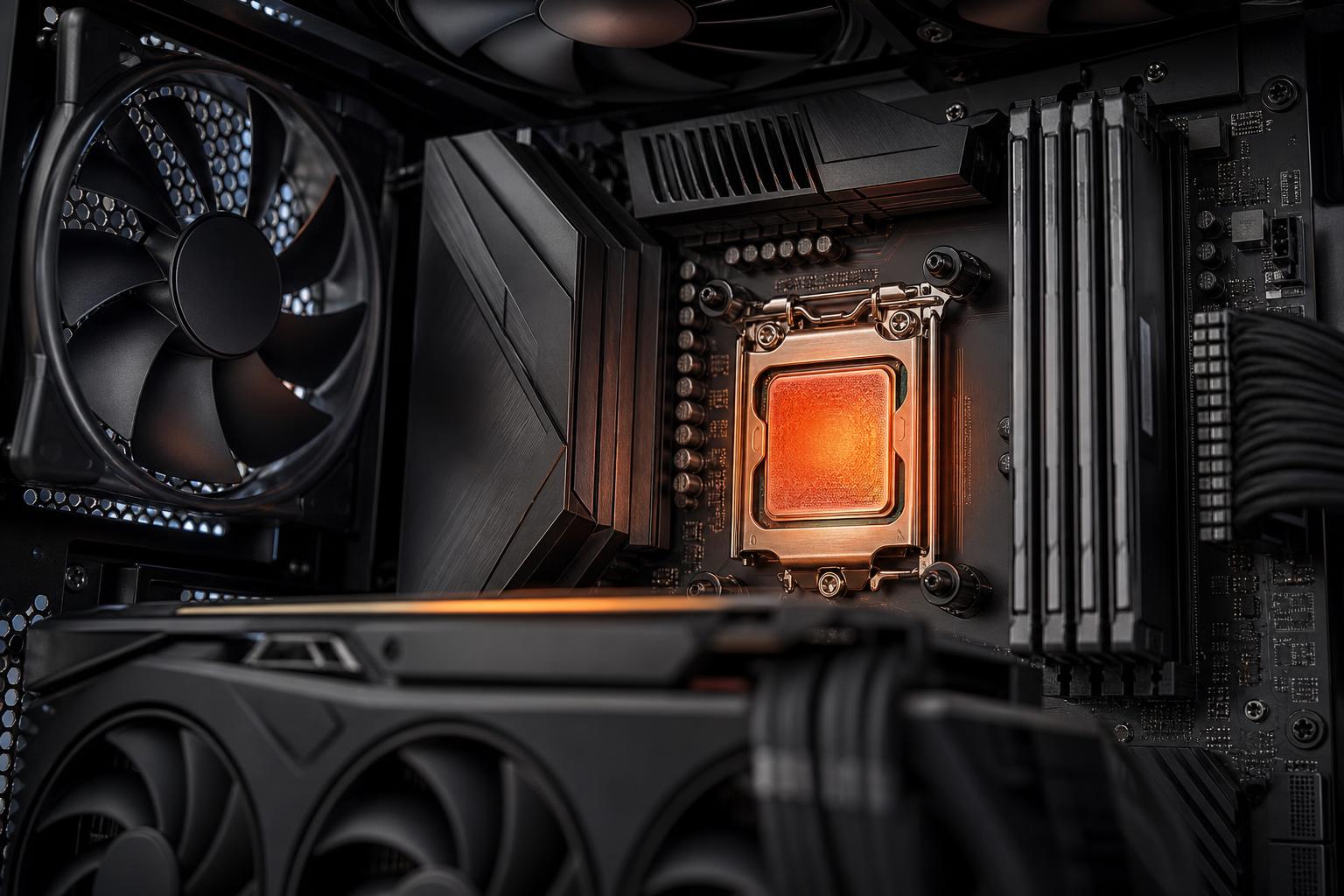
A powerful PC is supposed to speed up when a game, render, compile, or simulation gets demanding. But when the processor gets hotter than its cooling system can handle, it may do the opposite: reduce its own clock speed to protect itself. That behavior is called CPU thermal throttling.
Thermal throttling is not a sign that the CPU is about to catch fire. Modern processors are designed to monitor their temperature constantly and protect themselves automatically. Still, frequent throttling can mean lower frame rates, longer exports, inconsistent performance, and fans that sound like they are preparing for takeoff.
The fix is not always “buy the biggest liquid cooler.” Sometimes it is. More often, the answer is a sensible combination of proper cooler installation, case airflow, realistic power settings, and choosing hardware that suits the workload.
A CPU turns electrical power into computing work, and a large portion of that power becomes heat. When temperatures approach the processor’s designed thermal limit, the CPU reduces clock speed, voltage, power draw, or all three. This lowers heat output quickly enough to keep the chip within safe operating limits.
Modern CPUs are built to boost aggressively when there is thermal and electrical headroom. That means a CPU can run well above its base clock under load, then pull back as temperatures rise. Some brief adjustment is normal, particularly during a heavy all-core workload. Persistent throttling is different: the processor is leaving measurable performance on the table because it cannot shed heat fast enough.
CPU makers use different names in monitoring software, but you may see warnings such as thermal throttling, thermal limit, or a temperature flag. The exact temperature limit varies by processor generation and model. Many current desktop CPUs are designed to operate near the high 80s or 90s Celsius under maximum load, so temperature alone does not tell the whole story. The useful question is whether the CPU is hitting its thermal limit and reducing performance during the work you actually do.
Thermal throttling does not always cause a dramatic crash or an obvious error message. It often appears as performance that is weaker or less consistent than expected.
One useful clue is a benchmark or render that starts strong but loses speed as it continues. That pattern can point to a heat or power limit, though it is worth checking monitoring data before blaming the cooler.
Do not diagnose a cooling issue from a single temperature screenshot. Use a reputable hardware monitoring utility while running a repeatable workload: a game you know is demanding, a long video export, a rendering test, or a CPU stress test.
Watch four things at the same time:
Keep the workload relevant. A short synthetic stress test can expose a cooler installation problem, but it may draw more power than gaming. Conversely, a CPU that stays cool in a game may still throttle during a 45-minute render. Test the type of load that matters to you.
A compact air cooler can be perfectly good hardware and still be the wrong match for a high-power CPU running unrestricted boost settings. This is especially common when a system uses a top-tier processor with a cooler selected more for appearance or cost than heat capacity.
For a midrange gaming CPU, a quality tower air cooler is often enough. For CPUs that can sustain very high power during rendering, compiling, or simulation, a large dual-tower air cooler or appropriately sized liquid cooler is usually the better starting point. The processor’s name alone is not enough; its real power behavior under the motherboard’s settings matters.
A surprisingly large temperature problem can come from a simple installation issue: uneven mounting pressure, a forgotten protective film on a cooler cold plate, too little paste, or a pump that is not connected or configured correctly. Thermal paste does not need to be exotic, but it does need to be applied properly and renewed if it has dried out after years of use.
If temperatures are abnormally high immediately after a new build or cooler upgrade, check installation before shopping for replacement hardware.
The CPU cooler can only work with the air inside the case. If that air is already hot because the graphics card is dumping heat into a poorly ventilated enclosure, CPU temperatures climb.
A practical airflow layout usually uses front or bottom intake fans to bring in cool air and rear or top exhaust fans to remove warm air. The exact number of fans matters less than having a clear path through the case, sensible fan placement, and front-panel ventilation that is not mostly decorative glass.
Dust is also an airflow problem. A layer on intake filters, radiator fins, or cooler fins acts like an unwanted blanket. Cleaning filters and using compressed air carefully a few times per year is cheap maintenance with real benefits.
Some motherboards apply generous power limits by default, allowing a CPU to use more power for slightly higher multi-core benchmark scores. The extra performance can be worthwhile for professional workloads, but the heat increase is often much larger than the performance gain.
For example, removing power limits may improve a long render, but it can also add substantial heat and noise. In a gaming-focused system, that trade is often poor because many games do not benefit much from the additional all-core CPU power. A well-configured build sets power behavior intentionally rather than treating “unlimited” as automatically better.
No cooler can cool below the temperature of the room air it uses. If your office is hot, every component will run hotter. A PC that is stable in a 70°F room may be noticeably warmer during a summer afternoon in an 82°F room. This is normal physics, not a fault in the CPU.
Start with the inexpensive checks before replacing parts.
Undervolting can also help on many CPUs. Done carefully, it reduces voltage and heat while retaining most or all of the original performance. However, it should be stability-tested properly. An unstable undervolt can cause crashes, calculation errors, or corrupted work, which is a lousy exchange for a few degrees Celsius.
No. A CPU briefly touching its thermal target during an extreme stress test is not necessarily a problem, particularly if it performs consistently in your normal applications. Chasing the lowest possible temperature can lead to overspending on cooling that makes no meaningful difference to your experience.
You should investigate when throttling is frequent during your real workload, performance falls over time, the PC is excessively loud, or temperatures have risen noticeably compared with the system’s usual behavior. For a workstation that renders or processes data for hours, sustained cooling capacity is a performance component, not a luxury. For a gaming PC, balanced airflow and sensible settings are often more valuable than an oversized cooler running a needlessly high-power CPU profile.
CPU thermal throttling is a safety feature, but it should not be the normal operating plan for a carefully selected desktop. The best systems pair the processor with cooling, airflow, power delivery, and settings that allow stable performance without constant fan noise or unnecessary heat.
If you are planning a gaming PC or a workstation for sustained creative or technical work, Overclock Computers can help configure a balanced system around the applications you use and the performance you actually need. Contact us to discuss a build that runs fast, cool, and sensibly.