Best PC for Blender in 2026: Workstation Specs for Modeling, Animation, and Rendering

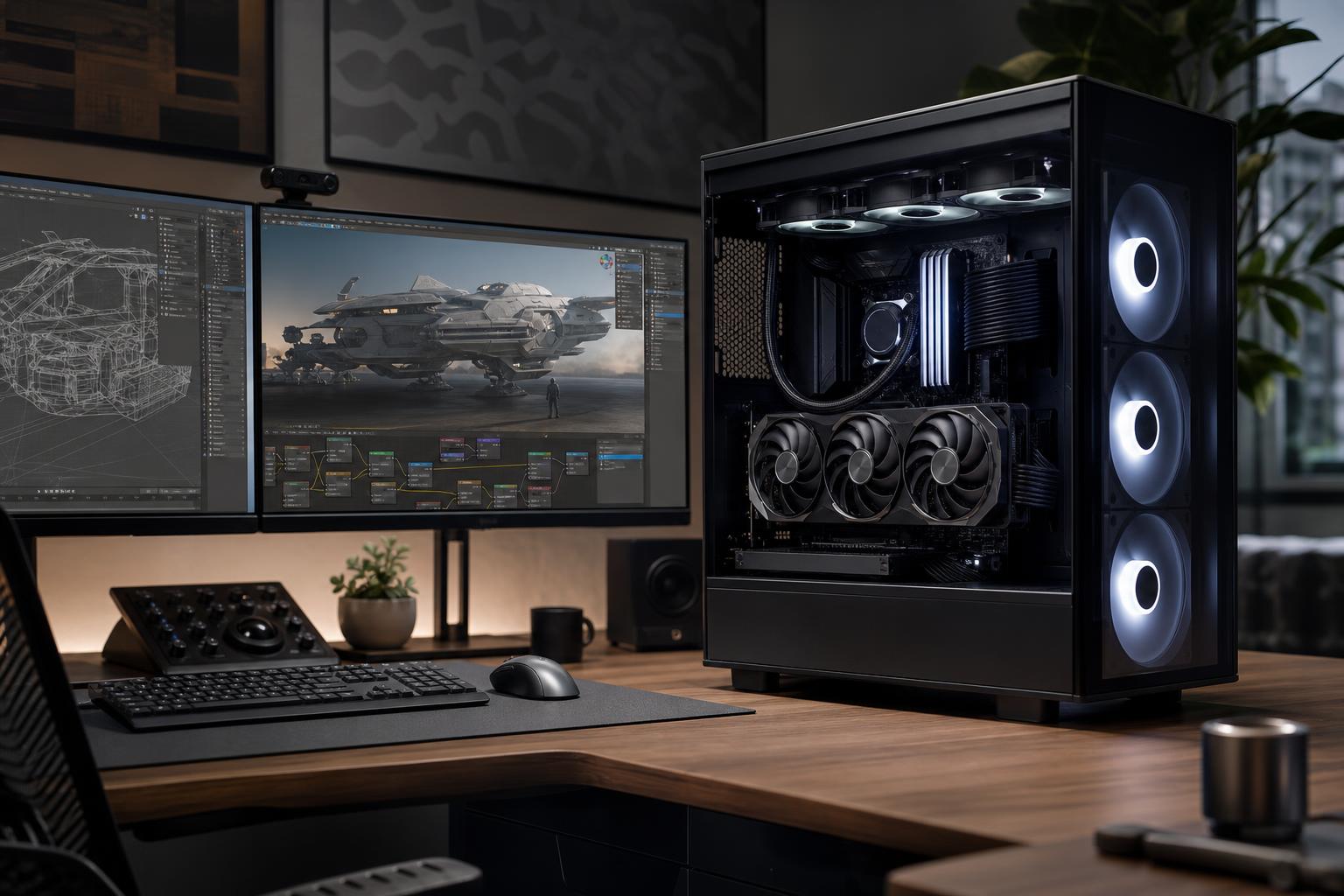
The best PC for Blender is usually a balanced workstation with a fast modern CPU, an NVIDIA RTX graphics card with enough VRAM for your scenes, 32GB to 64GB of RAM, and fast NVMe storage. For most serious Blender users, the graphics card deserves the largest share of the budget because it affects GPU rendering, viewport work, and many accelerated workflows.
There is no single “Blender PC” that fits every artist. A product designer creating still renders has different needs from an animator working with simulations, and both differ from a studio rendering large scenes on the CPU. The right purchase starts with identifying the part of Blender that currently wastes the most of your time.
For a strong all-around Blender workstation, we recommend a current high-performance desktop CPU, an NVIDIA RTX GPU with at least 12GB of VRAM where budget allows, 64GB of RAM, and a 2TB NVMe SSD. This is the sensible performance target for artists who model, texture, animate, and render regularly in Cycles.
If your projects are simple, 32GB of memory and a capable midrange GPU can still be perfectly workable. If you work with large environments, high-resolution textures, particle systems, fluid simulations, or GPU rendering all day, prioritize more GPU VRAM and 64GB to 128GB of system memory before spending heavily on cosmetic extras or an exotic motherboard.
This tier is appropriate for students, hobbyists, and users primarily focused on modeling, basic animation, Eevee work, and modest Cycles scenes. It is also a reasonable starting point for paid work with controlled project sizes. The limitation will usually be render speed or VRAM capacity, not the ability to run Blender at all.
This is the sweet spot for freelancers, content creators, architectural visualization artists, and small production teams. It provides enough memory headroom for multitasking and larger scenes, while the GPU has a more realistic chance of holding detailed geometry and texture sets during Cycles GPU rendering.
Spend at this level when Blender is a major source of income, render time directly affects delivery schedules, or your scenes routinely exceed the practical limits of a mainstream system. More hardware is not automatically faster in every part of Blender, so this tier should be configured around actual project files and render settings rather than a generic “maximum specs” checklist.
For many Blender users, the GPU is the component most worth upgrading. Cycles can use GPU rendering, and a capable graphics card also improves the experience in a complex viewport. For Cycles specifically, NVIDIA RTX cards are often the straightforward recommendation because Blender supports CUDA and OptiX acceleration. OptiX can be particularly useful for artists building a GPU-rendering workflow around NVIDIA hardware.
AMD GPUs can be viable, especially for viewport-focused work or users with a strong preference for that platform. Before committing, however, test your intended Blender version, render engine, add-ons, and related applications against the hardware you plan to buy. A workstation is a poor place for assumptions.
VRAM is just as important as raw GPU speed. VRAM stores assets needed by the GPU, including textures and scene data. If a scene does not fit comfortably in available VRAM, a fast graphics card can still become the obstacle. High-resolution textures, dense geometry, vegetation, displacement, and large architectural scenes consume it quickly.
Our practical recommendation is simple: choose the fastest GPU that also has enough VRAM for the work you expect to do over the next few years. Do not buy a lower-VRAM card solely because its gaming benchmarks look impressive. Blender scenes are less forgiving than a game with carefully managed asset streaming.
Blender uses the CPU for a wide range of work, including general system responsiveness, some modifiers, geometry processing, physics and simulations, encoding, and CPU rendering. Modeling and interactive work often benefit from strong single-core or lightly threaded performance. Simulations and CPU rendering can benefit from additional cores.
For most artists using GPU rendering, a high-performance mainstream CPU is the best value. It keeps the viewport and general workflow responsive without taking too much budget away from the graphics card. A workstation-class, high-core-count CPU makes more sense when you regularly run CPU renders, large simulations, heavy procedural geometry, or several demanding applications at once.
Do not pair an entry-level CPU with a premium GPU and call it balanced. Equally, do not spend a disproportionate amount on CPU cores if your machine spends most of its rendering time in Cycles on the GPU.
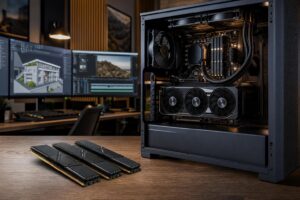
For a new Blender workstation, 32GB is the minimum we would normally recommend. It is enough for many individual projects, but it can become restrictive once you have Blender, texture tools, compositing software, a browser, reference material, and background applications open together.
System RAM and GPU VRAM solve different problems. Adding system memory does not make a scene fit into a GPU with insufficient VRAM, but too little RAM can still cause slowdowns, disk paging, instability, or an inability to work efficiently with large source files.
Blender project files, texture libraries, simulation caches, render outputs, and backups can grow faster than expected. A 1TB SSD is workable for lighter use, but a 2TB NVMe SSD is a more comfortable starting point for professional work. A second SSD is worthwhile when you want separate space for active projects, caches, or large asset libraries.
Fast storage helps projects open, save, cache, and transfer more smoothly. But a very expensive top-tier SSD will not shorten a GPU-bound render in the way a better graphics card can. Capacity, reliability, and sensible organization usually matter more than chasing the highest sequential speed rating.
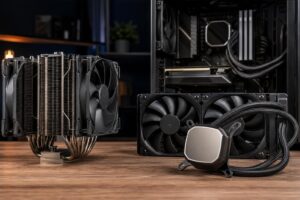
Rendering can keep a CPU and GPU under sustained load for hours. That makes cooling and power delivery part of performance, not just presentation. A well-ventilated case, correctly sized CPU cooler, quality power supply, and sensible fan layout help the system sustain its expected clocks with less heat and noise.
This matters even more with a powerful GPU or multi-GPU configuration. A cramped case with poor airflow can turn an expensive workstation into a warm, loud disappointment. Multi-GPU systems also need careful attention to physical spacing, motherboard lane layout, power delivery, cooling, and the software workflow. They are specialized tools, not a universal shortcut.
Spend more on GPU performance and VRAM if you render in Cycles, work in large real-time scenes, or use GPU-accelerated tools. Increase RAM when scenes, simulations, or concurrent applications are pushing memory limits. Choose more CPU cores when CPU rendering or simulation is a regular part of the job.
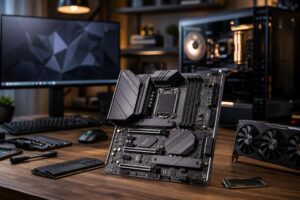
You can usually save money on an overbuilt motherboard, extreme RGB lighting, and storage speeds that exceed what your file workflow can notice. A quality motherboard with the ports, M.2 slots, memory support, and expansion you need is smarter than paying for features that will remain unused.
The best PC for Blender is not necessarily the most expensive one. It is the one that removes the bottleneck you encounter most often: GPU render time, VRAM limits, slow simulations, insufficient RAM, or inadequate project storage.
At Overclock Computers, we can help configure a Blender workstation around the work you actually do, from modeling and motion graphics to large Cycles renders and simulation-heavy production. Share your budget, typical scene size, render engine, other software, monitor setup, and upgrade plans, and we can recommend a balanced custom system without padding the build with hardware you do not need.