How to Choose a Motherboard: Features That Actually Matter

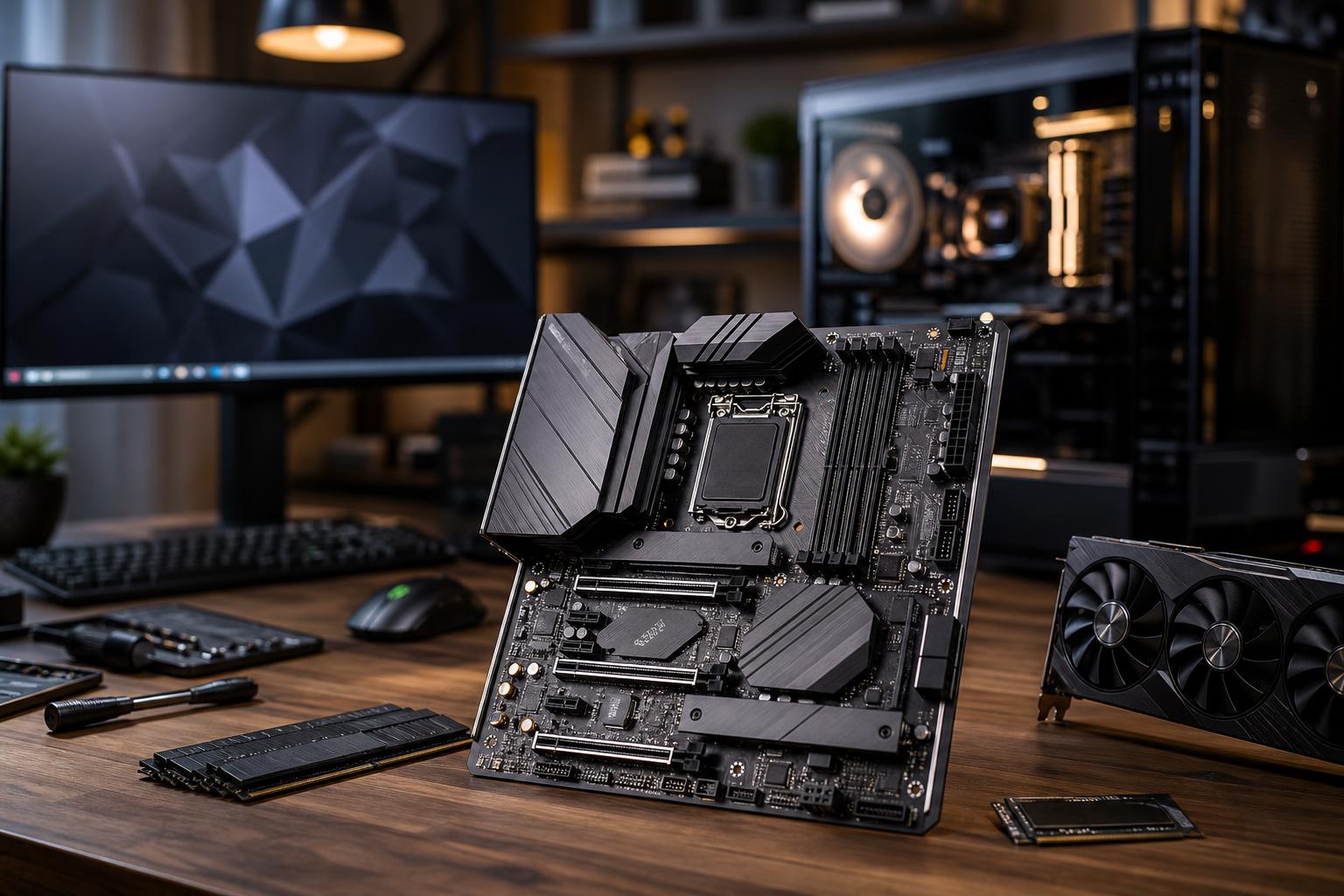
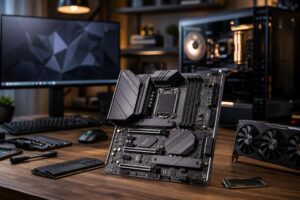
A motherboard rarely adds frames per second or makes a render finish dramatically faster by itself. That doesn’t make it an unimportant part of a PC. It determines which CPU and memory you can use, how much storage and expansion the system supports, which ports are available, and how easily the machine can be maintained or upgraded later.
The right approach is simple: start with the CPU, case, and workload, then choose a motherboard with the features the system needs. Don’t buy the cheapest board that technically fits. But don’t pay for a flagship board full of ports and overclocking features you’ll never touch, either.
Every motherboard is built for a specific CPU socket. The socket must match the processor exactly. An AMD processor and an Intel processor do not share a socket, and even CPUs from the same manufacturer can require different platforms.
Once the socket is correct, the chipset affects the board’s available connectivity, expansion options, and tuning features. Chipsets are often presented as a simple good-better-best ladder, but that is only partly true. A midrange chipset board may be a better purchase than an entry-level board with poor connectivity or a premium board with features that don’t matter to you.
Before buying, confirm three things:
For most gaming systems, a solid mainstream motherboard with the right socket is enough. For professional systems, the platform choice can matter more because it affects PCIe lanes, memory capacity, storage options, and support for features such as ECC memory. Those are reasons to move up a platform; a decorative heatsink is not.
Motherboards come in several physical sizes. The three most common are ATX, microATX, and Mini-ITX.
An ATX board does not make a PC faster than a microATX board using the same CPU and graphics card. The advantage is room to grow and more convenient connectivity. If you know you need extra add-in cards, multiple NVMe drives, many case fans, or several USB devices, ATX makes life easier.
The motherboard’s voltage-regulator module, usually called the VRM, converts power from the power supply into the low-voltage power the CPU needs. A weak or poorly cooled VRM can run hot under long, heavy CPU workloads. In the worst cases, that may reduce sustained processor performance.
For a modest gaming CPU, most reputable boards are perfectly adequate. You do not need a massive, premium VRM because a product page lists an impressive number of power stages. Gaming loads rise and fall, and many CPUs are nowhere near as demanding as high-core-count processors under an all-core render.
Spend more attention on VRM quality when the PC will use a high-power CPU for long-running work such as rendering, code compilation, simulation, video export, or data processing. Look for substantial heatsinks around the CPU socket and independent reviews that test sustained loads. A well-designed midrange board is usually the sensible target. The top-tier overclocking board is only worthwhile when its specific features are genuinely useful.
Connectivity is where an otherwise good motherboard can become frustrating six months after the build. Make a quick list of what will connect to the machine now and what may be added later.
Most new systems should use at least one NVMe M.2 SSD for the operating system and main applications. If you expect to add more fast storage, count the M.2 slots. For a gaming computer, two slots are often plenty: one for the main drive and one for a future game-library drive. A video editing, 3D, or engineering workstation may benefit from three or more slots for separate project, cache, and archive drives.
Also check the manual for lane-sharing rules. On some boards, installing an SSD in a particular M.2 slot disables one or more SATA ports or changes the bandwidth available to another slot. This is normal platform behavior, not necessarily a flaw, but it should be planned rather than discovered after the cables are routed.
Rear USB ports matter for keyboards, mice, audio interfaces, external drives, webcams, controllers, and printers. More importantly, check the internal headers that feed the case’s front ports. If the case has front USB-C, the motherboard needs the appropriate internal USB-C header for that port to work at its intended speed.
External SSD users should pay particular attention to high-speed USB support. A fast external drive connected to a basic USB port will still work, but it may transfer files far below its potential speed.
Wired Ethernet remains the best choice for stable gaming, large file transfers, and workstations connected to a reliable network. Standard gigabit Ethernet is still enough for many homes and offices. Faster 2.5-gigabit Ethernet is useful if the network, router or switch, and storage server can support it. Buying a faster network port does not accelerate an internet plan that is slower than the port.
Built-in Wi-Fi and Bluetooth are worth having if the PC cannot be wired easily, if you use wireless peripherals, or if you simply want flexibility. Adding a Wi-Fi card later is possible, but onboard wireless is usually cleaner and preserves a PCIe slot.
Nearly every gaming PC needs one full-length PCIe slot for the graphics card. That is the essential one. The next question is whether you will truly install anything else: a capture card, professional audio interface, high-speed network card, storage controller, or another specialty card.
For most single-GPU gaming PCs, extra full-length slots are not a reason to overspend. Multi-GPU gaming is effectively a thing of the past, and two large graphics cards are impractical in many cases. Professional users are different. A workstation with add-in storage, networking, capture, or compute hardware should be planned around slot spacing and PCIe lane availability from the beginning.
Small details can make a system much easier to build and live with. Check that the motherboard has enough fan or pump headers for the chosen cooling setup. A large air-cooled ATX build may use three to six case fans plus a CPU fan. Splitters and hubs are available, but native headers are convenient and simplify control.
Other useful features include a BIOS flashback function, diagnostic LEDs, a clear-CMOS button, and a clear layout around the CPU socket and primary graphics slot. These do not improve benchmark results, but they can turn a frustrating troubleshooting session into a five-minute fix.
Onboard audio is good enough for most users. Spend more on a dedicated audio solution only when there is a specific need, such as high-impedance headphones, music production equipment, or a known noise issue. A board’s audio marketing language is usually less meaningful than a good headset, speakers, or external DAC.
A sensible motherboard budget supports the rest of the build rather than stealing money from components that directly affect the workload.
Skip premium boards that are expensive mainly because of extreme overclocking features, elaborate lighting, or connectivity you cannot name a use for. A motherboard should be a dependable foundation, not the most expensive item in a PC with one graphics card and one SSD.
The best motherboard is the one that supports the computer you are actually building: the right CPU, enough storage, useful ports, dependable power delivery, and a reasonable upgrade path. It should not force compromises with the case, cooling, graphics card, or intended peripherals.
If you are planning a gaming PC or workstation and want a second set of eyes on component compatibility, contact Overclock Computers. We can help turn your workload, monitor, software, storage needs, and budget into a balanced system rather than a pile of impressive-looking specifications.